Automatic Email Labeling helps you organize and track how Eloquens AI handles your emails by automatically applying labels based on workflow outcomes. These labels make it easy to see at a glance which emails received AI responses, which were filtered out, and which were routed to team members - all without any manual effort.
What Happens Behind the Scenes
When you enable this feature, Eloquens AI automatically labels your emails based on how your workflow processes them:
Intelligent Labeling: Labels are applied automatically after each email is processed by your workflow
Outcome-Based Organization: Different labels are applied depending on whether the AI responded, filtered, or routed the email
Multi-Provider Support: Works seamlessly with Gmail, Outlook, and Kerio Connect email accounts
No Manual Work: Once configured, labels are applied automatically - you never need to manually categorize emails
Understanding the Labels
Eloquens AI uses three distinct labels to track email handling:
| Label | What It Means | When It's Applied |
|---|---|---|
| Responded (EQ) | AI created and sent a response | When Smart Filter allows the email through and Intelligent Routing decides to respond |
| Not Responded (EQ) | Email was filtered and ignored | When Smart Filter determines the email doesn't require a response |
| Routed (EQ) | Email was forwarded to someone | When Intelligent Routing decides to forward the email to team members |
Note: The "(EQ)" suffix identifies these as Eloquens AI labels, keeping them separate from your personal labels.
How to Enable Automatic Email Labeling
Step 1: Navigate to Your Workflow Settings
- Go to Workflows in the main navigation
- Either create a new workflow or select an existing one to edit
- Click through the workflow setup until you reach Advanced Configuration
Step 2: Access Label Settings
- In Advanced Configuration, go to the
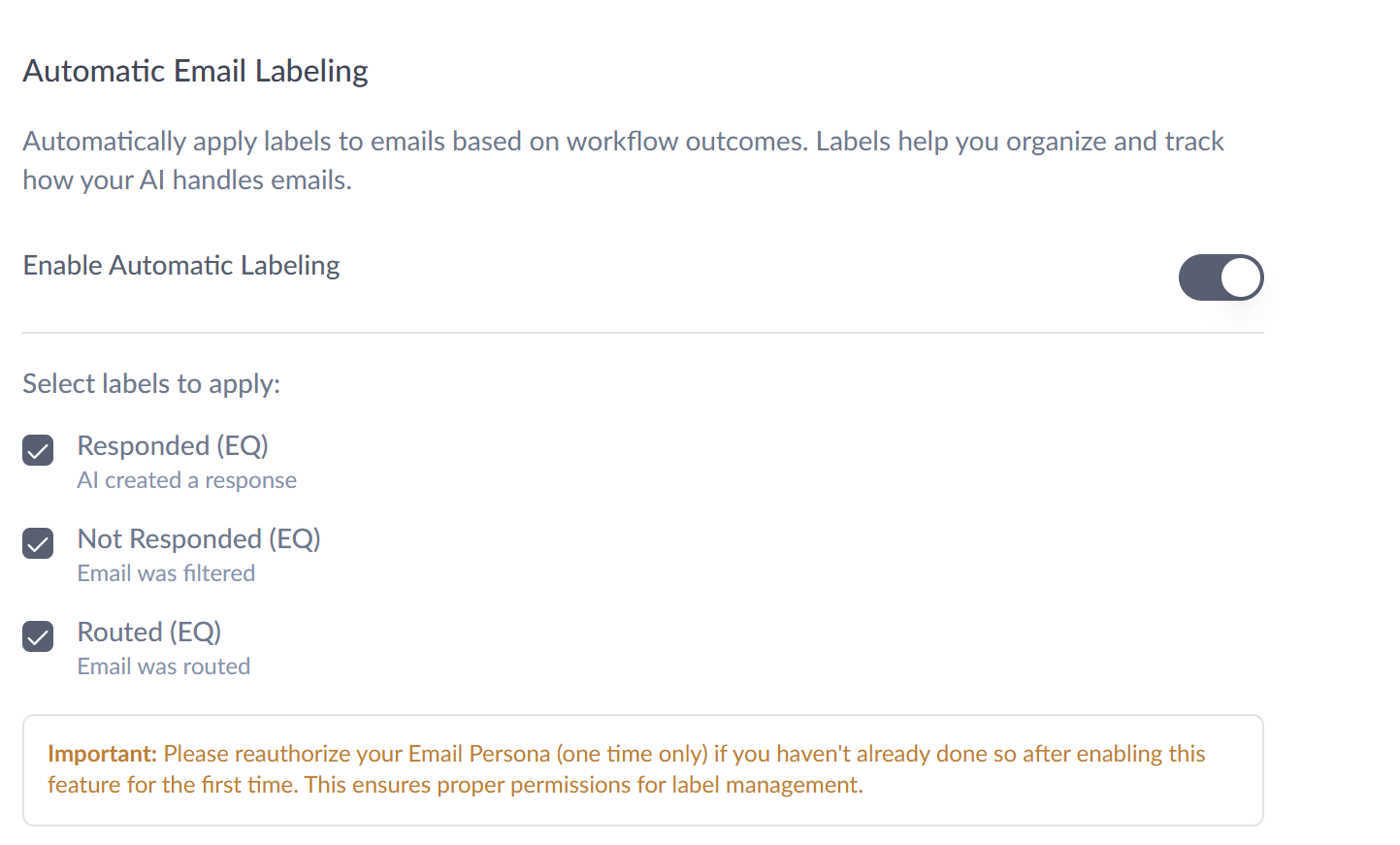
Workflow settings tab and scroll down to find the Automatic Email Labeling section - You'll see a toggle switch labeled "Enable automatic labeling"
- Below the toggle, you'll find a description explaining how labels help organize and track AI handling
Step 3: Enable the Feature
- Click the toggle switch to turn it ON (it will appear enabled when active)
- Once enabled, you'll see checkboxes for each available label type
Step 4: Select Which Labels to Apply
Choose which labels you want Eloquens AI to use:
- ☑ Responded (EQ) - Check this to label emails where AI created a response
- ☑ Not Responded (EQ) - Check this to label filtered emails
- ☑ Routed (EQ) - Check this to label forwarded emails
Tip: You can enable all three or choose only specific labels based on your organizational needs.
Step 5: Save Your Settings
- Click Save changes or Continue to proceed with your workflow setup
- Your label preferences are now active and will apply to all future emails processed by this workflow
- Important Note: You will need to reauthorize your Email Personas after enabling this feature for the first time.
How Automatic Labeling Works in Practice
When an Email Arrives
Smart Filter Review: Eloquens AI first determines if the email needs attention
Intelligent Routing Decision: If it passes the filter, AI decides whether to respond or route
Automatic Label Application: Based on the decision, the appropriate label is instantly applied to your email
What You'll See in Your Inbox
Clear Organization: Emails are automatically sorted with visible labels
Quick Identification: At a glance, see which emails AI handled and how
Easy Filtering: Use labels to create custom views and filters in your email client
Historical Tracking: Review past AI actions by filtering on specific labels
Managing Your Label Settings
To Edit Label Settings
- Return to Workflows → Select your workflow → Advanced Configuration
- Scroll to the Automatic Email Labeling section
- Change which labels are enabled/disabled using the checkboxes
- Click Save changes
To Disable Labeling
- Toggle the "Enable automatic labeling" switch to OFF
- Click Save changes
- No labels will be applied to new emails (existing labels remain unchanged)
Label Behavior by Email Provider
Gmail & Outlook
Labels appear as tags in your inbox alongside the email subject. You can:
- Filter emails by clicking on a label
- Create custom views based on label combinations
- Use labels in search queries
Kerio Connect
Important Note: Kerio Connect uses a folder-based system instead of tags. Emails with labels are moved to corresponding folders:
- Emails are physically moved to labeled folders
- Original email location changes when labeled
- Folders are created automatically if they don't exist
Best Practices
Choosing Which Labels to Enable
Enable All Three when you want complete visibility into all workflow actions
Response Tracking Only: Enable just "Responded (EQ)" if you primarily want to track AI-generated responses
Filter Monitoring: Enable just "Not Responded (EQ)" to see which emails were filtered out
Routing Oversight: Enable just "Routed (EQ)" to track emails forwarded to team members
Using Labels Effectively
Create Email Rules: Set up rules in your email client to automatically file labeled emails
Team Coordination: Share label meanings with team members who access the same account
Performance Review: Periodically review labeled emails to assess AI performance
Filter Refinement: Use "Not Responded" labels to identify if Smart Filter needs adjustment
Privacy and Email Provider Compatibility
Your email labeling is handled through:
Secure Authentication: Uses your existing email account permissions
Provider API: Works through official email provider APIs
Reversible Actions: Labels can be removed manually at any time through your email client
What You'll See in Action
When Automatic Email Labeling is active:
Immediate Labeling: Labels appear on emails within seconds of AI processing
Consistent Tracking: Every workflow-processed email receives appropriate labels
Easy Audit Trail: Review AI decisions by filtering on specific labels
Organized Inbox: Clear visual organization of how emails were handled
This feature works alongside your Smart Filter, Intelligent Routing, and Response settings to provide complete transparency into how Eloquens AI manages your email communications.
Soma Konate
Comments