The Rules tab is where you tell an assistant what to do, in short sentences it reads back to you. The most common job is keeping it out of mail it should never touch: a sender who should not get an automated reply, or a whole domain such as a partner or a competitor.
How the tab is organised
For an assistant that uses rules, there are four lists, each with its own add button:
| List | What it does |
|---|---|
| Don't reply to | Left completely alone. Nothing is drafted, nothing is sent. Feeds the Smart Filter. |
| Show me first | Drafted and held for you before anything goes out. Used in Intelligent Send. |
| Bring in a person | Copy in adds them to the reply; Forward sends them a separate message. |
| How to write | One tone to start from, then anything it should always or never do. |
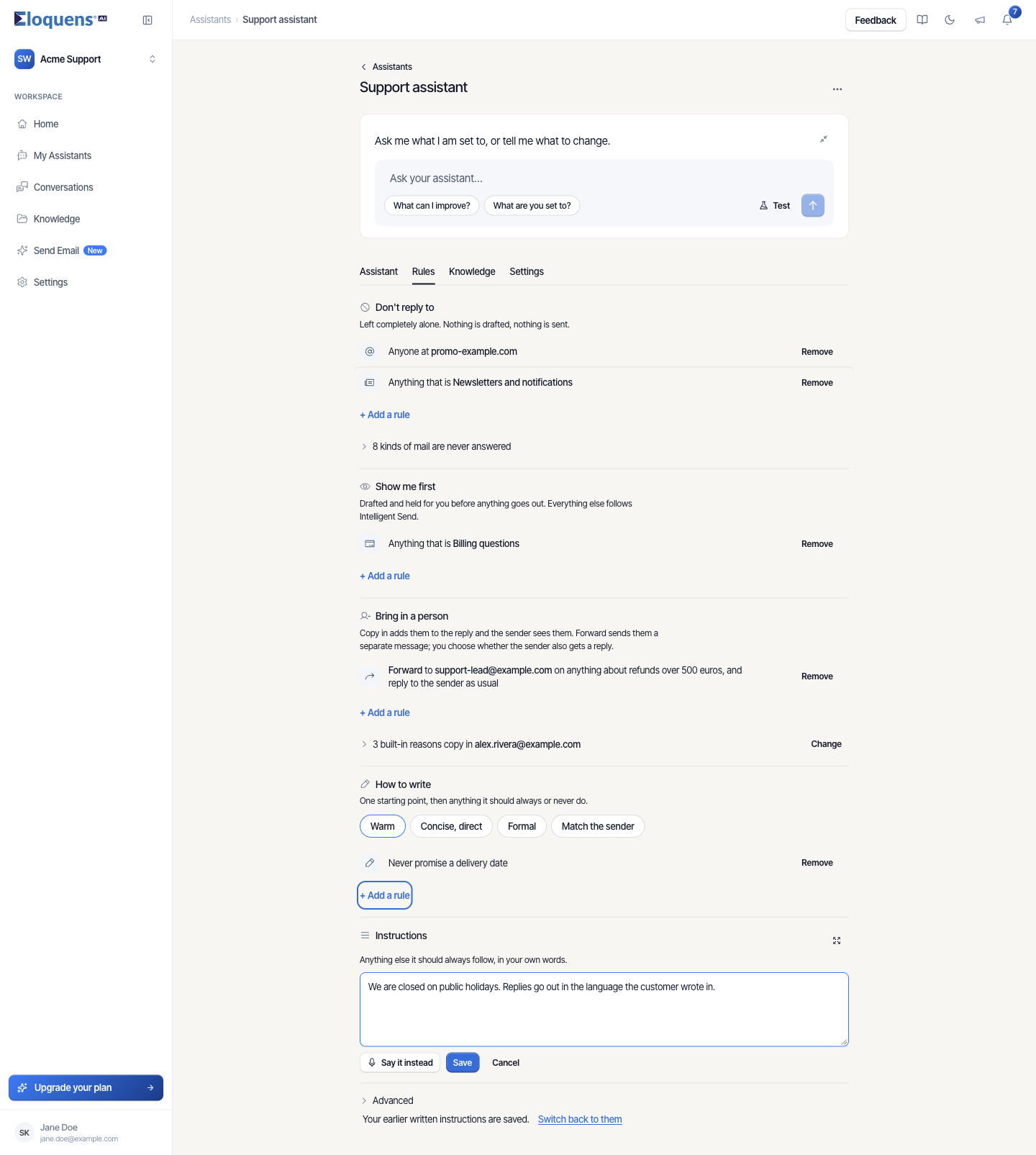
Below them: Instructions (anything else, in your own words) and Advanced, which shows what the assistant actually reads, written from the rules above. Every line in the Advanced view has a Show rule link back to the rule that produced it.
Block a single sender
- Open the assistant and click the Rules tab.
- In Don't reply to, click + Add a rule.
- Type the email address in the Describe the rule box.
- The Reads as line shows the sentence the assistant will follow.
- Click Add.
Block a whole domain
- In Don't reply to, click + Add a rule.
- Type the domain, for example
example.com. You can also pick a kind of mail from the chips instead (Newsletters and notifications, Cold outreach, Everything else and so on). - Reads as shows Anyone at example.com (or Anything that is Newsletters and notifications for a kind).
- Click Add. The rule appears in the list as a plain sentence.
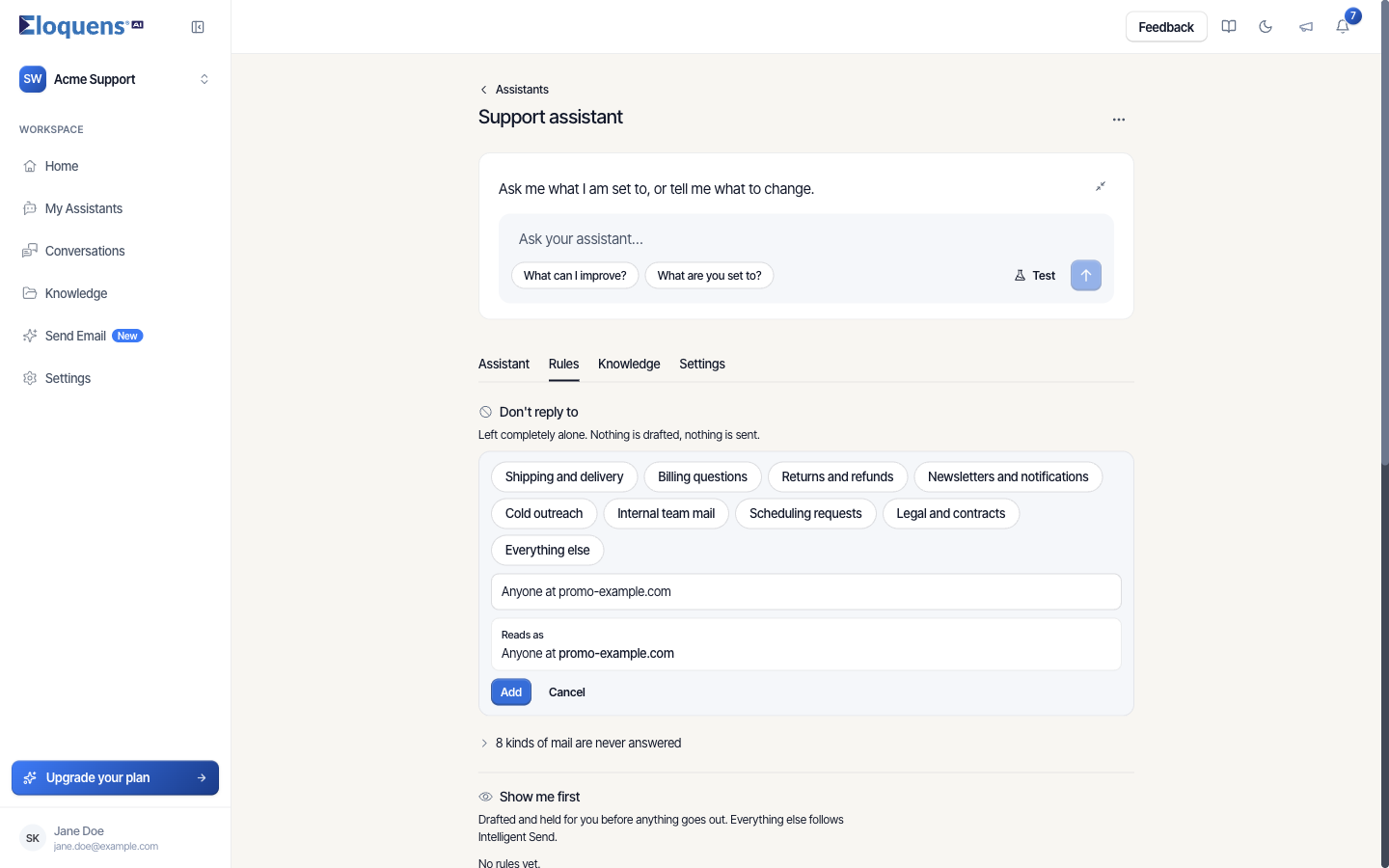
Blocked senders and domains are stored on the assistant's blocked list as well as in the rule, so they are respected even before any reasoning happens.
Edit, remove and undo
- Each rule row has Edit and Remove. Edit reopens the composer; Save keeps its place in the list.
- Remove deletes a rule. The row stays briefly with an Undo button.
- Removing a rule also removes the sender or domain it added to the blocked list. Entries added another way are left alone.
Forward rules are managed separately
Forwarding and copying people in live in Bring in a person, not here. A Don't reply to rule stops everything for that mail; it does not forward it anywhere. If you want a sender's mail passed to a colleague rather than answered, add a Forward rule under Bring in a person and choose No, only forward. See Intelligent Routing: bring in a person or forward an email.
If your assistant still runs on written instructions
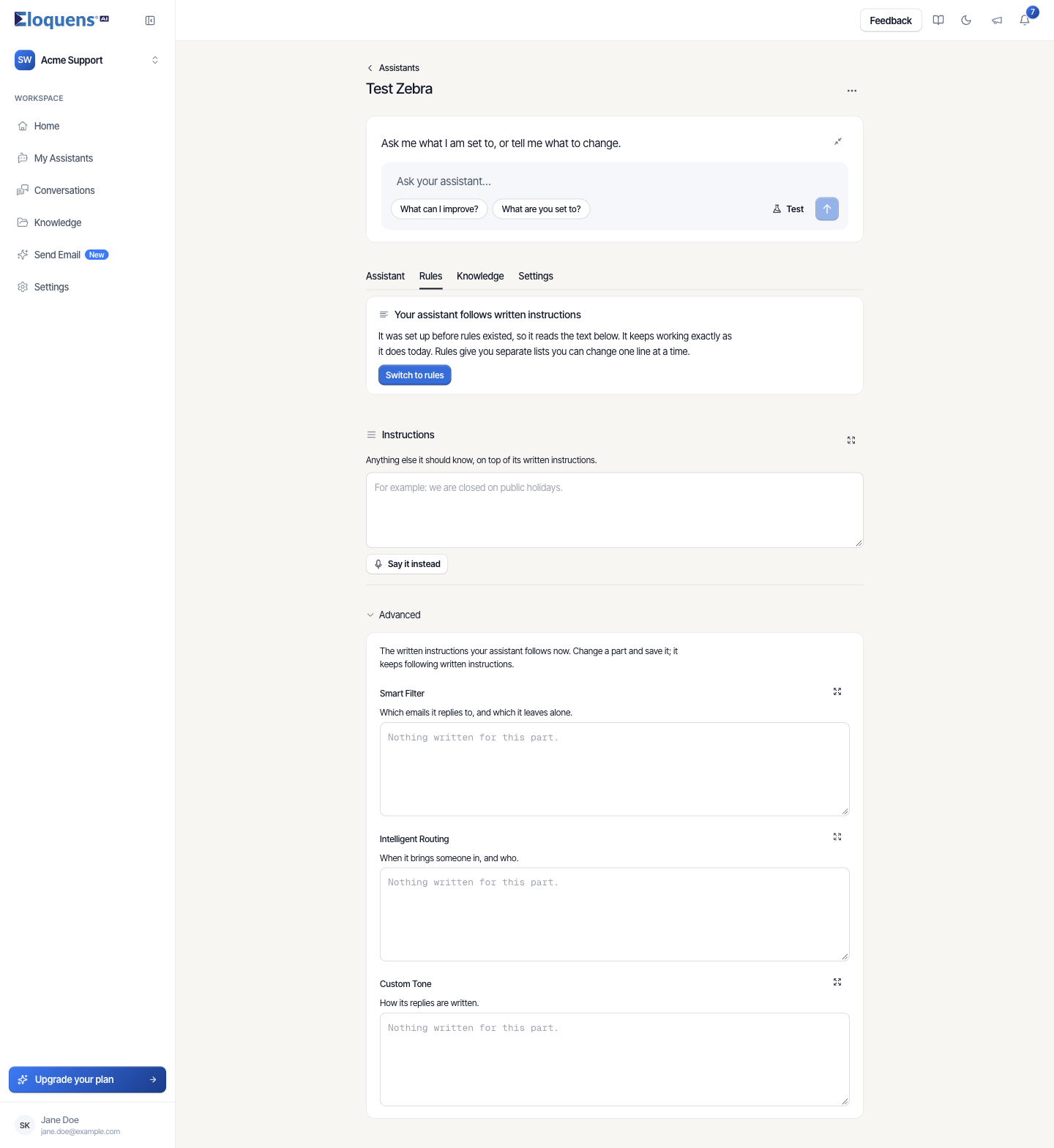
Assistants created before rules existed follow three written parts instead: Smart Filter, Intelligent Routing and Custom Tone. For those assistants the Rules tab opens with the banner Your assistant follows written instructions (It was set up before rules existed, so it reads the text below. It keeps working exactly as it does today. Rules give you separate lists you can change one line at a time.), then the Instructions box, then the three written parts under Advanced, where you can still edit and save them.
To move to rules:
- Click Switch to rules in the banner.
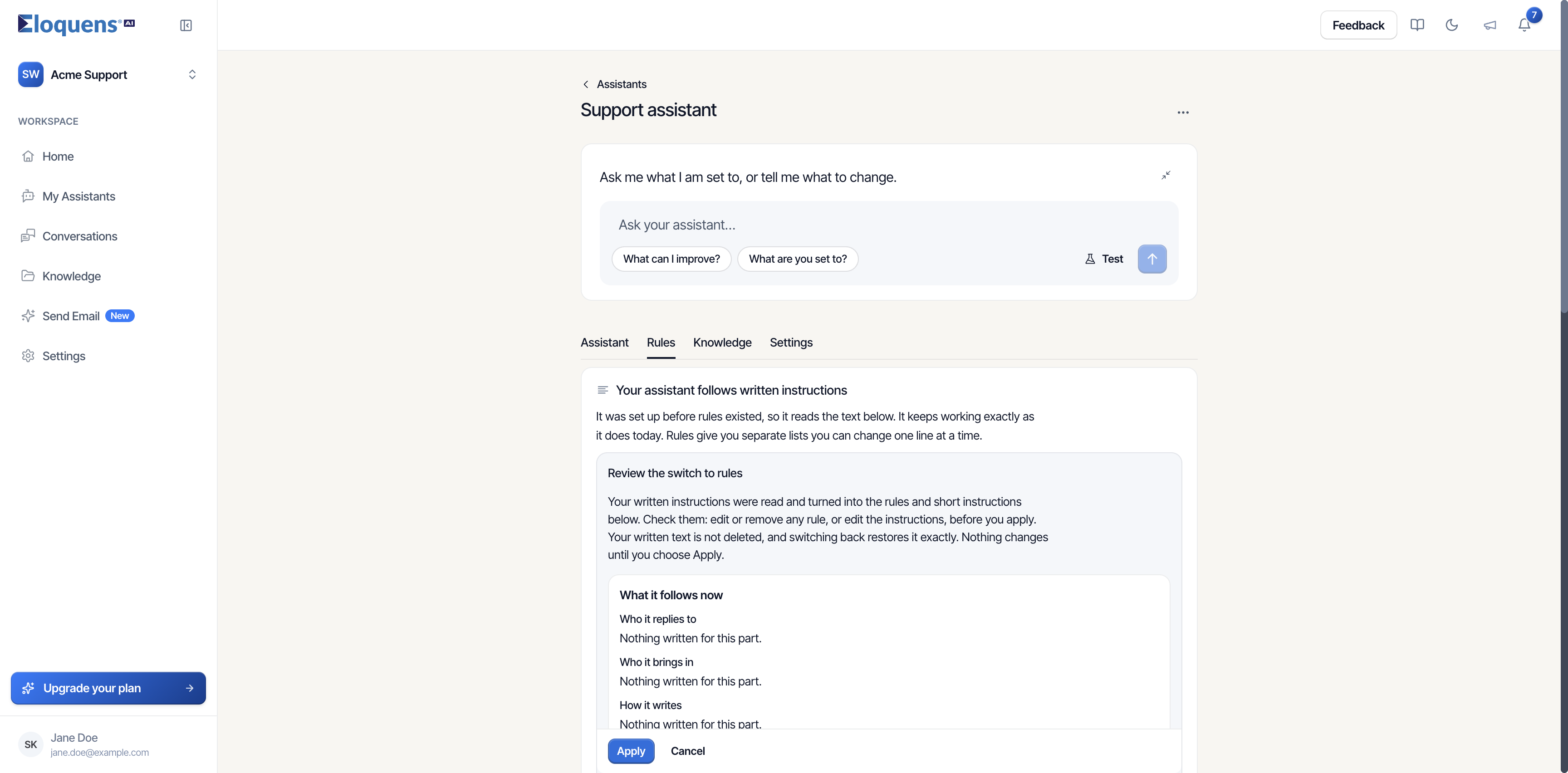
- A Review the switch to rules panel opens. It shows What it follows now (who it replies to, who it brings in, how it writes) and What it will follow: the rules your written text becomes, with anything that cannot be a rule condensed into Instructions. Edit or remove any rule before you apply. Nothing changes until you choose Apply.
- Read the Before you switch note: Intelligent Send conditions are not carried over, so add them under Show me first after the switch.
- Click Apply, or Cancel to back out.
Your written text is kept. A line at the bottom of the tab says Your earlier written instructions are saved. with a Switch back to them link; confirming Switch back restores them, and your rules stay saved for when you switch again.
While an assistant follows written instructions, rules you add (including through Ask your assistant) are saved but do not run until you switch.
Good to know
- Rules compile into the instructions the assistant reads the moment you save them, so there is no separate publish step.
- A rule can also describe a situation rather than a sender: "anything about job applications" works in Don't reply to too.
- The built-in kinds of mail that are never answered sit at the bottom of Don't reply to. See Smart Filter: decide what your assistant replies to.
- From Conversations, the row menu's Block sender and Block thread add to the same blocked list. See Conversations: act on a message or a thread.
Related articles
- Smart Filter: decide what your assistant replies to
- Intelligent Routing: bring in a person or forward an email
- Custom tone, instructions and signature
- Ask your assistant to change its own settings
Soma Konate
Comments