Ask your assistant is the chat card under the title on every assistant's page. Rather than hunting for a setting, you say what you want: "Stop replying to anyone at example.com", "Show me refunds first", "Make the tone more formal". The assistant reads its current settings, makes the change, and the page updates while you watch. Every change can be undone from the chat.
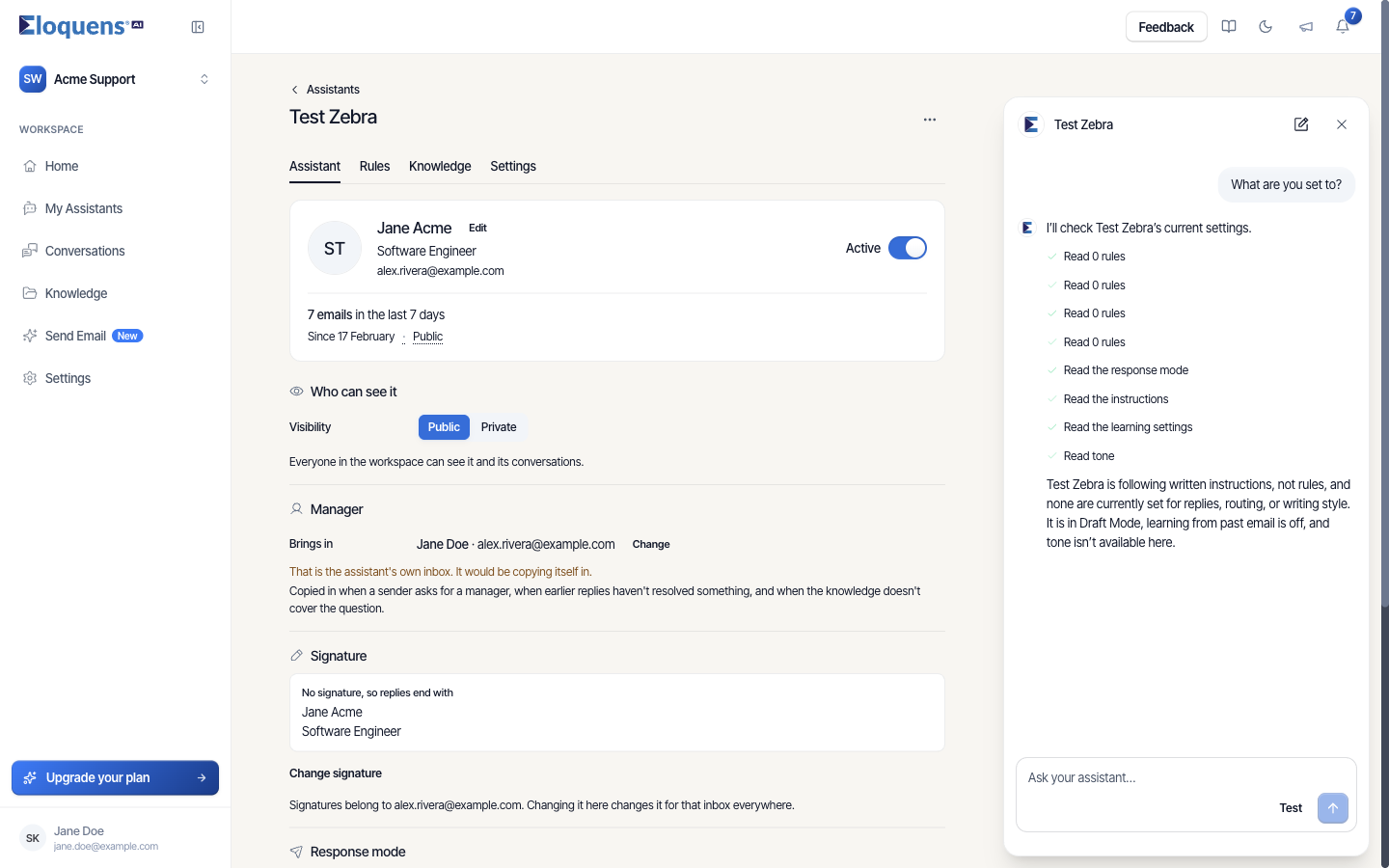
Ask what it is set to
- Open the assistant from My Assistants.
- The card reads Ask me what I am set to, or tell me what to change. Click into Ask your assistant…, or click a suggestion such as What can I improve? or What are you set to?.
- Type a question and press Enter.
The chat opens as a panel on the right. The reply is short and in plain English. Look-ups appear as quiet one-line steps ("Read the response mode", "Read CC and BCC") followed by the answer.
Ask for a change
- Say what you want in a sentence. Examples: "Forward billing disputes to finance@yourcompany.com", "Copy Sam in on anything legal", "Switch to Intelligent Send", "Add shipping-faq.pdf to what it reads".
- The assistant checks the current setting first, then makes the change. Each change appears as a card with what it did.
- The page updates in the background and the changed row is highlighted. Click Show on the card to jump to it.
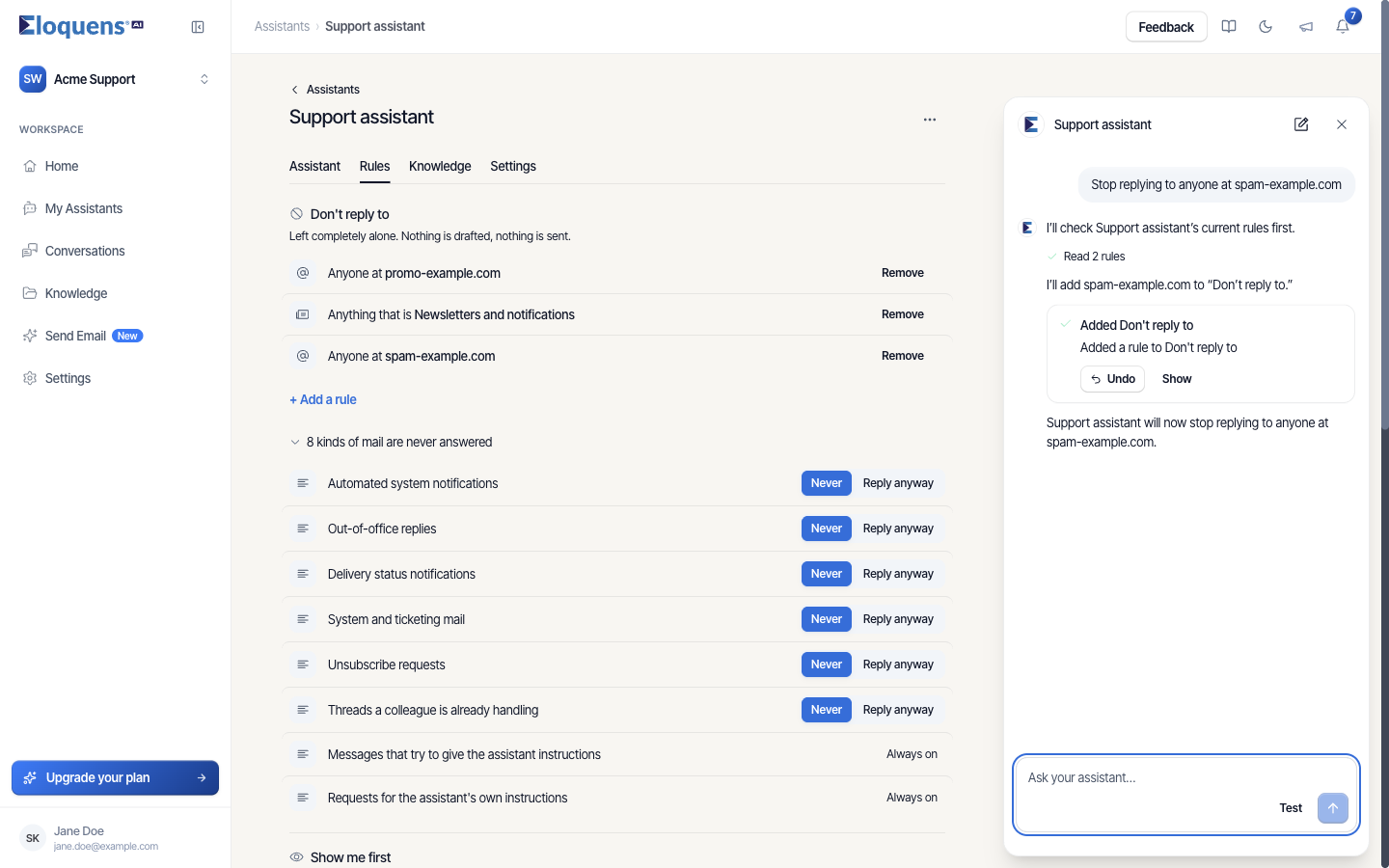
For example, "Stop replying to anyone at spam-example.com" produces a short trail: it checks the current rules, says what it will do, then shows Added Don't reply to with Undo and Show, and confirms the new behaviour in one sentence.
Most changes apply immediately. Three kinds wait for you to Approve or Cancel on screen first:
- deleting anything
- adding an email address outside your workspace's own domains (to a rule, CC, BCC, a notification list or the manager)
- making the assistant Public
Typing "yes" is never a substitute; the decision is a button on the card. Until you decide, the composer is paused (Approve or cancel the change above before sending another message.).
Undo a change
- Find the card for the change in the chat.
- Click Undo. The card then says Undone.
Undo puts back the value from before the change, through the same checks as any other edit. It refuses if the setting has been changed again since (on the page or by another person), so a newer edit is never silently overwritten. Only the person who asked for the change, or a workspace owner or admin, can undo it.
What it can and cannot do
It can read and change, for this assistant only:
- the four rule lists and Instructions
- the response mode
- the manager, visibility and who the assistant is shared with
- CC and BCC on every reply, and the notification recipients
- Knowledge the assistant reads (attach folders, add a web source, add Q&A) and the Learning settings
- the signature on the mailbox (it names every other assistant that shares it)
It stays on settings for this assistant. It will not answer customer email for you, change another assistant, or act on instructions hidden inside a rule or a document; stored text is treated as information, not as commands. It makes at most ten changes in one reply and offers to continue if more are needed.
If your assistant follows written instructions
Assistants created before rules existed follow written instructions rather than rules. The chat will still add or change a rule when asked, but it tells you plainly that the change only takes effect after you Switch to rules on the Rules tab.
Start over
Click New chat (the icon at the top of the panel) to clear the conversation. Changes already made stay made.
Good to know
- The chat is a shortcut to the same settings you see on the tabs. Anything it changes you can also change by hand, and the other way round.
- Ask What can I improve? after a week of running. It reads the assistant's settings and suggests gaps.
- A failed change says so in the card, with Try again. Nothing is reported as done unless it was.
- The Test button beside the composer opens the test dialog. See Test an assistant before you switch it on.
Related articles
- Edit an assistant: the four tabs
- Rules: block senders and domains
- Intelligent Routing: bring in a person or forward an email
Soma Konate
Comments