Ask Eloquens is one chat you can open from any page. Use it to ask an assistant what it is set to, to see how many emails it handled, to change a rule, to write a new email, or to find out how to do something in Eloquens. Each assistant keeps its own chat, so you can come back to it later.
Open the chat
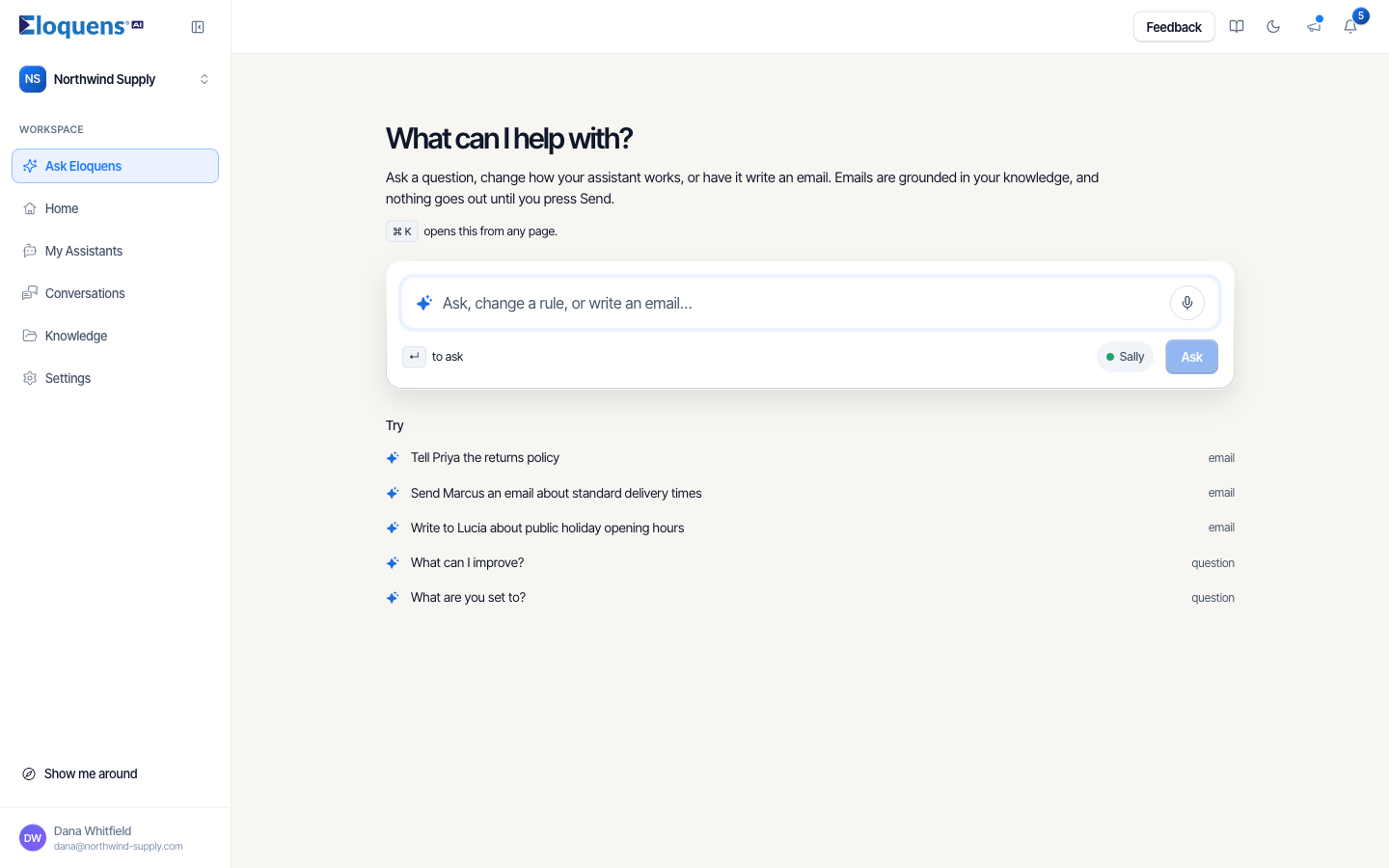
- From the left rail. Click Ask Eloquens, the first item in the rail. The page opens with What can I help with? and a message box that reads Ask, change a rule, or write an email…. Type your message and press Enter or click Ask. After your first message the page becomes a chat.
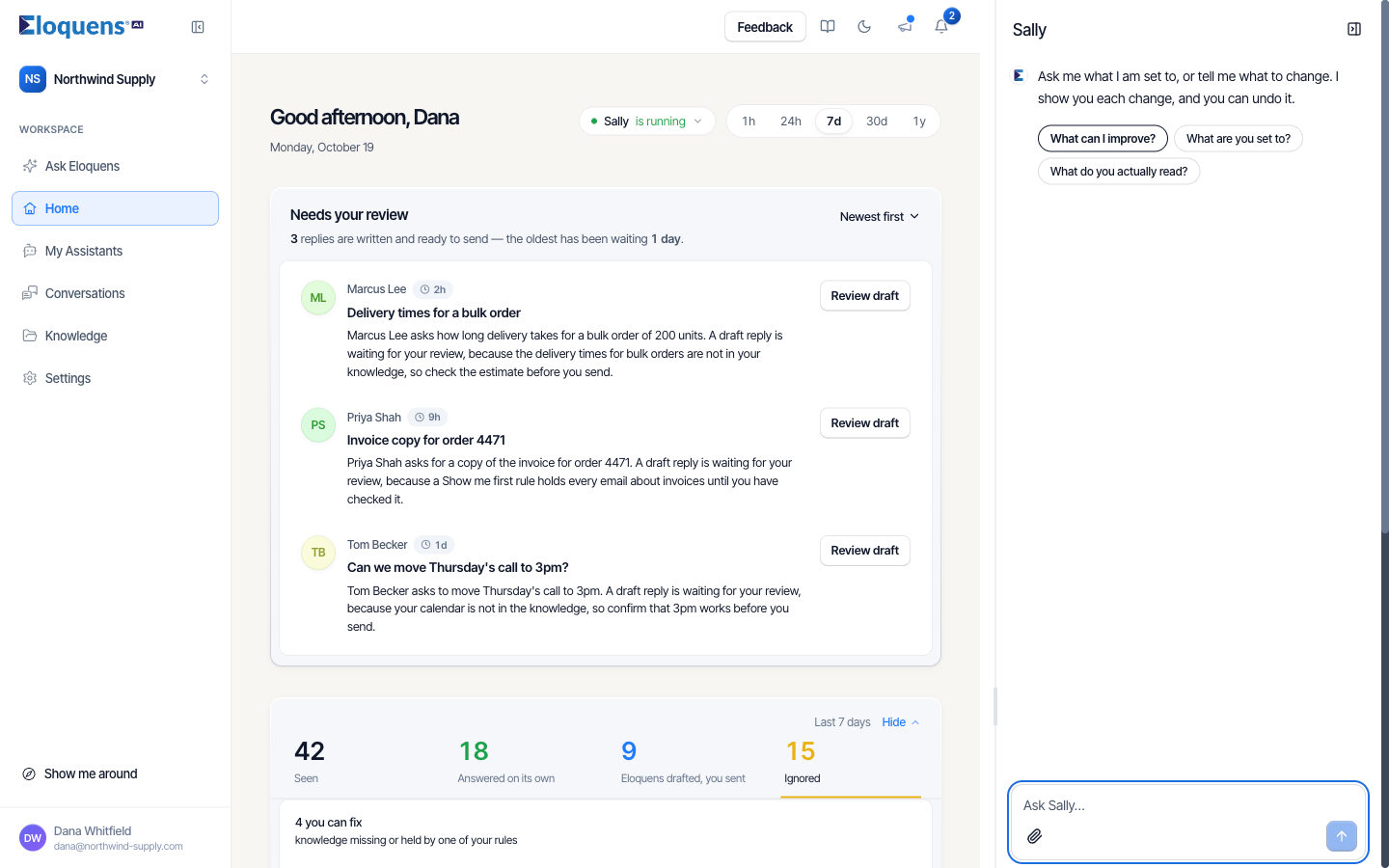
- From any page. Press ⌘ K (Mac) or Ctrl K (Windows). A panel opens on the right, beside the page you are on, with the assistant's name at the top and Switch assistant next to it. Press the shortcut again to close it. On the Ask Eloquens page the shortcut puts the cursor in the message box.
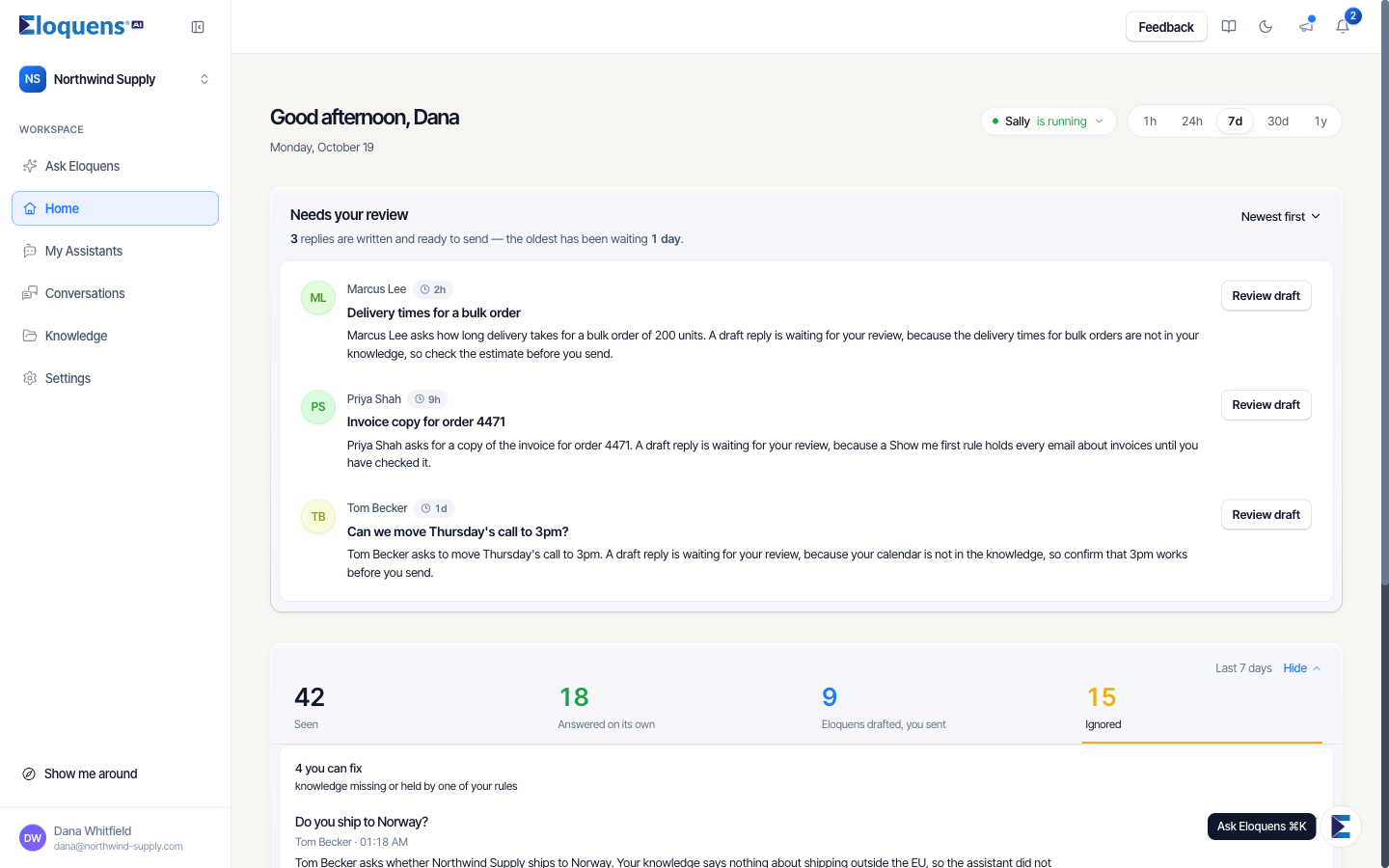
- From the button. The Ask Eloquens button floats at the bottom right of the app. It is hidden on the Ask Eloquens page and on the sign-in and setup screens.
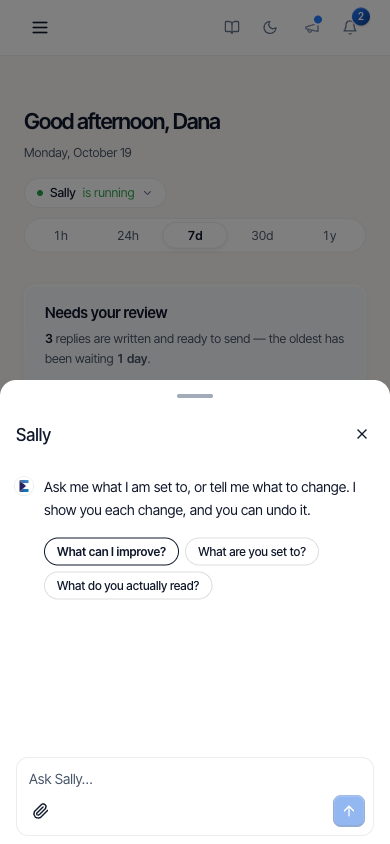
- On a phone. Choose Ask Eloquens in the menu, or tap the floating button. The chat opens as a sheet from the bottom of the screen. Drag the handle up to make it taller and down to close it.
If your workspace has more than one assistant, choose which one you are talking to with the picker next to the Ask button (Choose an assistant), or with Switch assistant at the top of the panel. Each assistant keeps its own chat.
Start from an example
Under Try on the first screen you will see examples built from your own knowledge. A question is asked as soon as you click it. An email example is put in the message box so you can edit it before you send. Until the assistant has something to read, the list says Add knowledge and examples will appear there.
What you can ask
Questions about the assistant
- Open the chat and choose the assistant.
- Type a question, or click a suggestion such as What can I improve?, What are you set to? or What do you actually read?.
- The answer appears word by word, in plain English.
Counts of emails
Ask how many emails an assistant handled, for example "How many emails came in yesterday?" or "How many billing questions came in last month?". The chat answers from the assistant's daily totals. You can also ask what happened to recent emails, for example "What emails did you process today?". Each email comes back with what happened to it and why.
Changes to the assistant
Say what you want to change, for example "Stop replying to anyone at example.com". The chat shows each change as a card with Undo. Deleting something, adding an address outside your workspace's domains, and making an assistant Public wait for your Approve or Cancel first. See “Ask your assistant to change its own settings” for the full list.
A new email
Ask the chat to write to someone, for example "Write to Marcus and ask for the invoice copy by Friday". The chat shows a card, and a short line when the email is ready: Draft ready to review. Nothing is sent until you press Send. See “Write an email with Ask Eloquens”.
A document or an image
- Click Attach a document or image in the message area, or drop or paste a file into the chat.
- You can attach up to four files to one message. Images can be PNG, JPEG, WebP or GIF. Documents can be PDF, Word, text, Markdown or CSV, and each must be under 10 MB.
- Ask your question. The chat reads the file and answers from it.
The chat keeps only the name of an attached file after you reload, so attach the file again if you want to ask more about it. While a file is attached, every change the chat makes waits for your approval, except adding a question and answer, which shows Undo.
Saving an attached document to knowledge
- Attach the document and ask the chat to add it to knowledge.
- A card asks How should I use this document? It shows two choices:
- Add it to my folder. The assistant reads the whole document when it replies. If the assistant reads one folder, the document goes into it. If it reads several, choose under Which folder? and click Add to followed by the folder name.
- Turn it into Q&A. The assistant pulls questions and answers out of the document and you check them before it uses them. Click Leave out on any pair you do not want, then click Add with the number of Q&A.
- The card says Nothing is saved until you choose. After you choose, it shows the progress and then Added to the folder name, or Added and the number of Q&A.
- Click Undo on the card to take it back out.
Reading a document usually takes a few minutes, and you can close the chat while it finishes. Files over 50 MB are not uploaded.
Where to find something
When the chat gives you steps for a page, it shows a Show me button. Click it to open the page. Eloquens rings the first thing to press and says Start here. Click Got it when you have seen it. If the page opens but the thing is not there, the chat says so, because you may not have access to it.
How-to questions
Ask how to do something in Eloquens, for example "How do I add a Google Doc?". The chat answers from Eloquens's own guide and from the help center, and it can give you the link to the article. If the help center cannot be reached, the chat tells you instead of guessing.
Good to know
- Click New chat in the panel header to start with an empty chat. Changes you already made stay made.
- The chat works on the assistant you picked. It does not answer your customers' email for you and it does not change another assistant.
- To ask about one email in a conversation, open that email and click Ask about this email. See “Ask about this email, and redo it”.
- Writing an email needs an assistant with a connected, active mailbox.
Related articles
- Write an email with Ask Eloquens
- Ask your assistant to change its own settings
- Ask about this email, and redo it
- Add documents to your knowledge
Soma Konate
Comments