Eloquens AI connects to a mailbox you already use and puts an assistant on it. The assistant reads new mail as it arrives, decides whether a reply is needed, writes that reply from the knowledge you have given it, and either saves it as a draft for you to approve or sends it on your behalf. You stay in control: every outcome is visible in the app, and nothing is sent in your name unless you have chosen a response mode that allows it.
What an assistant does
- Reads your mailbox. Eloquens connects to Gmail, Microsoft 365 / Outlook, GFI Kerio Connect, or any other mail server over IMAP. It checks for new messages continuously and resumes where it left off, so a short interruption does not skip mail.
- Decides what deserves a reply. The Smart Filter screens each message and leaves newsletters, notifications and other noise alone. Rules let you block specific senders or whole domains.
- Brings in a person when needed. Intelligent Routing copies in the right colleague when a message needs a human, for example when a sender asks for a manager or the knowledge does not cover the question.
- Writes the reply. Answers are grounded in your Knowledge: uploaded documents, website pages, Google Docs and Word files that stay current, Q&A pairs, tables, and live data from connected tools such as Salesforce and HubSpot. A Custom tone keeps the wording in your voice.
- Drafts or sends. You pick a response mode on the assistant's page: Draft Mode drafts every reply and shows you before anything goes out; Intelligent Send sends when it is sure and holds the rest for you; Auto-Send sends every reply on its own.
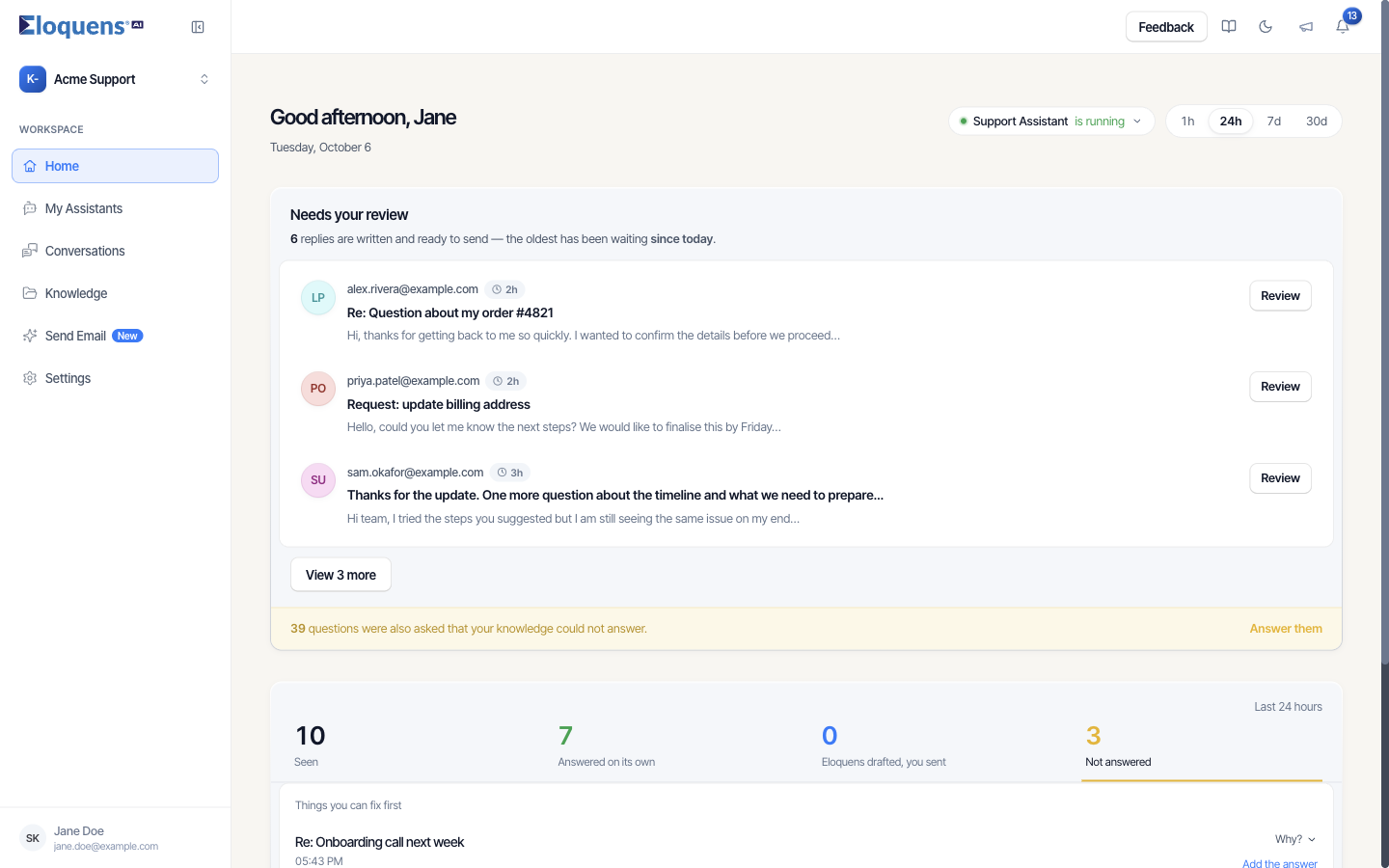
Where things live in the app
| Left rail item | What you do there |
|---|---|
| Home | See what the assistant saw, answered on its own, drafted for you, or did not answer, and review the replies waiting for you. |
| My Assistants | Create and configure assistants: the mailbox they read, their rules, knowledge and settings. |
| Conversations | Read every thread the assistant handled, with an AI summary and the reasoning behind each decision. |
| Knowledge | Add and manage the sources your assistants answer from, and answer the questions they could not answer yet. |
| Send Email | Describe an email you want to send; Eloquens writes it as your assistant and sends only when you press Send. |
| Settings | Connect email accounts, manage signatures, members, workspace activity, your subscription and the Chrome extension. |
Your own details, password, authenticator app and privacy choices live on the Profile page, which opens from your account chip at the bottom of the left rail.
Working from your inbox
If you prefer to stay in Gmail, the Eloquens Chrome extension opens a side panel beside your mail. It shows what the assistant did with the open email and lets you approve a waiting reply without leaving your inbox. See Use the Eloquens Chrome extension for setup.
Privacy and who can see your mail
Your message content is encrypted at rest and processed inside a sealed environment. If you ever ask support to look at a specific message, they can do so only after you approve that request with a code from your authenticator app. The access is time-limited, and every request is recorded in a history you can review from your Profile page.
Good to know
- One account can hold several workspaces; each workspace has its own assistants, email accounts, Knowledge and members. Switch between them with the workspace switcher at the top of the left rail.
- Eloquens runs on a Global instance (https://app.eloquens.ai) and a European Union instance (https://app-eu.eloquens.ai). The region pill in the top-right corner of the sign-in page shows which one you are on.
- The Announcements panel (the megaphone icon in the top bar) lists release notes, maintenance windows and product news.
Related articles
- Sign in and create your account
- Connect your mailbox
- Set up your first assistant
- Use the Eloquens Chrome extension
- Workspaces and members
- Getting help
Soma Konate
Comments