Ask about this email opens a private chat beside one email in a conversation. Use it to find out why the assistant handled the email the way it did, to change how it handles emails like this one, or to run the email again under the assistant's current rules.
Open the chat
- Open a conversation from Conversations, from Home, or from the bell.
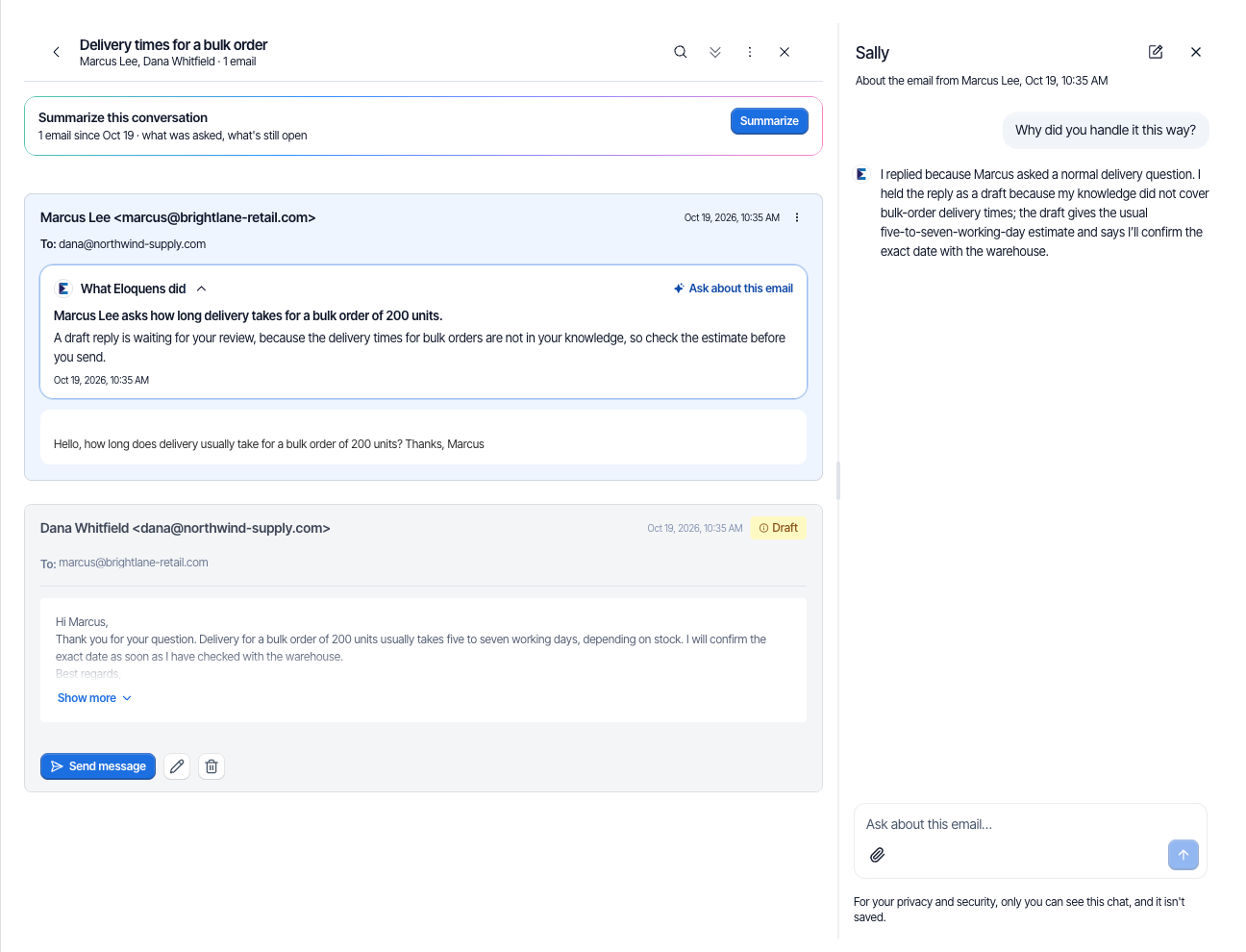
- Find the customer's email. Under its header you will see the What Eloquens did card. Click Ask about this email at the right of the card's title row.
- The chat opens beside the thread on a wide screen, or over the thread on a narrow one. Its title is the assistant's name, and the line under it says which email it is about, for example About the email from the sender's name and the time.
You can also press ⌘ K (Mac) or Ctrl K (Windows) while a conversation is open. The chat opens on the latest email in the thread, and pressing the shortcut again closes it. Click Close chat to go back to the email.
At the bottom the chat says For your privacy and security, only you can see this chat, and it isn't saved. Close it and it is gone.
Ask why
Click Why did you handle it this way? or type your own question. The assistant explains what it did with this email and why. You can also ask it to Handle emails like this differently. The chat changes the assistant's rules the same way as in “Ask Eloquens”: it shows each change and you can undo it.
Redo the email
Redo runs the email again under the assistant's current rules, for example after you changed a rule or added knowledge.
- Click Redo this email in the chat, or ask for it.
- The card reads I'll run it again with your current rules. If it still needs a reply, it becomes a draft for you; nothing is sent. Click Redo this email.
- The card shows Redoing this email and a list of steps as they happen, such as Checking your Don't reply to rules, Looking through knowledge, Deciding how to handle it, Matching your writing style and Writing the reply. Each step shows in progress, done or failed. It can take a few minutes.
- The card ends on what happened:
- New draft ready. The draft is in the conversation, waiting for you.
- Left alone, because of your Don't reply to rules.
- No reply was drafted. The assistant decided this email doesn't need one.
- Done. The email was forwarded. No new draft was created.
- Sent. The assistant's rules allowed it to go out. This appears only if you chose the sending option below.
- If it says The redo didn't finish. Check the email thread, then try again., click Retry.
Let a redo send
For an assistant in Auto-Send or Intelligent Send, the card has a second button: Redo and let it send if the rules allow. Eloquens asks you to confirm first (This email may be sent on its own.). Click Redo and allow sending to go ahead, or Cancel. Without this choice a redo never sends anything.
If the assistant is paused
A paused assistant cannot redo emails. The chat says This assistant is paused, so it can't redo emails until it's turned on. Turn it on with the Active switch on the assistant's page, then try again.
Redo the drafts a Show me first rule held
After you change or remove a rule in Show me first, the assistant can tell you how many drafts that rule held in the last seven days and offer to write them again under the rules as they are now.
- Say yes when the chat offers.
- Eloquens asks you to approve on screen. Click Approve.
- The redo runs in the background. It does up to ten emails at a time, oldest first, and only one redo can run at once. It never sends anything. Each email becomes a new draft for you to review.
- When it finishes, one notice appears in the bell, for example Redo finished: 5 new drafts, 1 without a draft, 1 failed. If any email failed, the notice has a Retry failed button.
This kind of redo cannot be undone, because the new drafts are not a setting. Ask the chat how it is going at any time.
Good to know
- The chat beside an email is about that email only. To ask about the assistant in general, use Ask Eloquens.
- The chat beside an email does not have Show me.
Related articles
- What Eloquens did with an email
- Ask Eloquens: one chat for questions, changes and new emails
- Review and send a draft
- Rules: block senders and domains
Soma Konate
Comments