Conversations is the full record of what each assistant has handled: every incoming email, the assistant's reasoning, the replies it drafted or sent, and anything it routed to a colleague. Home shows you the day; Conversations lets you go back through everything, one assistant at a time.
Open Conversations
- Click Conversations in the left rail.
- Choose the assistant from the dropdown at the top right. The choice is remembered per workspace.
- You can also arrive from My Assistants: open the row menu on an assistant and click View Conversation.
If an assistant is not shared with you, the page says That assistant is not available to you. Ask the workspace owner to share it with you.
Two ways to view
A toggle at the top switches between Conversation Mode and Inbox Mode. Your choice is remembered.
Conversation Mode (the default) is titled View responses. The list sits on the left with Search..., a filter icon and a count (13 conversations total); the open thread sits on the right under Conversation review, with Search conversation... and a Conversation actions menu (three dots).
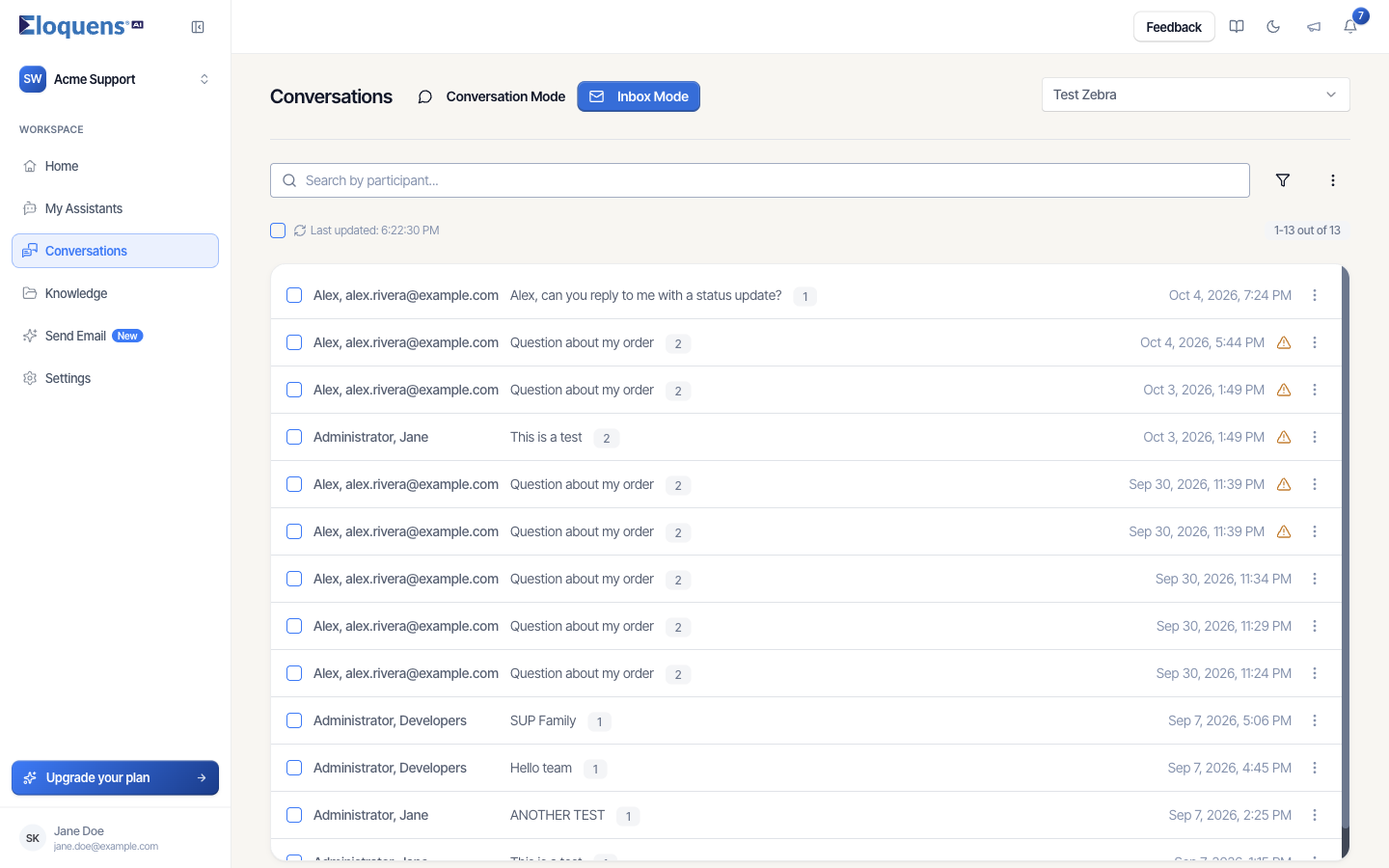
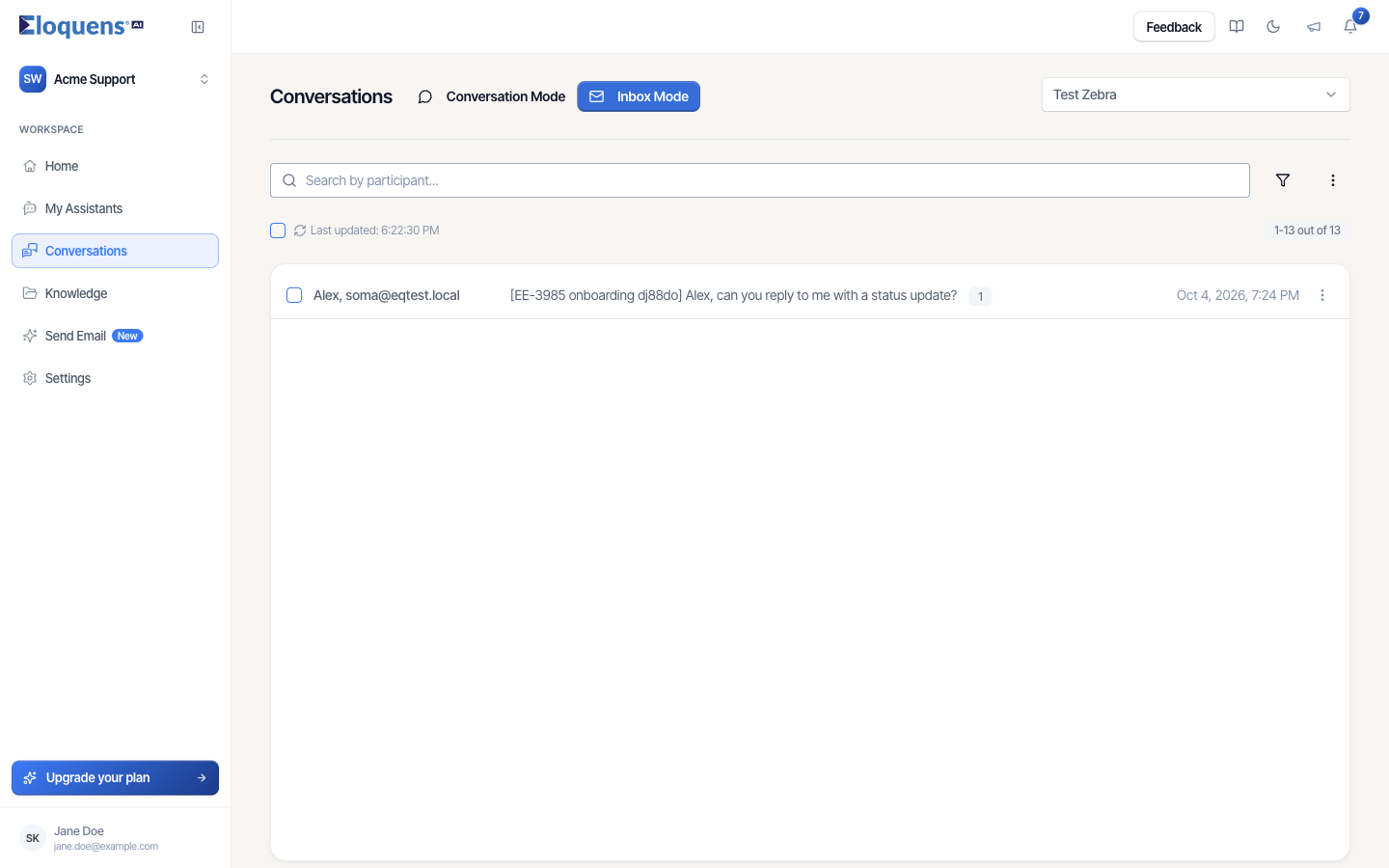
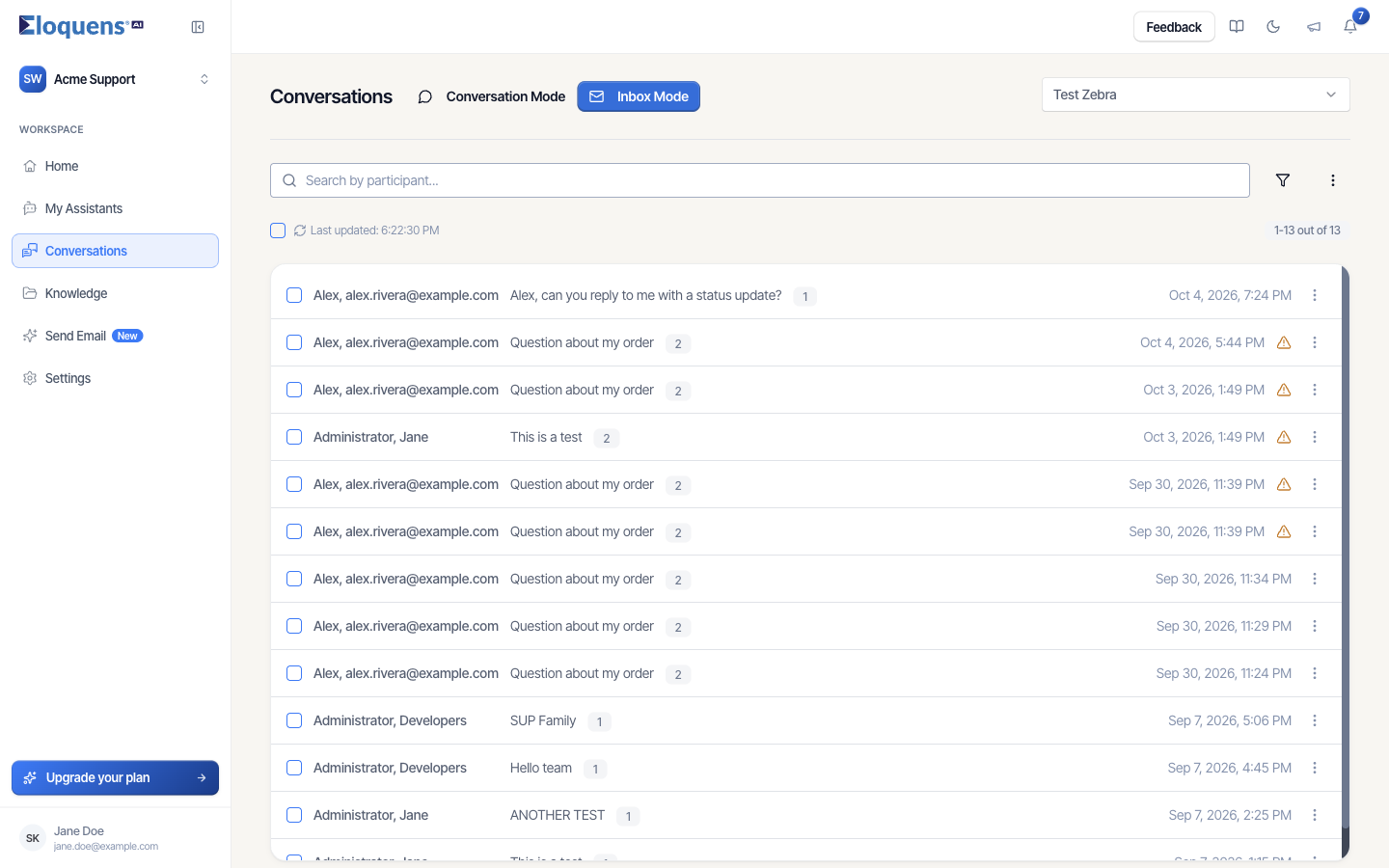
Inbox Mode is titled Conversations. It shows one wide list with Search by participant..., a filter icon, a three-dot menu with Download (exports the list), a select-all checkbox and a position counter (1-13 out of 13). Clicking a row opens the thread in a panel over the page, the same panel Home uses.
Find a conversation
- Type in the search box above the list to filter by participant (name or email address).
- Click the filter icon and tick Has a draft to show only threads with a reply waiting for you. A Draft messages only badge appears; click its × to clear.
- In Conversation Mode, scroll to the bottom of the list and click Load more for older threads.
- Inside an open thread, use Search conversation... to find a word in that thread's messages.
Each row shows the participants, the subject, the number of messages, and when it was last updated. A warning triangle on a row means the thread has a draft waiting for you; hover it to see how many. The list refreshes itself while you are on the page (Last updated).
Read a thread
Messages run top to bottom in time order:
- Incoming messages are the customer's emails. Each carries an AI Reasoning toggle. Open it to read how the Smart Filter and Intelligent Routing judged the email and what they decided.
- The assistant's replies show the sending address, To and CC, and the text. A reply still waiting for you carries a Draft badge and the Send message, edit and delete buttons; a sent reply shows as sent. A Sources toggle under a reply lists the Knowledge it drew on. See Review and send a draft.
- Routing messages show an email the assistant passed on to a colleague under your routing rules, with the forwarding text it used.
- Deleted from mailbox marks a draft you removed in your mail client; it can still be edited or sent from here.
At the top of the thread, AI Summary expands into a short summary written for the whole thread (it reads Please wait while we create a summary for you. while it is being written). Click a message header to collapse or expand it, or use the collapse-all button in the panel header.
What the outcomes mean
Conversations shows what happened to each email. The same outcomes are counted on Home:
| You see | It means |
|---|---|
| A reply marked Draft | The assistant wrote a reply and is waiting for you to send it. Counted under Not answered on Home until sent. |
| A sent reply from the assistant | The assistant answered on its own: Answered on its own on Home. |
| A sent reply you approved | You sent the assistant's draft: Eloquens drafted, you sent. |
| A routing message | The email was passed on to a colleague: Forwarded on Home. |
| Only the customer's email, with reasoning | The assistant decided not to reply. The reasoning says why: the knowledge did not cover it, a rule stopped it, or no reply was needed. |
Good to know
- Opening a thread from the bell or from Home deep-links to the exact message, so you land on the draft rather than at the top of the thread.
- Actions on messages and threads (respond yourself, block a sender, export, delete) are covered in Conversations: act on a message or a thread.
Related articles
- Conversations: act on a message or a thread
- Review and send a draft
- Your Home page
- What the labels in your inbox mean
Soma Konate
Comments