A conversation can hold many emails. The summary card writes a short summary of the whole thread for you: what was asked, what is still open, and what is waiting on you. A summary is written only when you ask for it.
Summarize a thread
- Open a conversation, either in Conversation Mode or in the panel that opens from Home or from Inbox Mode.
- Look for the card titled Summarize this conversation at the top of the thread. It says how many emails it will read, for example 5 emails since Oct 3 · what was asked, what's still open.
- Click Summarize. The card shows Reading 5 emails… while it works.
- When it is done, the card is titled Conversation summary and shows the lines, usually Asked, Open and Waiting on you.
The card appears only when the thread has at least one email that can be read.

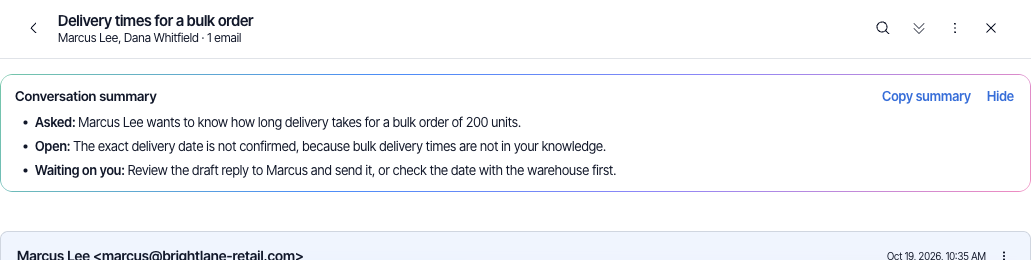
Copy or hide the summary
- Click Copy summary to put the text on your clipboard. The link reads Copied for a moment.
- Click Hide to close the card. A summary that was already written is shown again when you click Summarize, without Eloquens writing it a second time.
Good to know
- The summary reads the whole thread, including the replies your assistant wrote, so a long thread is quick to catch up on.
- If a summary cannot be written, the card shows the reason. Click Hide, then Summarize to ask again.
- The summary is about the thread. For why your assistant handled one email in a particular way, read What Eloquens did under that email.
Related articles
- Conversations: browse, search and read a thread
- What Eloquens did with an email
- Review and send a draft
Douglas Ho
Comments