The first block on Home is Needs your review. It lists every reply your assistants have drafted that is still waiting for you to send it, within the assistants and time window selected at the top of the page. Under it, Home points you at other things waiting in Knowledge, starting with questions your assistants could not answer.
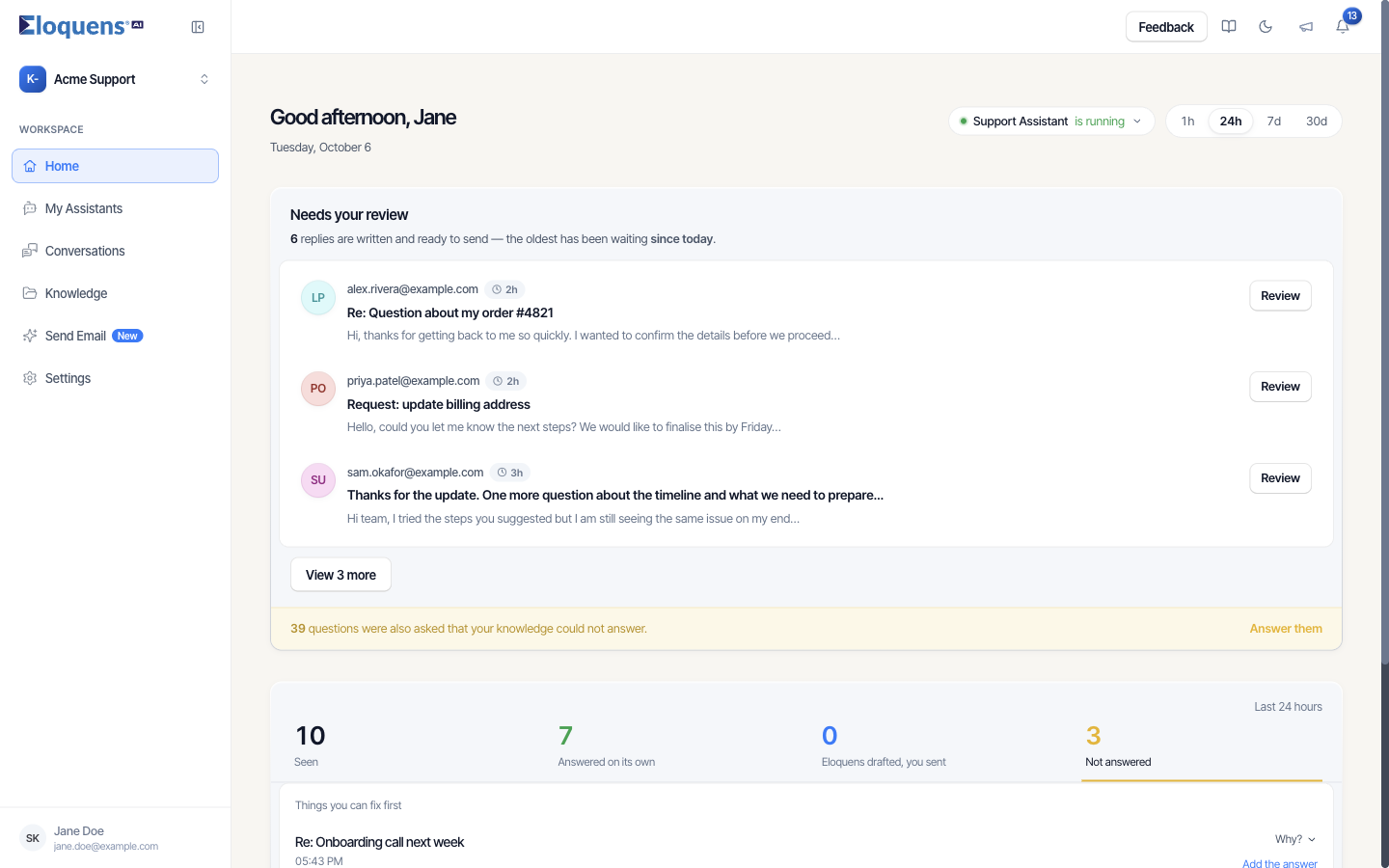
What the block shows
The line under the heading says how many drafts are waiting and how long the oldest has waited, for example 6 replies are written and ready to send — the oldest has been waiting since today.
Each row shows the sender, how long the draft has waited (2h, 3h), the subject, the first line of the drafted reply, and a Review button.
Three rows show at first. Click View N more to reveal the next batch. The block refreshes itself about once a minute. When nothing is waiting, it reads Nothing is waiting on you.
Review a draft from Home
- Click Review (or anywhere on the row). The full conversation opens in a panel on the right, with the customer's email above and the draft at the bottom, marked Draft.
- Read it, and use Send message, the pencil (edit) or the trash (discard) under the draft. See Review and send a draft.
- When you send or delete a draft, its row disappears and the figures below update.
Questions your Knowledge could not answer
A yellow line under the list reads N questions were also asked that your knowledge could not answer. with an Answer them link. With several assistants selected it names them, for example 3 from Sally, 2 from Support and 1 other assistant.
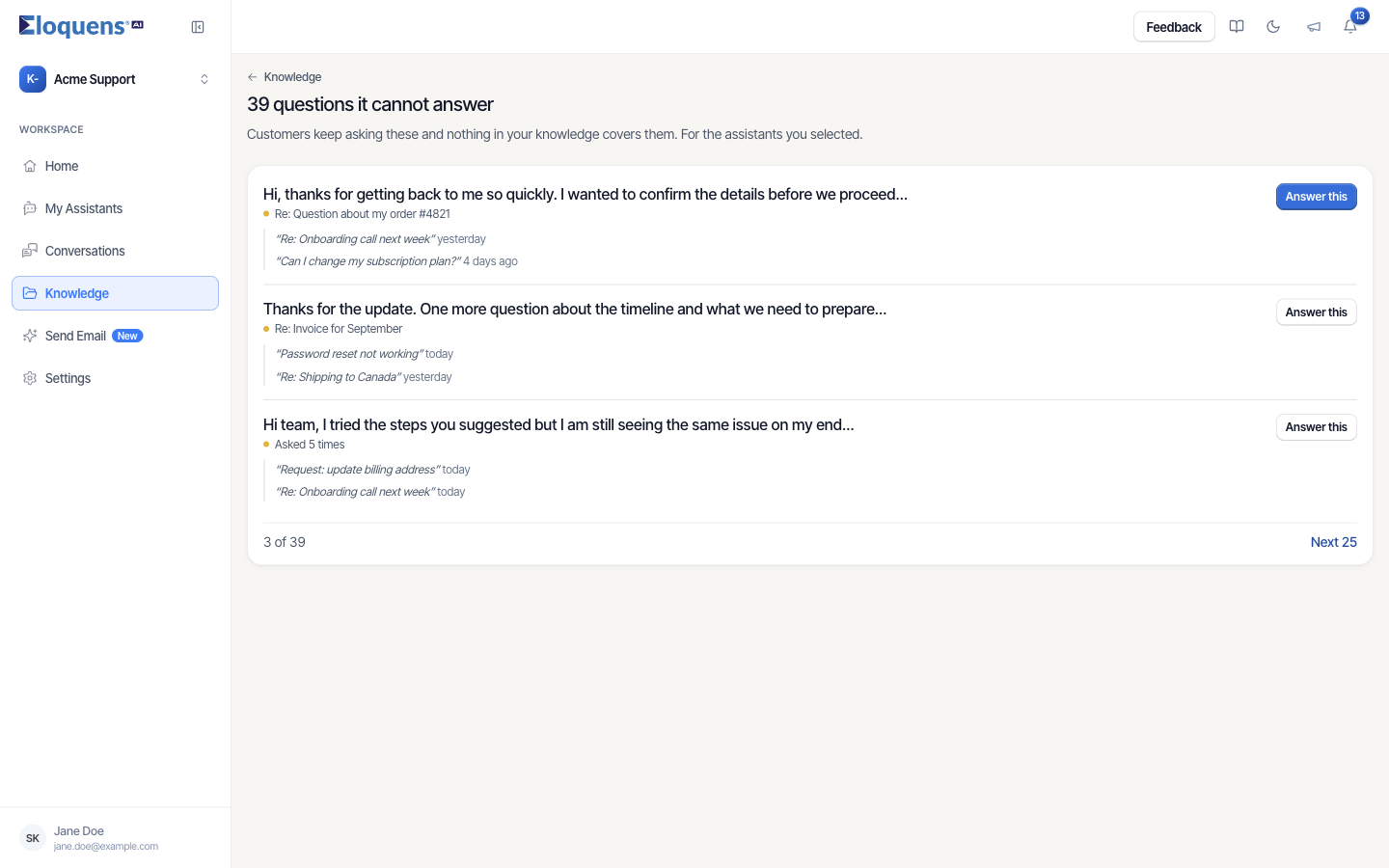
- Click Answer them.
- The page N questions it cannot answer opens under Knowledge (Customers keep asking these and nothing in your knowledge covers them. For the assistants you selected.). Each question shows how often it was asked and the subjects it came up in.
- Click Answer this on a question to write the answer as a Q&A item.
- Use Next 25 at the bottom to page through the rest.
The link carries the same assistant selection as Home, so the page opens on exactly those assistants.
Other Knowledge links
Depending on what is waiting, more lines appear under the list, each with its own link:
- N knowledge pairs are also waiting for approval. → Review knowledge opens the Q&A approval queue.
- N files may disagree with knowledge you already have. → Review them.
- N documents not used in a reply for 30 days. → Review them.
Good to know
- The block follows the time window at the top of Home. A draft older than the window is still in Conversations and in the bell, which covers the last 30 days.
- The same drafts appear under the bell at the top right, where Review opens them in Conversations. See Notifications and What's new.
- If the block cannot load, it says so and offers Try again rather than showing an empty list.
Related articles
- Your Home page
- Review and send a draft
- What the assistants saw and did
- Notifications and What's new
Soma Konate
Comments