Two icons at the top right of every page keep you informed without leaving what you are doing. The bell collects drafts waiting for review and requests that need your answer. The megaphone holds announcements from Eloquens: new releases, planned maintenance and product news.
The bell: Notifications
The bell shows a count when something is waiting. The count is the number of drafts written in the last 30 days that you have not yet sent or discarded, plus any unread requests.
- Click the bell. The Notifications panel opens on the right.
- Two tabs split the drafts: Your drafts (drafts from assistants you manage) and All drafts (every draft in the workspace you can see). A dot on a tab means it has something new.
- Requests that need a decision are grouped at the top under Needs your answer. Each has a title, a short explanation and a button: Review the request for a request to view your workspace's data, Take a look when a new file may disagree with knowledge you already have, View workspace activity when someone was added to your workspace.
- Below that are the drafts. Each card shows the sender, the assistant that wrote it, the first lines of the draft and a Draft badge. Click the text to expand the whole draft.
- Click Review to open that draft in Conversations, in the conversation it belongs to, ready to edit or send.
- Click Mark all read to clear the unread requests. Drafts stay listed until you send or discard them.
When nothing is waiting, the panel reads You're all caught up.
Good to know
- A draft that was superseded by a newer draft for the same email is not shown twice; only the current one is listed.
- Drafts older than 30 days drop out of the bell but are still in Conversations and on Home under Needs your review when the window covers them.
- The count refreshes each time you open a page; opening the panel refreshes it immediately.
The megaphone: Announcements and What's new
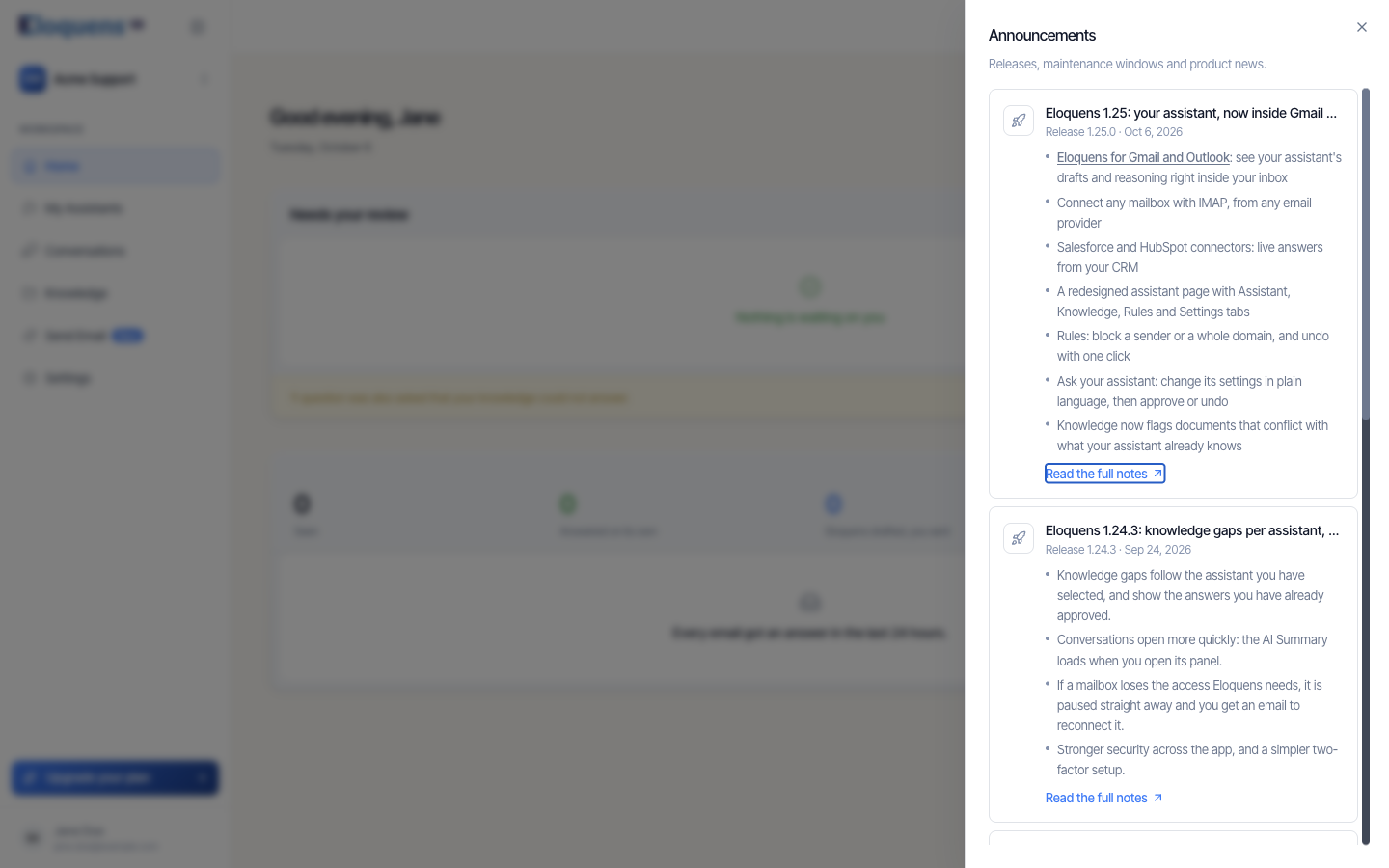
The megaphone carries a small dot when there is an announcement you have not seen.
- Click the megaphone. The Announcements panel opens with the subtitle Releases, maintenance windows and product news.
- Each item shows its type and date (for example Release 1.25.0 · Oct 6, 2026), a title and a short list of highlights. New items carry a New marker until you open the panel.
- Click Read the full notes on a release to open the release notes in a new tab.
The What's new dialog
When a release is announced and you have not dismissed it, a What's new in Eloquens dialog appears once when you next open the app. It shows the version and date, the release title and a short list of highlights.
- Read the full release notes opens the notes in a new tab and closes the dialog.
- Dismiss (or Got it) closes it. It will not appear again for that release.
Releases older than 30 days do not trigger the dialog; they stay listed in the Announcements panel.
Related articles
- Your Home page
- Needs your review: drafts waiting on Home
- Review and send a draft
Soma Konate
Comments