When an assistant is set to draft rather than send, it writes the reply and waits for you. You review it in the conversation it belongs to, with the customer's email above it, and send it from there. Sending goes through the assistant's mailbox, so the reply arrives from that address and shows up in its Sent folder.
Open a draft
From Home:
- Under Needs your review, click Review on the row (or click the row itself).
- The conversation opens in a panel on the right. The draft is the last message, marked with a Draft badge.
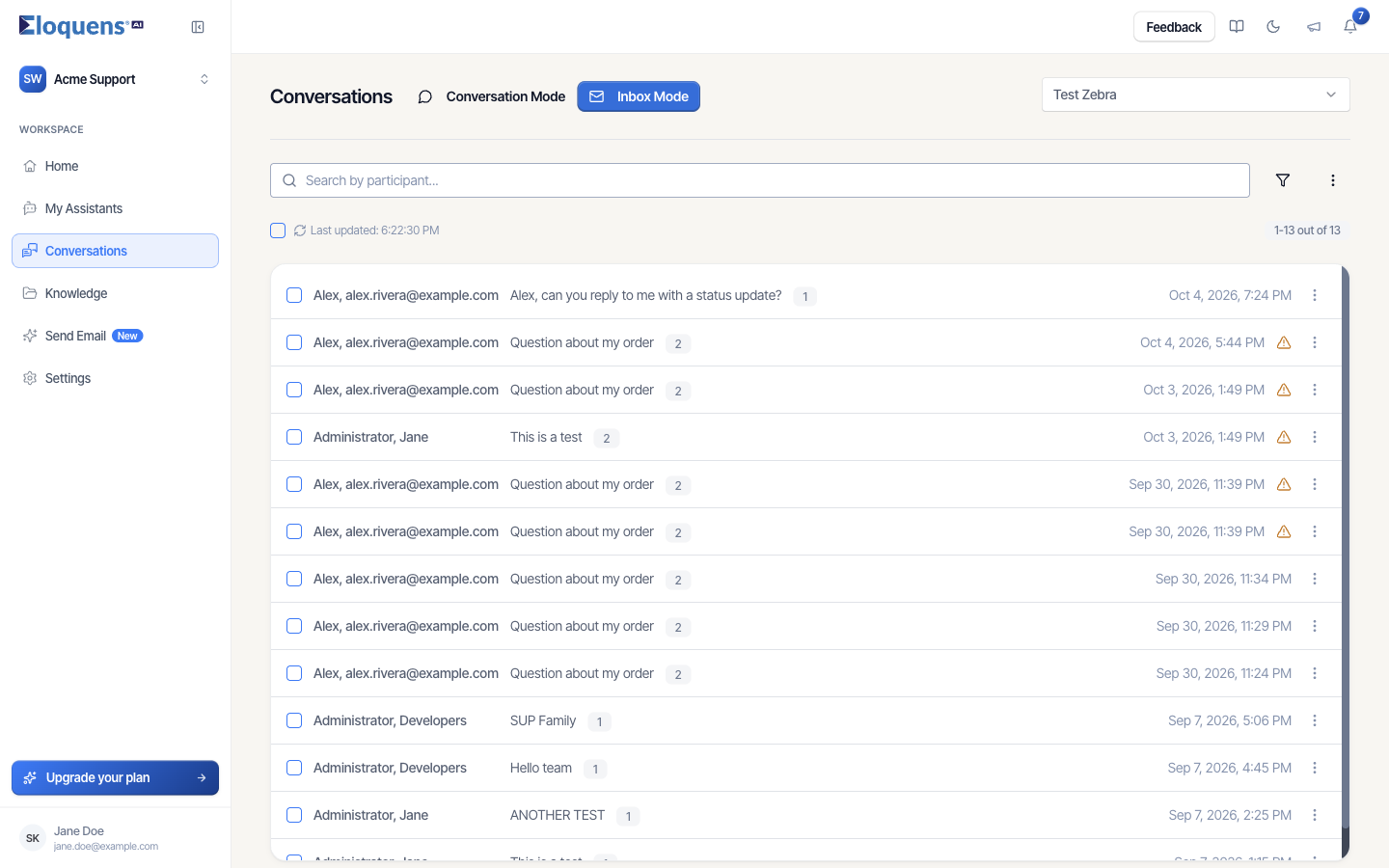
From Conversations:
- Open Conversations in the left rail and choose the assistant from the dropdown at the top right.
- Click the filter icon above the list and tick Has a draft to show only conversations with a draft waiting.
- Click the conversation. The thread opens with the draft at the bottom.
From the bell:
- Click the bell at the top right.
- Click Review on a draft card. Conversations opens on that draft.
Read the draft
The draft shows the sending address, To and CC, and the text the assistant wrote. Click Sources under the text to see the Knowledge it drew on, listed by document. Above it, the customer's email carries an AI Reasoning toggle that explains why the assistant decided to reply and how it chose what to say. Click a message to expand or collapse it.
Send it as written
- Click Send message under the draft.
- A confirmation appears, the message changes from Draft to a sent reply, and the row disappears from Needs your review.
The reply goes out from the mailbox the assistant is connected to. If the assistant had also saved the draft in that mailbox's Drafts folder, that draft is the one that gets sent, so it moves out of Drafts and into Sent.
Edit before sending
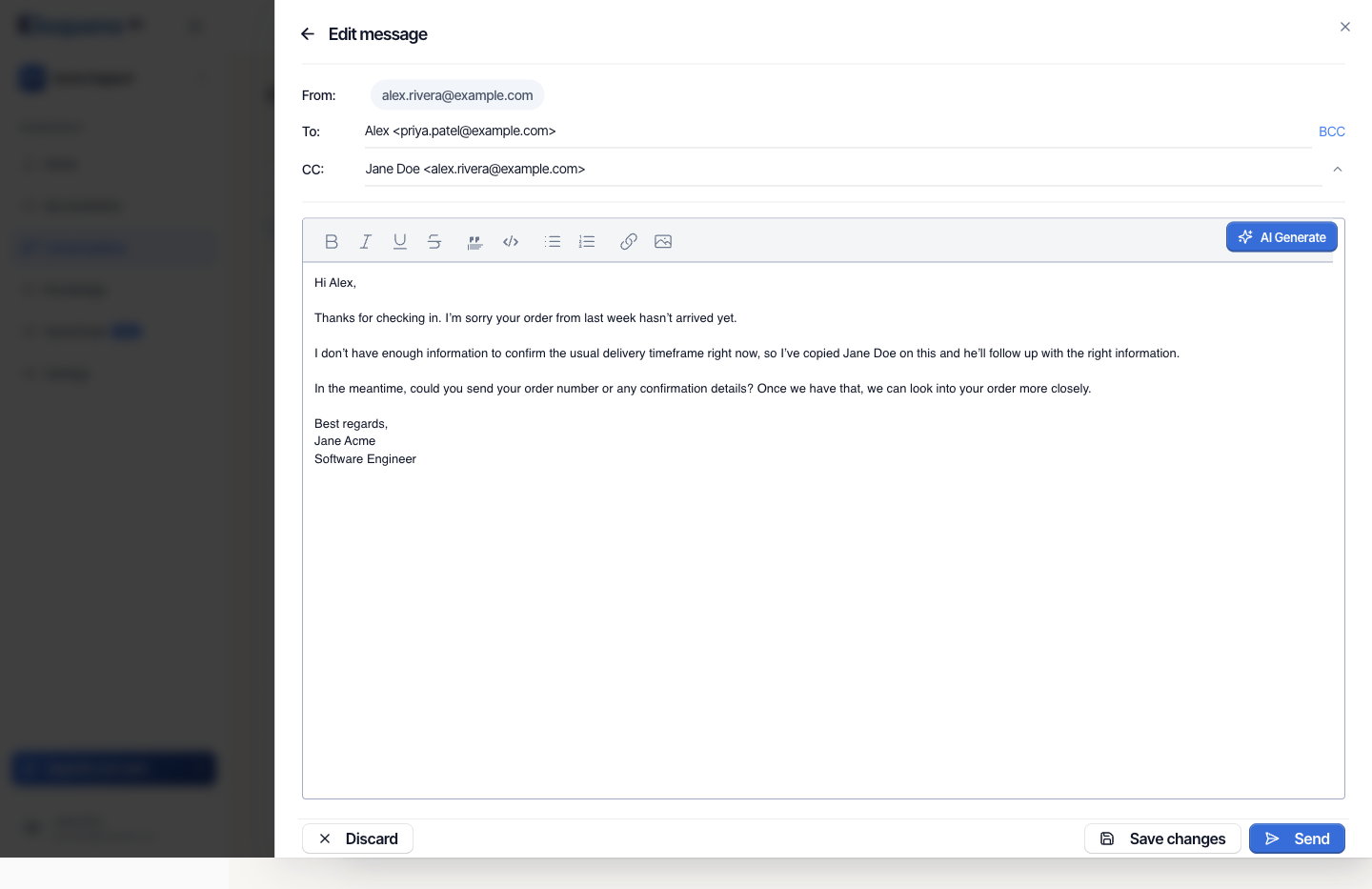
- Click the pencil button under the draft. The Edit message panel opens.
- Change To or CC if needed, or click BCC to add hidden recipients. From is fixed to the assistant's mailbox.
- Edit the text in the editor. The toolbar covers bold, italic, underline, lists, links and images, and AI Generate asks the assistant to rewrite the reply from a prompt you give it.
- Click Send to send the edited reply straight away, or Save changes to keep the edit as a draft and send later. Discard throws away your changes and asks you to confirm.
When you save an edited draft, Eloquens offers to learn from the change: Detected edited draft — Do you want to create a knowledge item based on your draft and the current conversation? Accept to review the suggested question-and-answer pairs under Generated Q&As and approve the ones you want added to Knowledge. Decline to keep the edit without adding anything. If nothing useful can be extracted, you see No Q&A generated.
Discard a draft
- Click the trash button under the draft.
- Confirm. The draft is deleted from the conversation and, if it was saved in the mailbox, from its Drafts folder too.
The customer's email stays in the conversation and is listed on Home under Not answered until something else happens to it. If you reply from the mailbox itself instead, that reply is picked up and shown as Eloquens drafted, you sent.
A draft you deleted in your mailbox
If you delete the assistant's draft from your mail client rather than from Eloquens, the draft stays visible in the conversation with a Deleted from mailbox badge and the note This draft was deleted in your mailbox. Edit it to teach Eloquens; saving puts it back in your mailbox. You can still send or edit it from here.
Good to know
- On Home, the four figures update as soon as you send: the email moves from Not answered to Eloquens drafted, you sent, with the note Sent from the app or Edited, then sent from the app.
- Saving an edit does not remove the row from Needs your review; the draft is still waiting for a send.
- If the assistant has CC or BCC addresses under On every reply, they are added when the reply is sent.
- Mail you send from the mailbox itself without opening Eloquens is also recognised and shown as Sent from your mailbox.
Related articles
- Needs your review: drafts waiting on Home
- Conversations: browse, search and read a thread
- What the labels in your inbox mean
- Notifications and What's new
Soma Konate
Comments