Reading a thread in Conversations is half the job. The other half is acting on it: answering yourself when the assistant should not, keeping a sender out for good, exporting a record, or turning a good exchange into Knowledge. Each action sits on the menu nearest to the thing it affects: the message, the thread, or the row in the list.
Actions on a message
Open the Message actions menu (three dots) on a message:
- On a customer email: Respond writes your own reply from the assistant's mailbox, Route forwards it to an address you choose, Rerun Assistant (LIVE) or Rerun Assistant (TEST) runs the assistant again on that email (LIVE acts as it normally would; TEST only shows what it would do), and Delete removes the message from the record.
- On a sent reply: Thumbs up / Thumbs down records whether the answer was good, and Translate message / View original switches the display language where translation is available.
Actions on the thread
The Conversation actions menu (three dots) at the top of the open thread offers:
- View Assistant opens the assistant that handled it.
- Translate to translates the whole thread into a language you pick, where translation is available in your workspace; View original switches back.
- Expand all messages / Collapse all messages.
- AI Summary writes a short summary of the thread, with a copy button.
- Export data downloads the thread's messages as a CSV file.
- Delete removes the whole conversation after a confirmation.
Actions on a row in the list
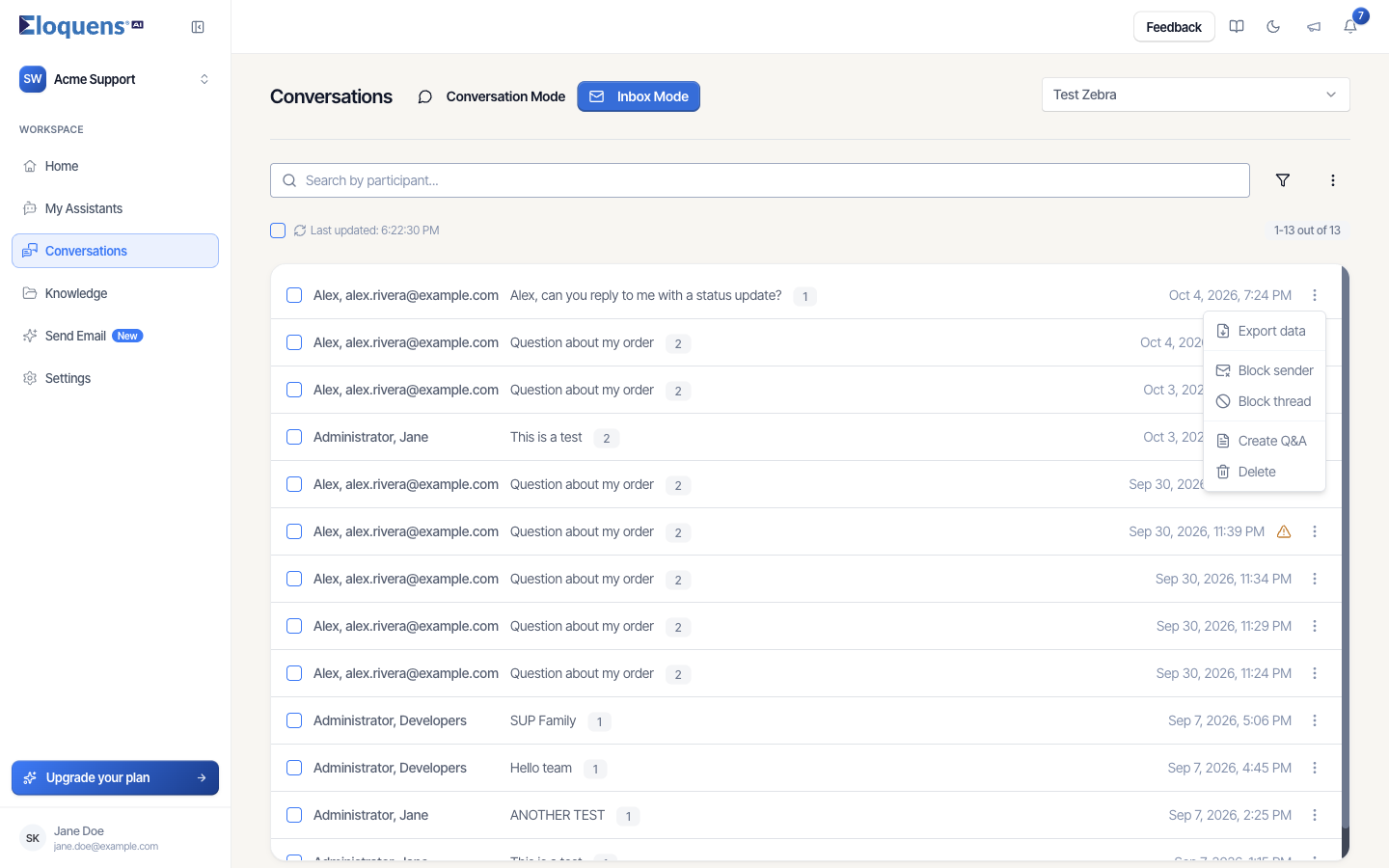
Click the three dots at the end of a conversation row:
- Export data downloads that conversation as a CSV file.
- Block sender stops the assistant acting on anything from that address. Block thread stops it on this thread only. Once blocked, the same menu offers Unblock sender or Unblock thread.
- Create Q&A turns the exchange into suggested question-and-answer pairs for you to review and add to Knowledge.
- Delete removes the conversation after a confirmation.
Addresses and domains you block here are also respected by the assistant's rules; see Rules: block senders and domains.
Work on several conversations at once
- In Conversation Mode click Select above the list; Inbox Mode shows checkboxes already.
- Tick the conversations, or use the select-all checkbox.
- Use the export button to download the selection as a CSV (participants, subject, last updated), or the delete button to remove them after confirming Delete conversations?.
In Inbox Mode the three-dot menu beside the filter icon offers Download for the list.
Good to know
- Deleting a conversation removes it from Eloquens only; nothing is deleted from your mailbox.
- Respond and Route send from the assistant's mailbox, so the customer sees the same address they wrote to.
- A Rerun Assistant (LIVE) can send or draft a reply exactly as a fresh email would; use TEST first if you only want to see the decision.
Related articles
- Conversations: browse, search and read a thread
- Review and send a draft
- Rules: block senders and domains
- Smart Filter: decide what your assistant replies to
Soma Konate
Comments