Every assistant has a built-in test. You write a sample email, and Eloquens runs it through the full pipeline (Smart Filter, Knowledge, Intelligent Routing, the reply) and shows you each stage's decision. Nothing is sent, no draft is created in the mailbox, and nothing is written to Conversations. It is the fastest way to check a new rule or a new Knowledge source.
Open the test
From the list:
- Click My Assistants.
- Open the row's More actions menu and choose Test.
From the assistant page:
- Click Test on the Ask your assistant card, or
- open More actions (three dots) in the header and choose Test assistant.
The test is also the Test step of the setup wizard, where you can run it before the assistant exists in the list.
Run a sample email
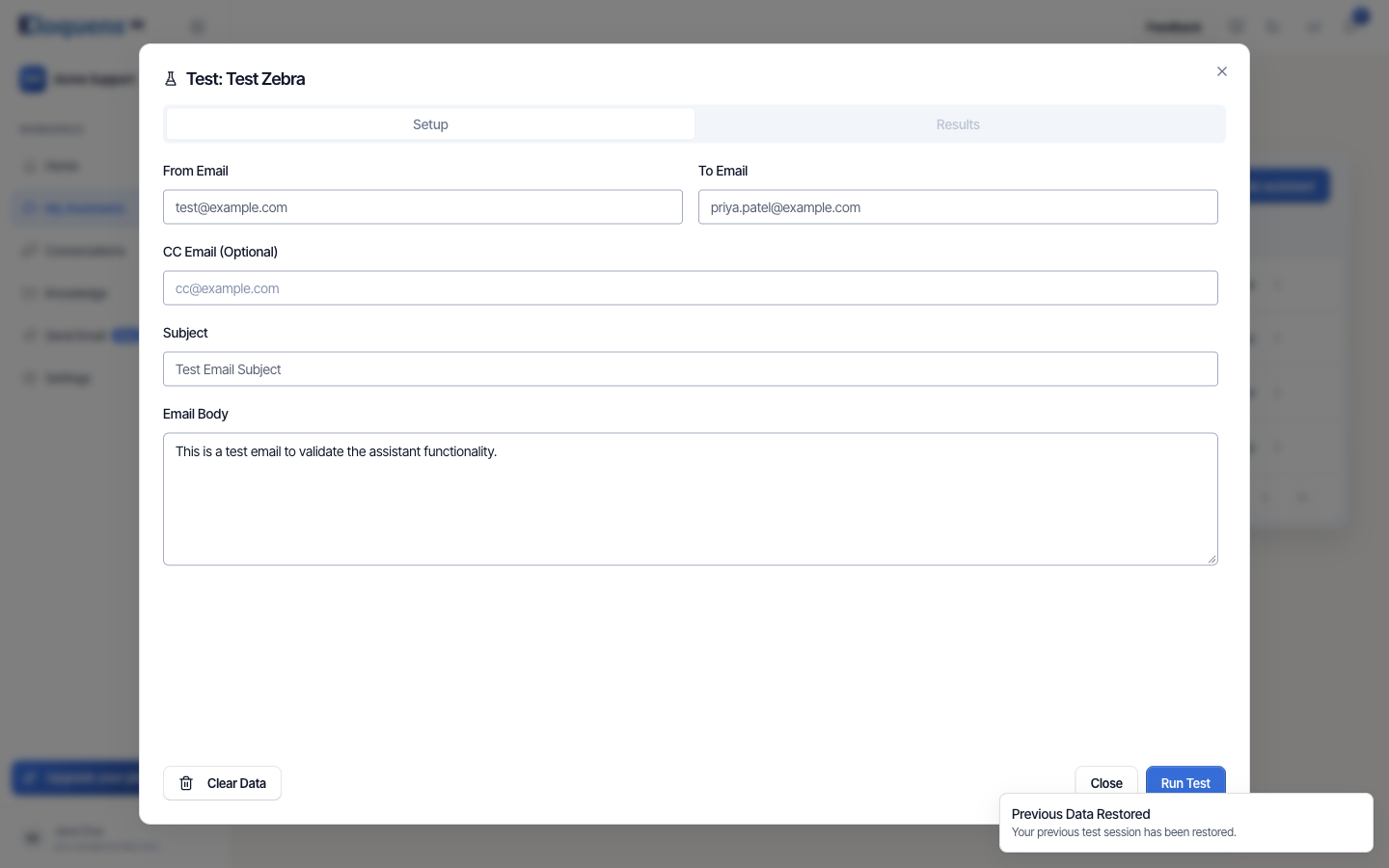
The dialog is titled Test: <assistant name> and has two tabs, Setup and Results.
- On Setup, fill in From Email (the pretend customer), To Email (filled with the assistant's own address), optionally CC Email (Optional), a Subject and the Email Body.
- Click Run Test.
- The dialog switches to Results and the stages appear one by one as they finish.
Read the results
Each stage shows its status and its outcome:
- Smart Filters: whether the email deserves a reply, and why not if it was declined.
- Knowledge Base, Connections, Historical Search: what the assistant found to answer from.
- Intelligent Routing: who it would bring in, and in Intelligent Send whether it would send or hold.
- Response: the reply it would write.
- Response Draft and Routing Draft: what would have landed in the mailbox as a draft, given the current response mode.
- A final line marks the end of the run.
Continue the conversation
Under the results you can type a follow-up as the customer and run it, to see how the assistant handles a second turn in the same thread. You can also re-run any earlier turn after editing it.
Clear and close
- Clear Data resets the form. The dialog remembers your last sample per assistant, so you can repeat the same test after changing a rule.
- Close shuts the dialog. Closing while a test is running asks you to confirm.
Testing safely with a live mailbox
The test dialog never touches the mailbox. For a real-world check, use Draft Mode:
- Set the response mode to Draft Mode on the Assistant tab.
- Switch the assistant on.
- Send a few emails to the mailbox from another account and review the drafts in Conversations (the New drafts notification tells you when one is waiting).
- When the drafts look right, move to Intelligent Send or Auto-Send.
Good to know
- Test results reflect the assistant's settings at that moment. Change a rule, run the same sample again, and compare.
- A declined email stops at Smart Filters; the later stages are skipped, which is itself the answer you were looking for.
- The wizard's Test step also offers Edit rules so you can adjust and re-run without leaving setup.
Related articles
- Create an assistant
- Response modes: Draft Mode, Intelligent Send and Auto-Send
- Smart Filter: decide what your assistant replies to
Soma Konate
Comments