The response mode is the single most important setting on an assistant: it decides whether replies are sent automatically or left for you to review. There are three modes.
| Mode | What happens | Shown in the list as |
|---|---|---|
| Draft Mode | Drafts every reply and shows you before anything goes out. | DRAFT |
| Intelligent Send | Sends when it's sure, and holds the rest for you. | IRM |
| Auto-Send | Sends every reply on its own. Your rules still apply. | SEND |
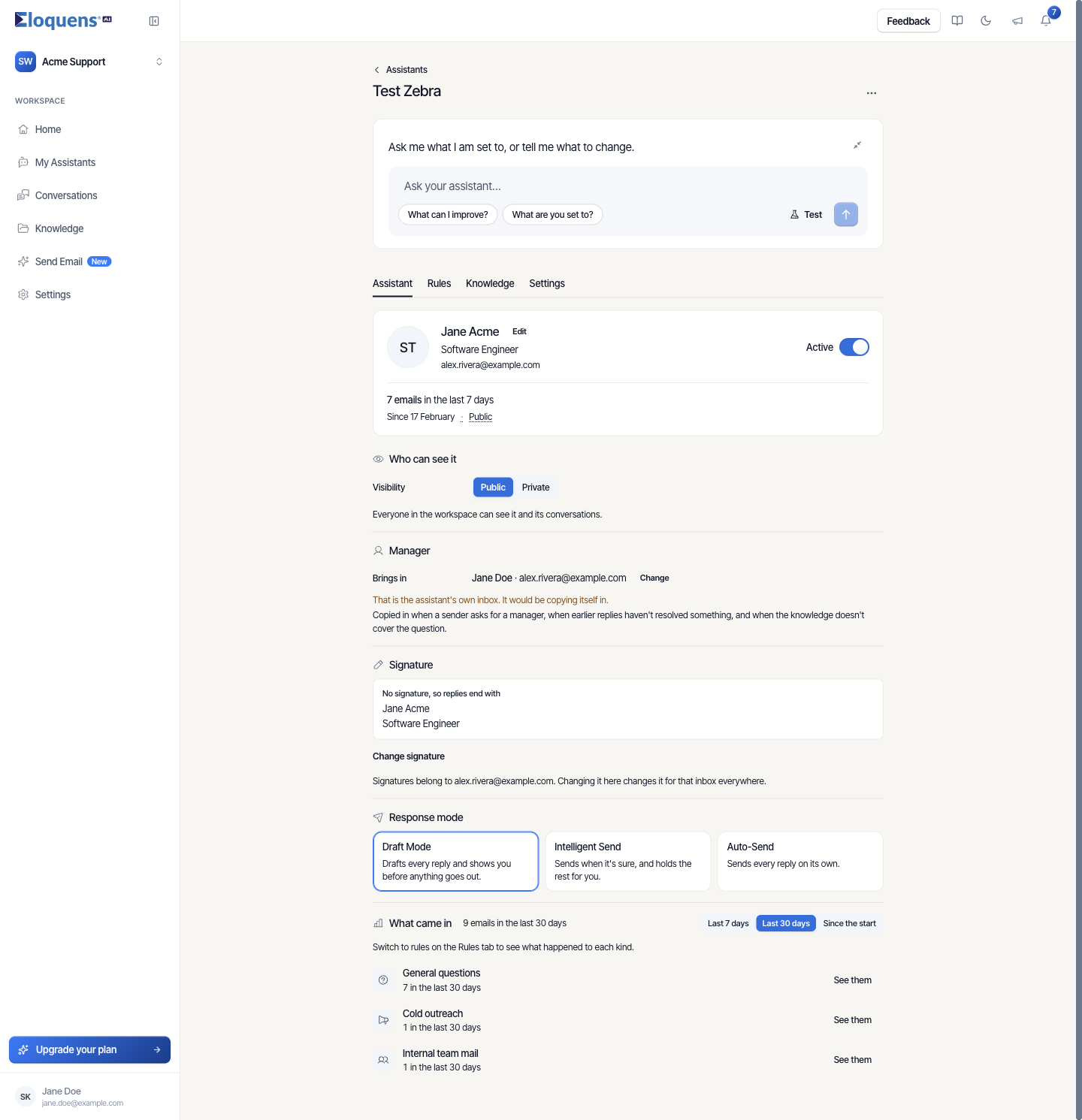
Change the response mode
- Open the assistant and stay on the Assistant tab.
- Scroll to Response mode and pick a card.
- A confirmation dialog says what will change. Confirm.
- If you switched into a mode that produces drafts and nobody is set to be told about new drafts, the dialog Who should know about new drafts? offers to add an address, starting with the manager. Click Not now to skip; you can set it later on the Settings tab.
A toast confirms the change.
How Intelligent Send decides
Intelligent Send is a per-email decision, made by Intelligent Routing after the Smart Filter has already decided that the email deserves a reply.
The assistant sends when it is confident and the answer is fully covered by facts in its Knowledge. It holds a draft for you instead when:
- Your Knowledge did not cover the question. If the assistant could not find an authoritative answer, it drafts rather than guessing.
- A "Show me first" rule matches. On the Rules tab of an assistant that uses rules, the Show me first list holds the situations you want to see before anything goes out. Rules can name a kind of mail (for example, returns and refunds), a sender, a whole domain, or a condition in your own words. These rules only take effect in Intelligent Send; in Draft Mode everything is a draft anyway, and in Auto-Send they are kept but not used. The list says so when you are in another mode and offers Change mode.
- One of the setup conditions matches. Assistants created with the step-by-step wizard carry the conditions chosen on the Conditions step: AI is missing knowledge and Sensitive sentiment (on by default), plus Sensitive topics, VIPs and Custom rule if you turned them on.
Everything else is sent. A held draft is treated exactly like a Draft Mode draft: it waits in the mailbox and in Conversations, and the people on the New drafts notification are emailed.
Which mode to start with
- Draft Mode is the right first setting for a new assistant. Watch its drafts for a few days; if you are sending most of them unchanged, move on.
- Intelligent Send suits a mailbox where the routine questions are well covered by Knowledge and the exceptions are predictable. Put the exceptions in Show me first.
- Auto-Send is for mailboxes where you trust the assistant completely, such as a well-tested support inbox with strong Knowledge.
Good to know
- Forwards follow the same setting. In Draft Mode a forward to a colleague is drafted for you as well; in the sending modes it goes out on its own.
- The mode is also visible in the Mode column of My Assistants (DRAFT, IRM, SEND) and in the test dialog's results, so you can check what a sample email would have done. See Test an assistant before you switch it on.
- You can switch modes as often as you like; the change applies to the next email that arrives.
Related articles
- Smart Filter: decide what your assistant replies to
- Intelligent Routing: bring in a person or forward an email
- Notifications and weekly reports
- Test an assistant before you switch it on
Soma Konate
Comments