Every assistant has its own page. Open it by clicking the assistant's name on My Assistants, or by clicking Edit on its row. The page has four tabs: Assistant, Rules, Knowledge and Settings. Each field saves where it sits, and a small status beside it tells you the change went through.
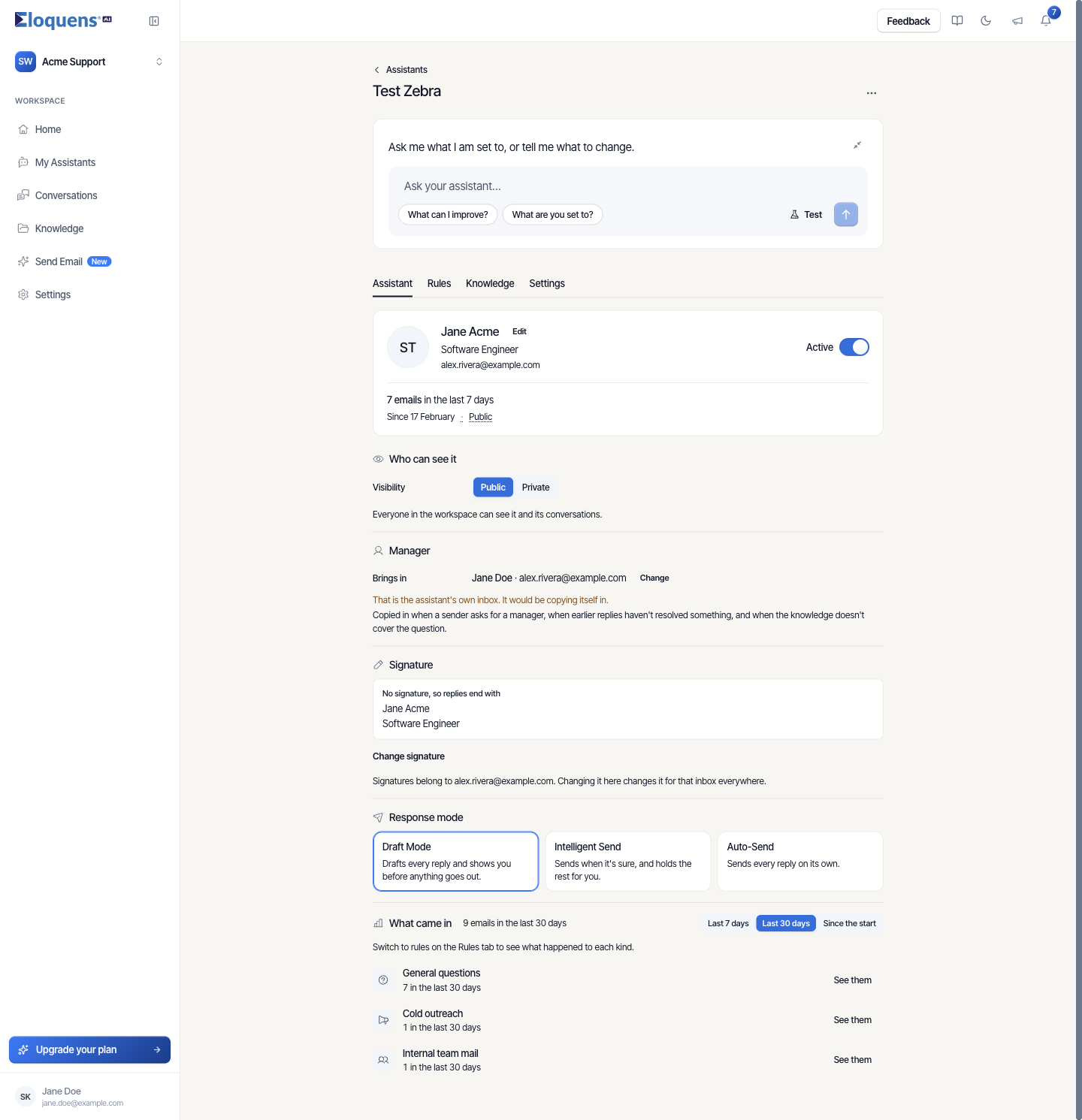
The header
- Assistants at the top left takes you back to the list.
- The assistant's name is the page title.
- The card under the title reads Ask me what I am set to, or tell me what to change. Type into Ask your assistant…, or click What can I improve? or What are you set to?. The Test button beside it opens the test dialog. See Ask your assistant to change its own settings.
- The More actions menu (three dots) offers Test assistant and Delete.
Assistant tab: who it is and how much it does
- The mailbox card: the name the assistant signs with, its role and the address it reads. Click Edit to change them. The Active switch pauses or resumes the assistant. Underneath: how many emails arrived in the last 7 days, the date it was created and its visibility.
- Who can see it: Public (everyone in the workspace can see it and its conversations) or Private (only you, the people you share it with, and workspace owners and admins).
- Manager: Brings in shows the person the assistant falls back to; click Change to set someone else. The manager is copied in when a sender asks for a manager, when earlier replies have not resolved something, and when the knowledge does not cover the question. See Intelligent Routing: bring in a person or forward an email.
- Signature: the signature the mailbox uses, with Change signature. It belongs to the mailbox, so changing it here changes it for that inbox everywhere. See Custom tone, instructions and signature.
- Response mode: Draft Mode, Intelligent Send or Auto-Send. See Response modes: Draft Mode, Intelligent Send and Auto-Send.
- What came in: the kinds of mail that arrived (for example General questions, Cold outreach, Internal team mail) over Last 7 days, Last 30 days or Since the start, each with a See them link into Conversations.
Rules tab: what it replies to and how
For an assistant that uses rules, the tab has four lists in plain sentences:
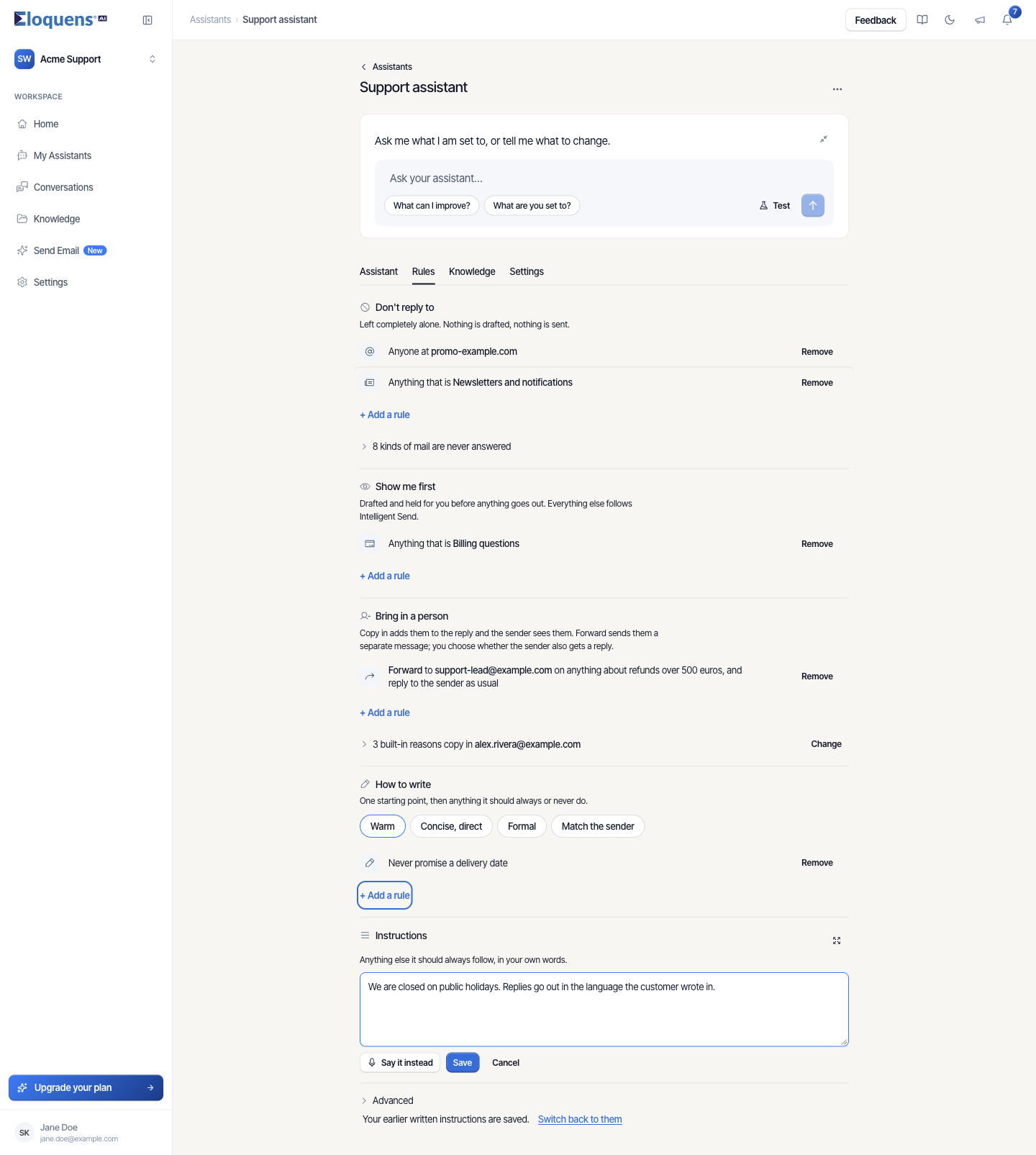
- Don't reply to: senders, domains and kinds of mail that are left completely alone.
- Show me first: mail that is drafted and held for you (used in Intelligent Send).
- Bring in a person: who gets copied in or forwarded to, and when.
- How to write: a tone to start from and anything the assistant should always or never do.
Below the lists, Instructions holds anything else in your own words, and Advanced shows exactly what the assistant reads. An assistant set up before rules existed follows written instructions; its Rules tab offers Switch to rules. See Rules: block senders and domains.
Knowledge tab: what it reads
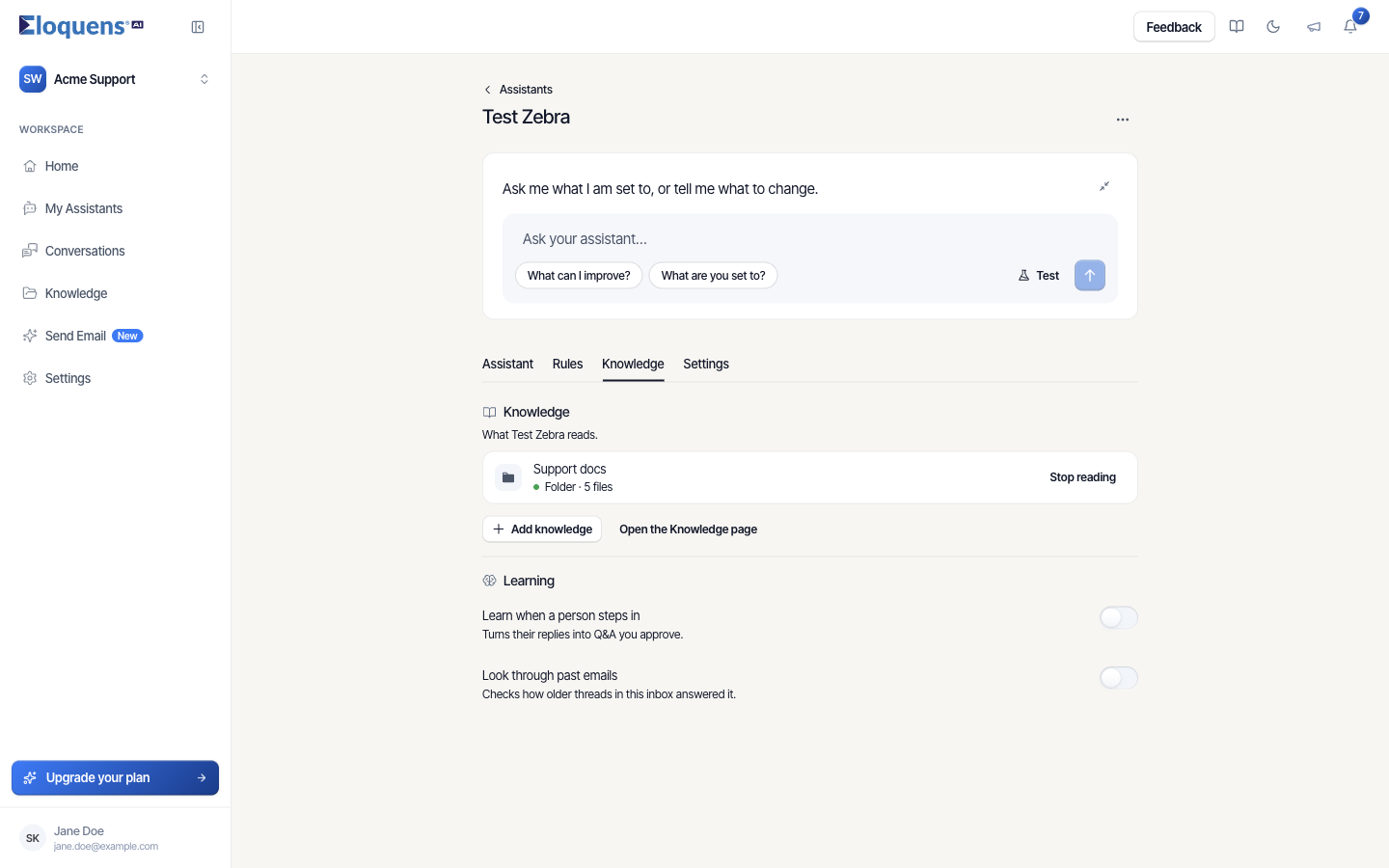
Under Knowledge, the list is what this assistant reads.
- Click Add knowledge to attach folders, web sources, tables or connections. The Knowledge dialog opens, already pointed at this assistant.
- Click Stop reading on a source to detach it from this assistant. The source stays in the workspace for other assistants.
- Open the Knowledge page takes you to the full Knowledge area.
Under Learning:
- Learn when a person steps in turns a colleague's replies into Q&A for you to approve.
- Look through past emails lets the assistant check how older threads in this inbox answered the same question.
Settings tab: operational settings
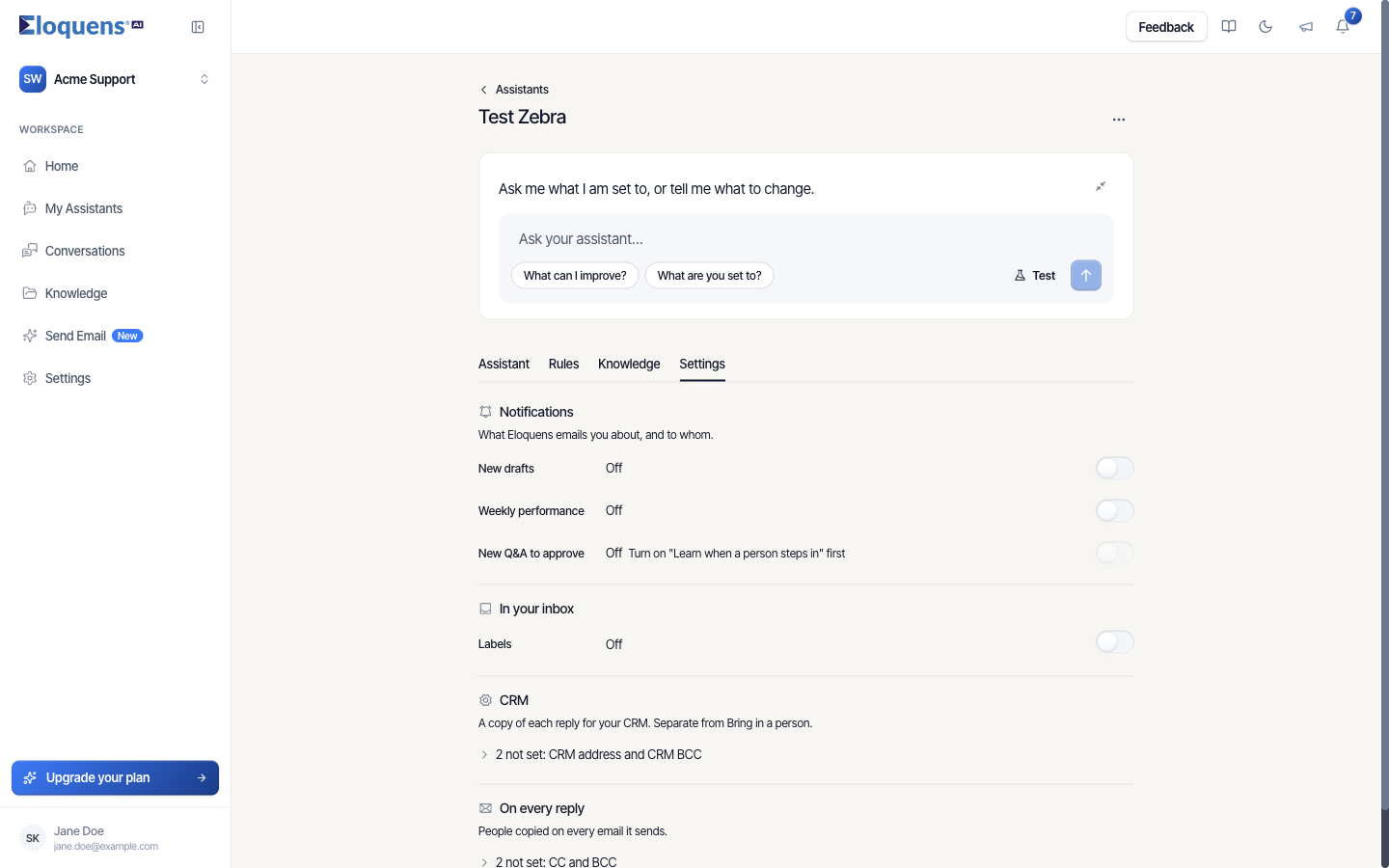
- Notifications: who is emailed about New drafts, Weekly performance and New Q&A to approve. See Notifications and weekly reports.
- In your inbox: the Labels switch, and which labels the assistant adds to the mail it handles.
- CRM: a CRM address and CRM BCC that receive a copy of each reply, separate from Bring in a person.
- On every reply: addresses to CC or BCC on every email the assistant sends.
Pause or resume
- Open the Assistant tab.
- Use the Active switch in the mailbox card. The switch on the My Assistants list does the same thing.
Delete
- Open More actions in the header and choose Delete.
- The dialog warns that conversations and statistics for this assistant will be deleted as well, and that it cannot be undone.
- Confirm.
Good to know
- There is no Save button for the page. Each field saves on its own and reports Saved beside it; if a save fails, the field says so and offers a retry.
- Links to a tab are shareable: the tab you are on is in the page address.
- Changing the mailbox is only allowed while the assistant is paused.
Related articles
- Your assistants: what they are and how to manage them
- Ask your assistant to change its own settings
- Smart Filter: decide what your assistant replies to
- Notifications and weekly reports
Soma Konate
Comments