You can sign in to Eloquens with the work account you already use for mail, or with an email address and a password. The sign-in page at https://app.eloquens.ai offers all of these options; the one you choose when you sign up is the one you keep using.
Create an account
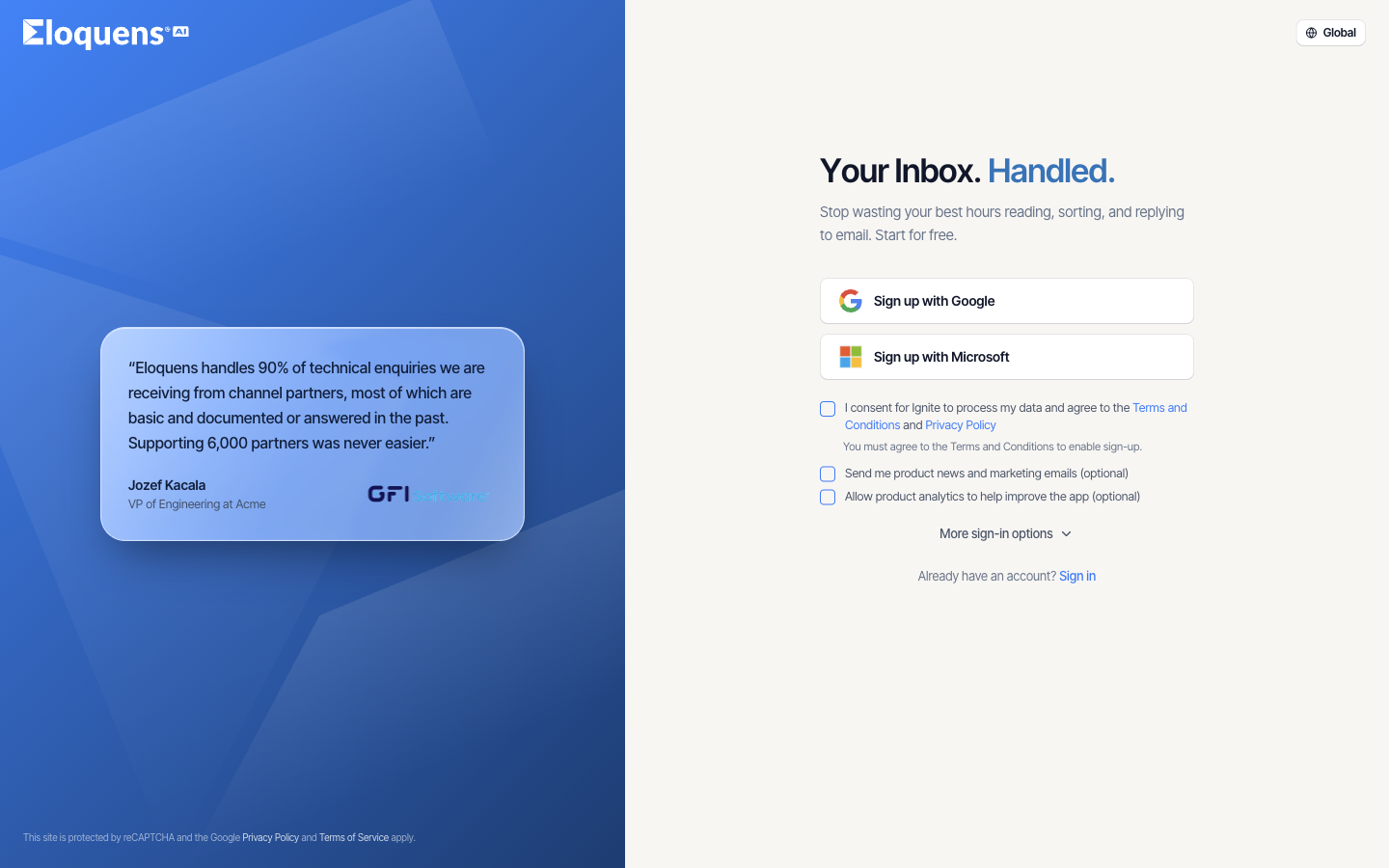
- Go to https://app.eloquens.ai and click Sign up.
- Tick I consent for Ignite to process my data and agree to the Terms and Conditions and Privacy Policy. Sign-up stays disabled until you agree. The two boxes below it, product news and product analytics, are optional.
- To use a work account, click Sign up with Google or Sign up with Microsoft and approve the request on your provider's page. You are brought back to Eloquens signed in.
- For GFI Kerio Connect or an email address, click More sign-in options. Choose Sign up with GFI KerioConnect, or click Continue with email.
- With email, enter your First name, Last name, Email and a Password. The checklist under the password field turns green as you meet each rule: 12 to 24 characters, one uppercase letter, one lowercase letter, one number and one special character.
- Click Sign up.
- Open the 6-digit verification code we email you and type it into the boxes. If it does not arrive, wait for the countdown to finish and click Resend.
Once the code is accepted you are signed in and taken straight into setting up your first assistant.
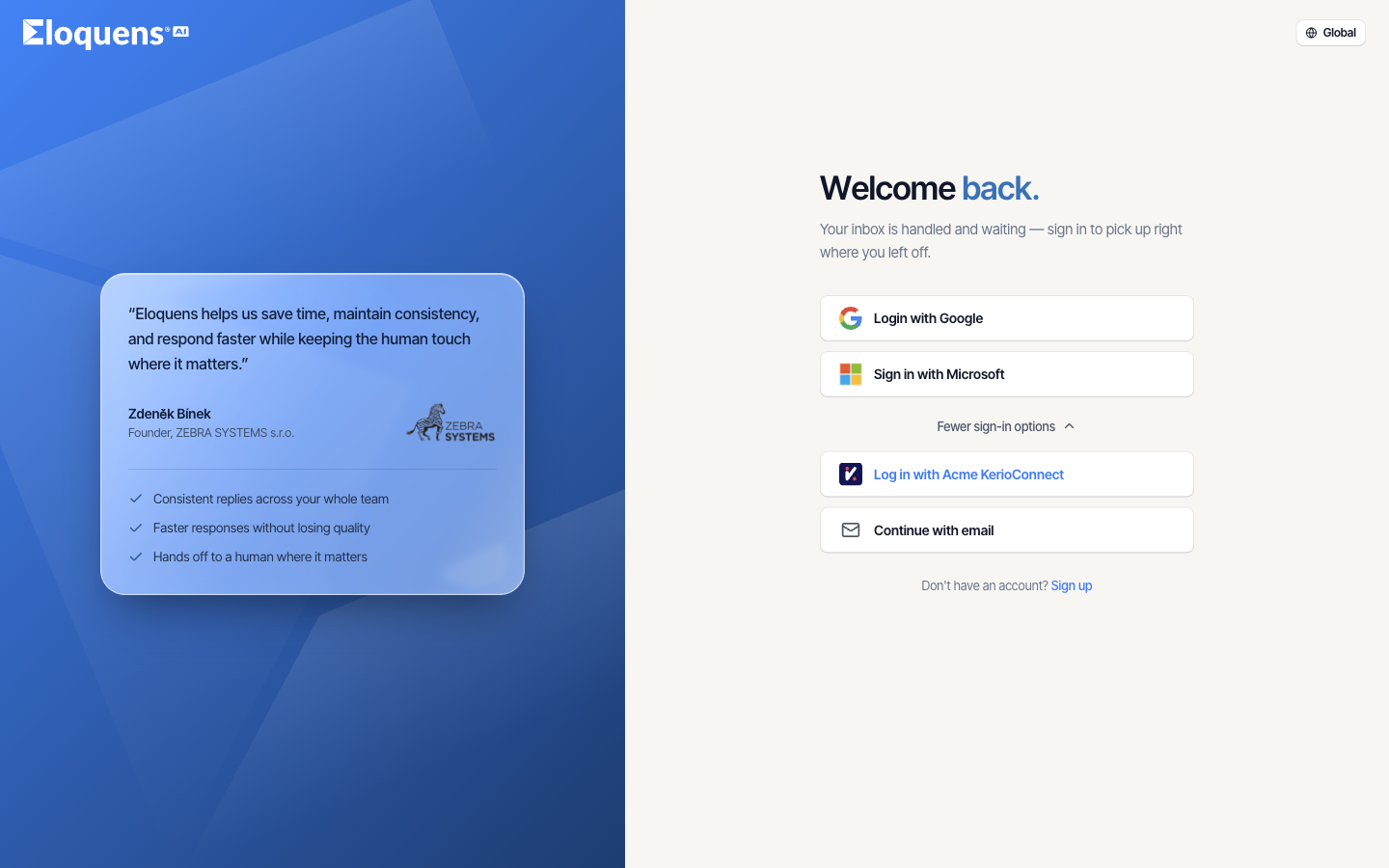
Sign in
- Go to https://app.eloquens.ai.
- Click Login with Google or Sign in with Microsoft. For the other options, click More sign-in options, then Log in with GFI KerioConnect or Continue with email to show the email and password fields.
- If you have attached an authenticator app, enter the current six-digit code when asked. Tick Remember this device for 30 days if you do not want to be asked again on this browser.
Signing in with GFI Kerio Connect
Kerio Connect asks for a little more than the other providers:
- Enter your Kerio Username and Password.
- Enter the address of your Email server, for example
https://mail.yourcompany.com. - Leave Enable SSL verification ticked unless your administrator has told you the server uses a self-signed certificate.
- Tick Remember me to keep the username and server filled in next time.
Reset a forgotten password
- On the sign-in page, click Forgot your password?
- Enter the email address you registered with and submit the form. A message confirms that we have sent you an email to recover your account. If you signed up with Google, Microsoft or Kerio Connect there is no Eloquens password to reset; use that provider's button to sign in.
- Open the email and follow the link.
- Enter a New Password and Confirm New Password, then save.
If the link has expired, the page offers a button to request a new one.
Choose where your data lives
The pill in the top-right corner of the sign-in page shows the instance you are on: Global or European Union. Click it to switch. The Global instance is https://app.eloquens.ai and the European Union instance is https://app-eu.eloquens.ai. Your account exists on one instance only, so sign in on the one where you created it. If you are already signed in, switching region signs you out first.
Good to know
- Two-factor authentication is optional. Attach an authenticator app from Profile, where you can also save recovery codes and see when it was last used.
- A workspace invitation link signs you in or up as part of accepting the invite. See Workspaces and members.
Related articles
- What is Eloquens AI?
- Set up your first assistant
- Workspaces and members
- Profile and two-factor authentication
Soma Konate
Comments