Settings → Email accounts lists every mailbox connected to the workspace and who is handling it. Use it when a mailbox needs attention, when you want to change which incoming emails an assistant handles, or when you want to attach a signature or remove a mailbox altogether.
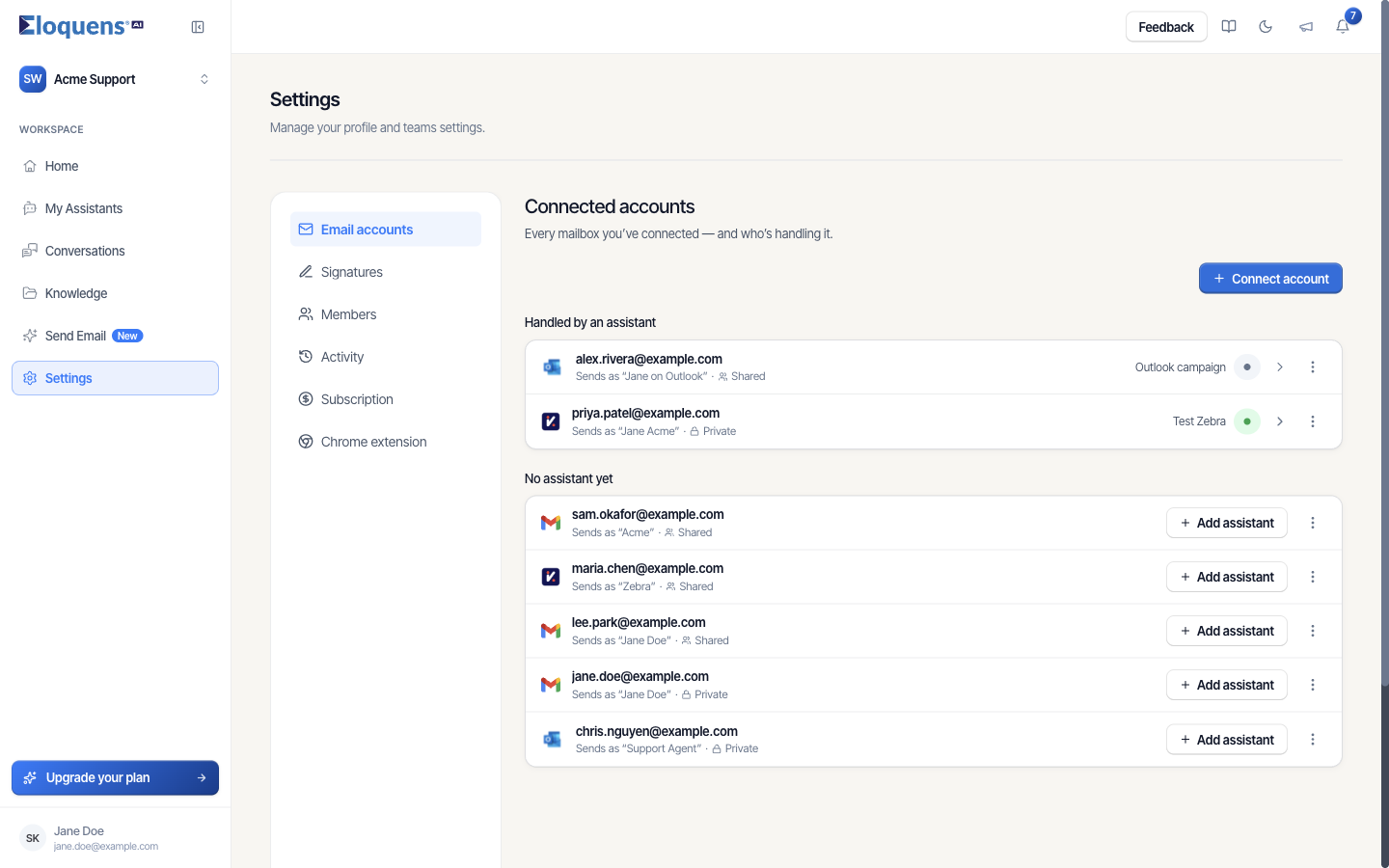
Mailboxes appear in up to three groups:
- Needs attention: the stored sign-in stopped working. The row says which assistant is paused until it is fixed and offers Reconnect.
- Handled by an assistant: the mailbox has an assistant. The row shows the assistant's name and a status dot; click the row to open that assistant.
- No assistant yet: connected, but nothing is reading it. Use Add assistant to create one for it.
Each row shows the address and the sender name it sends as. In a workspace with more than one member it also shows Shared or Private.
Edit a mailbox
- Open Settings and stay on Email accounts.
- Click the ⋮ menu at the end of the mailbox's row and choose Edit account.
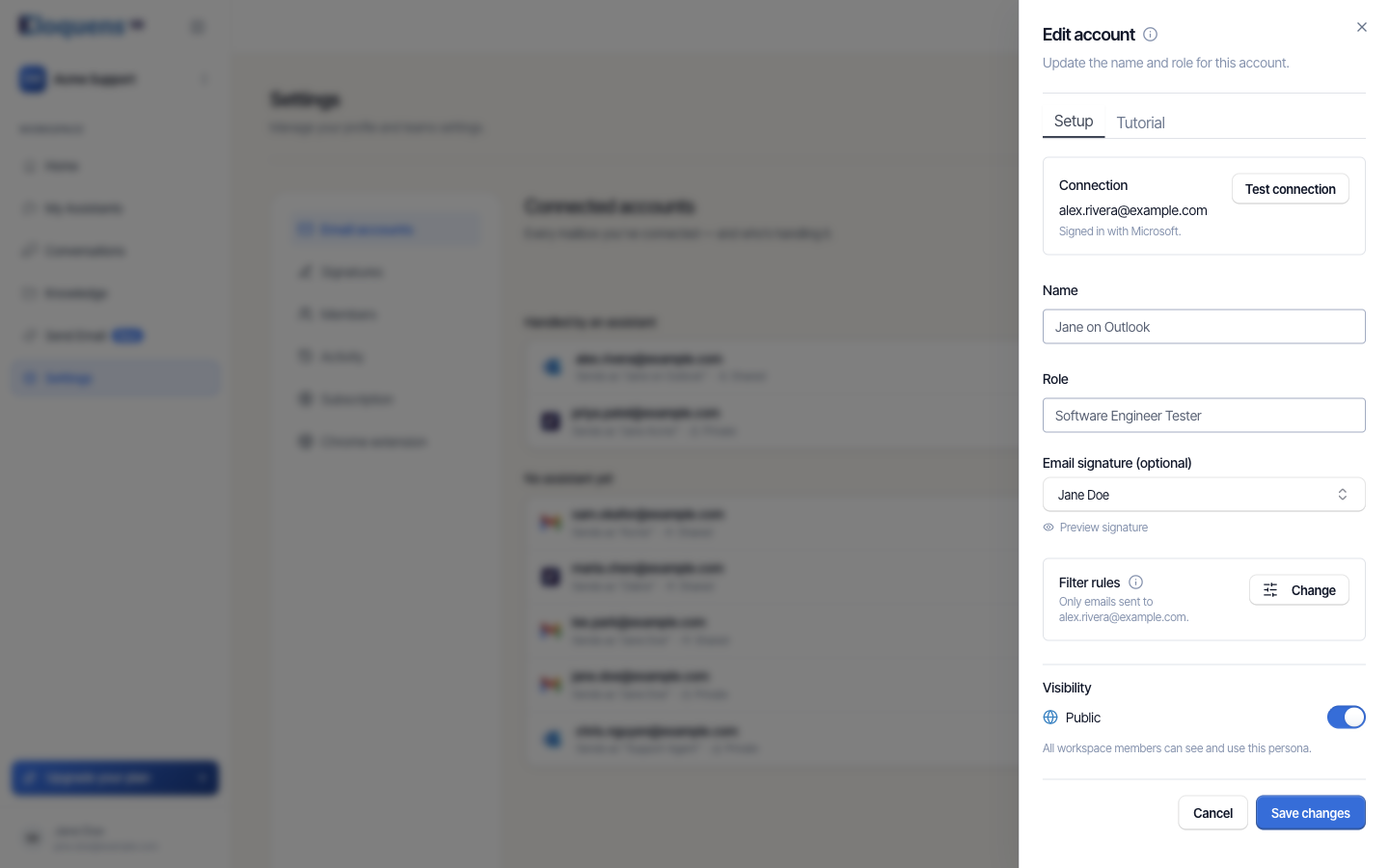
- On the Setup tab, the Connection box shows the address and how it is signed in, with a Test connection button.
- Change the Name and Role that describe this mailbox.
- Pick an Email signature (optional) from the workspace's signatures. Preview signature shows how it renders.
- Under Filter rules, click Change to decide which incoming emails the assistant handles. See the next section.
- If the workspace has other members, set Visibility. Public means every member can see and use the mailbox; turn it off to keep the mailbox private to you.
- Click Save changes.
Filter rules
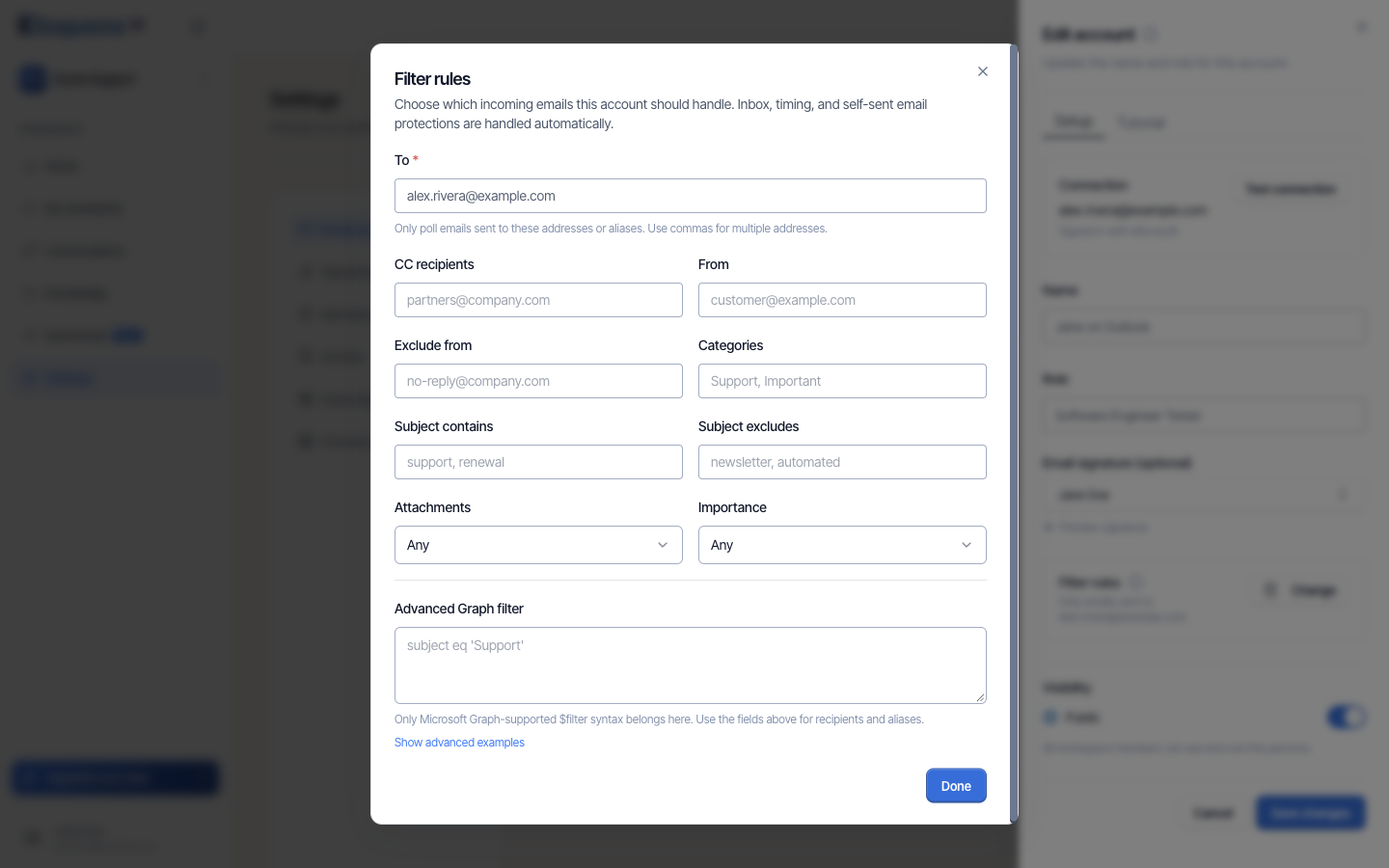
Filter rules choose which incoming emails this account should handle. Inbox placement, timing and protection against the mailbox answering itself are handled automatically; you only describe the emails you want handled.
- To (required): only emails sent to these addresses or aliases. Use commas for several.
- CC recipients and From: match on who was copied or who sent it.
- Exclude from: skip senders such as no-reply addresses.
- Labels (Gmail) or Categories (Outlook).
- Subject contains / Subject excludes.
- Attachments: any, has attachments, or no attachments.
- Importance (Outlook only).
- Advanced query (Gmail and Kerio) or Advanced Graph filter (Outlook): a raw provider query for cases the fields above do not cover. Show advanced examples lists sample filters.
Click Done to keep the rules, then Save changes on the sheet. Which fields appear depends on the provider; Kerio Connect, for example, does not offer CC, labels or attachment rules.
Test the connection
- From the ⋮ menu choose Test connection (also available in the Connection box of the Edit sheet).
- Eloquens signs in to the mailbox and lists emails received in the last few days, marking each as handled or skipped and why, for example Outside the filter rules or Sender excluded by a rule.
- If the test says it could not connect, follow the message; usually the fix is Reconnect.
For Kerio Connect the test lists only the emails the rules pick up.
Reconnect a mailbox
A mailbox lands in Needs attention when its stored sign-in expires or is revoked at the provider: a changed password, a removed app permission, or an admin action. Home also shows a red banner naming the assistant that stopped reading email.
- Click Reconnect on the row.
- A sign-in window for the provider opens. Sign in with the same account that owns this mailbox. Allow pop-ups if your browser blocks the window.
- When the window closes, the row moves back to its normal group and any paused assistant can run again.
If the row says Remove and reconnect this mailbox, the saved connection cannot be refreshed in place: remove the mailbox and connect it again.
Remove a mailbox
- From the ⋮ menu choose Remove account.
- Read the confirmation. Removing disconnects the mailbox and turns off every assistant on it. This cannot be undone.
- Click Remove account.
The assistants themselves are kept, switched off and without a mailbox. Give an assistant a different mailbox from its own page, or delete it from My Assistants.
Good to know
- Connecting a new mailbox starts from Connect account on this tab; Gmail, Outlook, Kerio Connect and IMAP mailboxes are supported. See Connect your mailbox for that flow.
- The Name and Role you set here describe the mailbox to you and your team; the address itself is chosen when the mailbox is first connected.
- Signatures are created and edited under Settings → Signatures. The Edit sheet only picks one.
Related articles
- Settings overview: what lives where
- Connect your mailbox
- Workspaces and members
Soma Konate
Comments