The Eloquens Chrome extension puts your assistant beside your inbox. Open an email in Gmail and the side panel tells you whether Eloquens replied, drafted a reply for you, or left the message alone, and why. You can approve and send a draft, delete it, or answer a question the assistant could not, all without leaving your mail.
Install and connect
- Install Eloquens from the Chrome Web Store: https://chromewebstore.google.com/detail/bohchcoccjbjbmhbhbcmbpnkibgaalhj
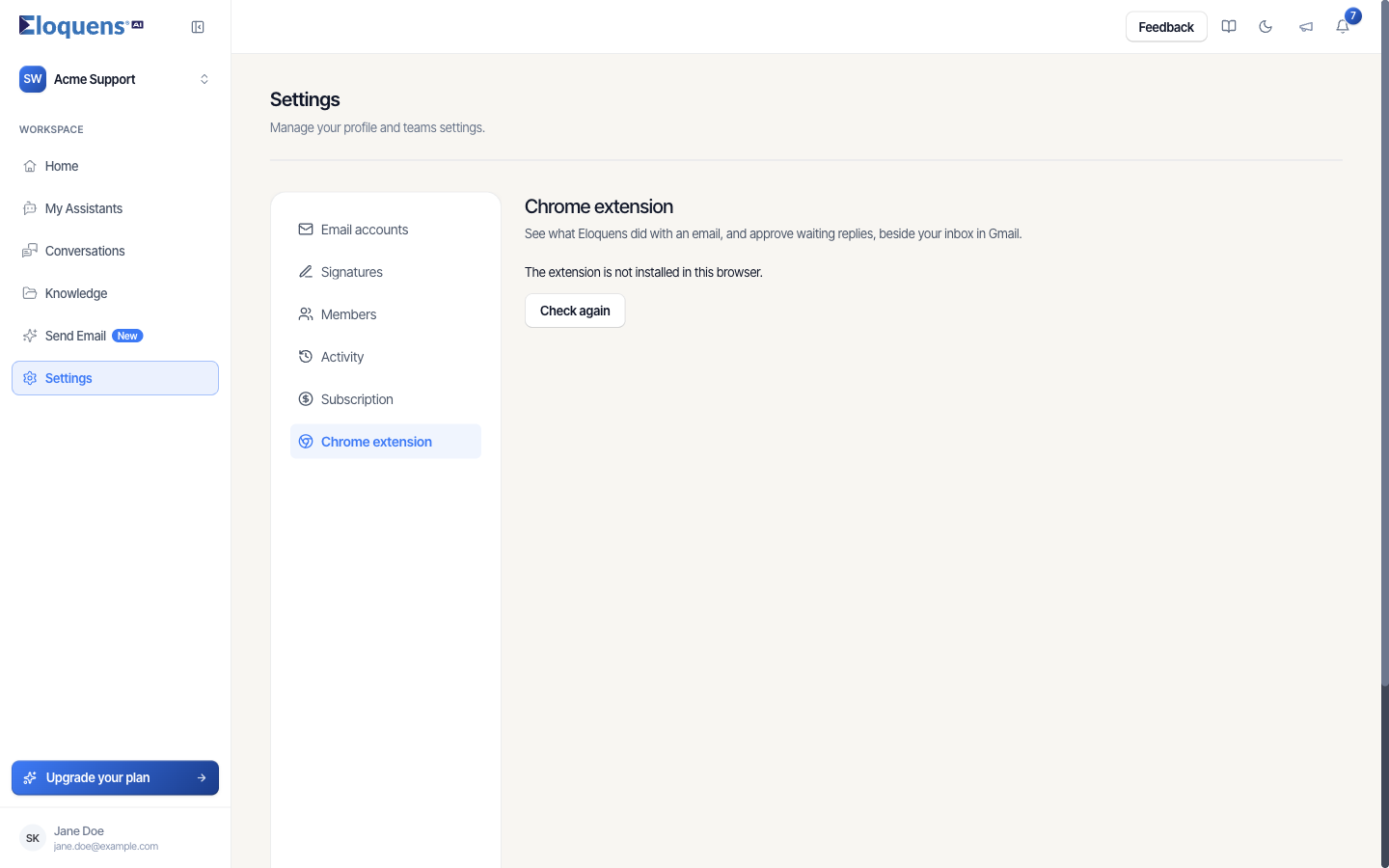
- In Eloquens, open Settings and click the Chrome extension tab.
- Click Connect. Eloquens hands a connection key to the extension directly; there is nothing to copy. The tab confirms with Connected. Open Gmail and click the Eloquens icon.
- Open Gmail and click the Eloquens icon in the Chrome toolbar. The panel opens on the right.
If the tab says The extension is not installed in this browser, finish the installation and click Check again.
What the panel shows
With an email open
- Replied, No reply needed, or a draft waiting for you, together with the name of the assistant that handled it and the address it arrived at.
- For a draft: the reply text, Written by the assistant, and the note Nothing sends until you approve. Click Approve & send to send it exactly as approving in Eloquens would, or Delete draft to remove it from Eloquens and from your mailbox.
- Its full reasoning: why the assistant made the call it made.
- Add answer: when the assistant could not answer a question, type the answer here. It is saved to Knowledge so the assistant knows next time.
- Open: jump to the conversation in Eloquens.
On your inbox list
- A summary of what was handled in the last 24h, 7d or 30d: how many emails were seen, how many replies went out, how many needed none.
- Ready for you: the drafts waiting for approval, each with Approve & send.
- Left alone, worth a look: emails the assistant decided not to answer that probably wanted a reply.
- Nothing needs you when everything is handled.
Where it works
- Gmail at mail.google.com.
- Outlook on the web at outlook.office.com, outlook.cloud.microsoft and outlook.live.com (Microsoft 365 and Outlook.com).
- The panel follows your Chrome language and is available in English, French, Italian, Czech and Portuguese (including Brazilian Portuguese).
The mailbox you are signed into must be one of your connected email accounts. Otherwise the panel reads This mailbox is not connected.
Disconnect or reconnect
- If the panel reads Connection expired, go back to Settings → Chrome extension and click Connect again.
- To remove the connection from a browser, open the extension's options page (right-click the Eloquens icon and choose Options) and click Forget this connection.
Good to know
- The extension only reads which thread is open, which account is signed in, and the senders and times of the messages on screen. It never reads the body of your email from the page; everything it shows comes from Eloquens.
- The connection key is bound to you and one workspace, and can be revoked from Eloquens without changing your password.
- Approving in the panel is final in the same way as approving in Eloquens: a sent reply cannot be recalled.
Related articles
- What is Eloquens AI?
- Connect your mailbox
- Getting help
Soma Konate
Comments