An email account is a mailbox Eloquens is allowed to read and reply from. Your first one is connected while you set up your first assistant; you can add more at any time from Settings, and each assistant reads one mailbox.
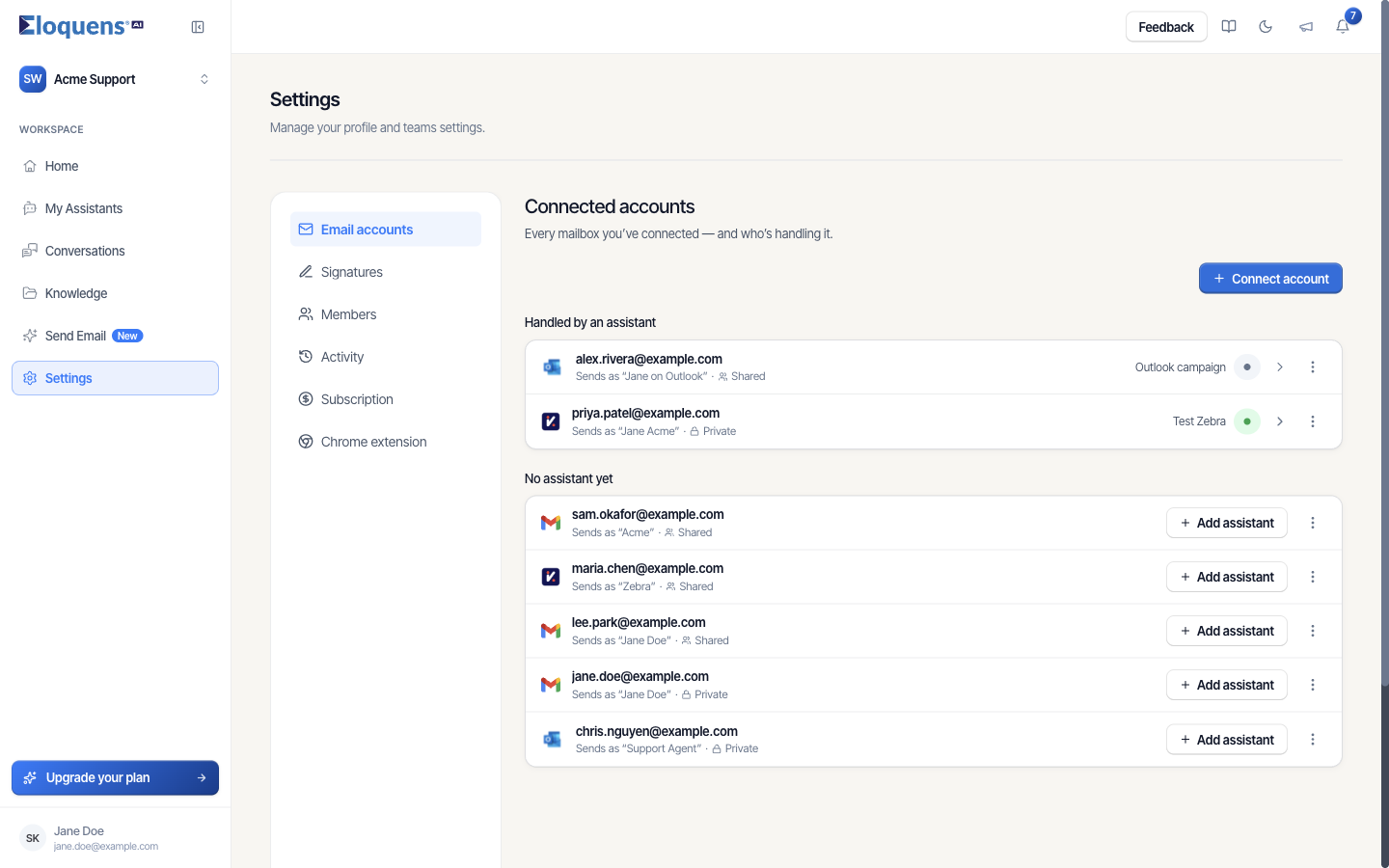
Add an email account
- Open Settings. The Email accounts tab is selected by default and shows your Connected accounts.
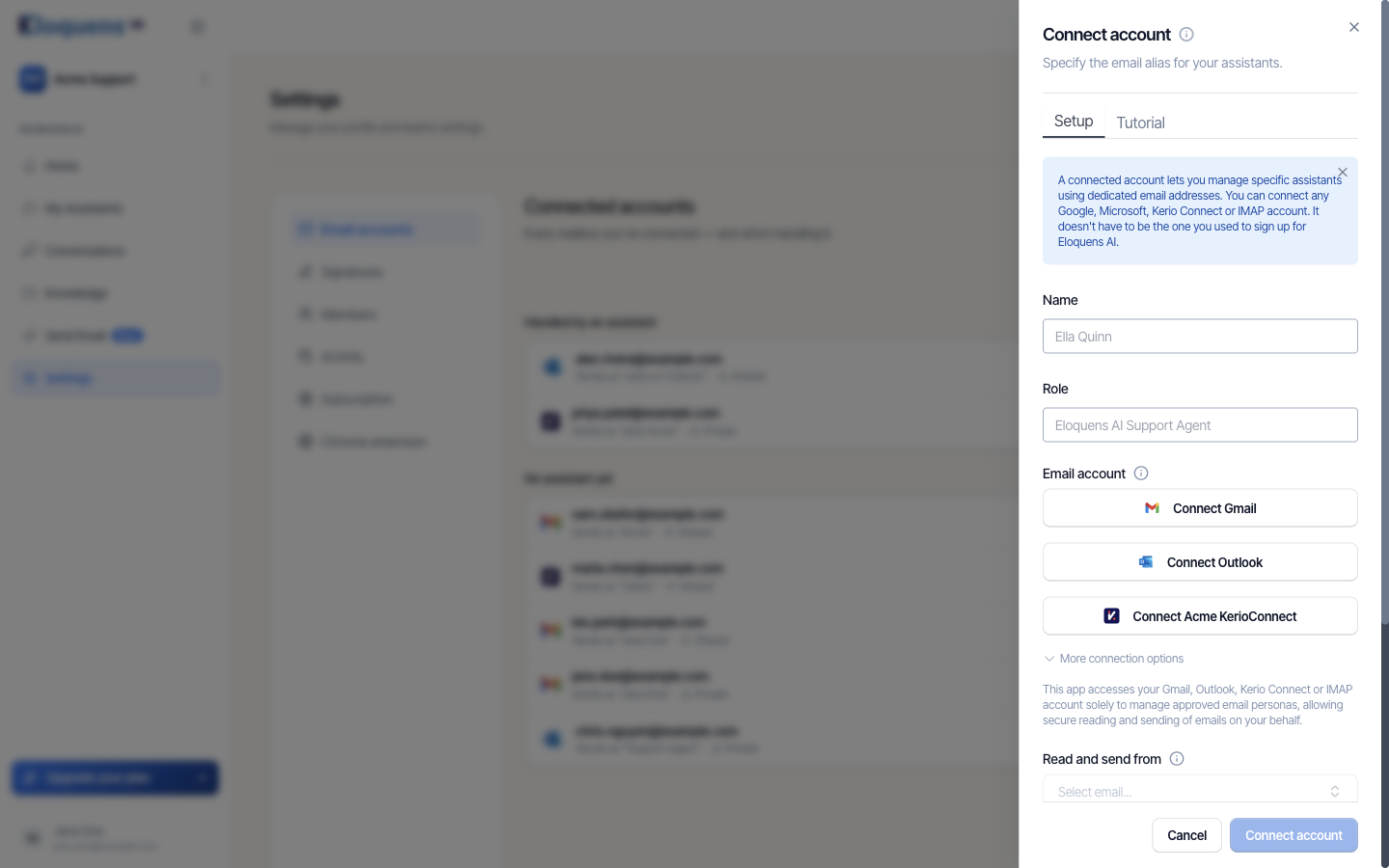
- Click Connect account. A sheet opens on the right.
- Enter a Name and a Role for the mailbox, for example the sender name recipients should see and a short description such as "Support".
- Under Email account, choose your provider:
- Connect Gmail for Google Workspace and Gmail mailboxes.
- Connect Outlook for Microsoft 365 and Outlook.com mailboxes.
- Connect GFI KerioConnect for Kerio Connect servers. Enter your username, password and server address when asked.
- More connection options, then IMAP mailbox, for any other mail server (see below).
- Approve the permissions on your provider's page. You are brought back to the sheet.
- Under Read and send from, pick the address the assistant should use if the mailbox has more than one, then click Connect account.
The new account appears under No assistant yet with an Add assistant button until an assistant is attached to it, and under Handled by an assistant afterwards.
What Eloquens asks permission for, and why
| Provider | Permission | Used for |
|---|---|---|
| Gmail | Read, compose, send and permanently delete all your email | Reading new mail, saving drafts, sending replies, and labelling each handled message so you can see at a glance what happened to it. |
| Gmail | See your email address; manage basic mail settings | Matching the mailbox to your account and reading your signatures and send-as addresses. |
| Microsoft 365 | Read and write access to your mail; send mail as you; read and write mailbox settings; maintain access | The same reading, drafting, sending and signature work. Shared mailboxes add the equivalent shared-mailbox permissions. |
Eloquens sends a message in your name only when the assistant is in a response mode that allows it, and every message it touches is listed in Conversations.
If your Microsoft 365 organisation requires an administrator to approve new apps, the connect step shows an admin-approval notice with a button to copy an approval link. Send that link to your IT administrator; once they approve, connect again.
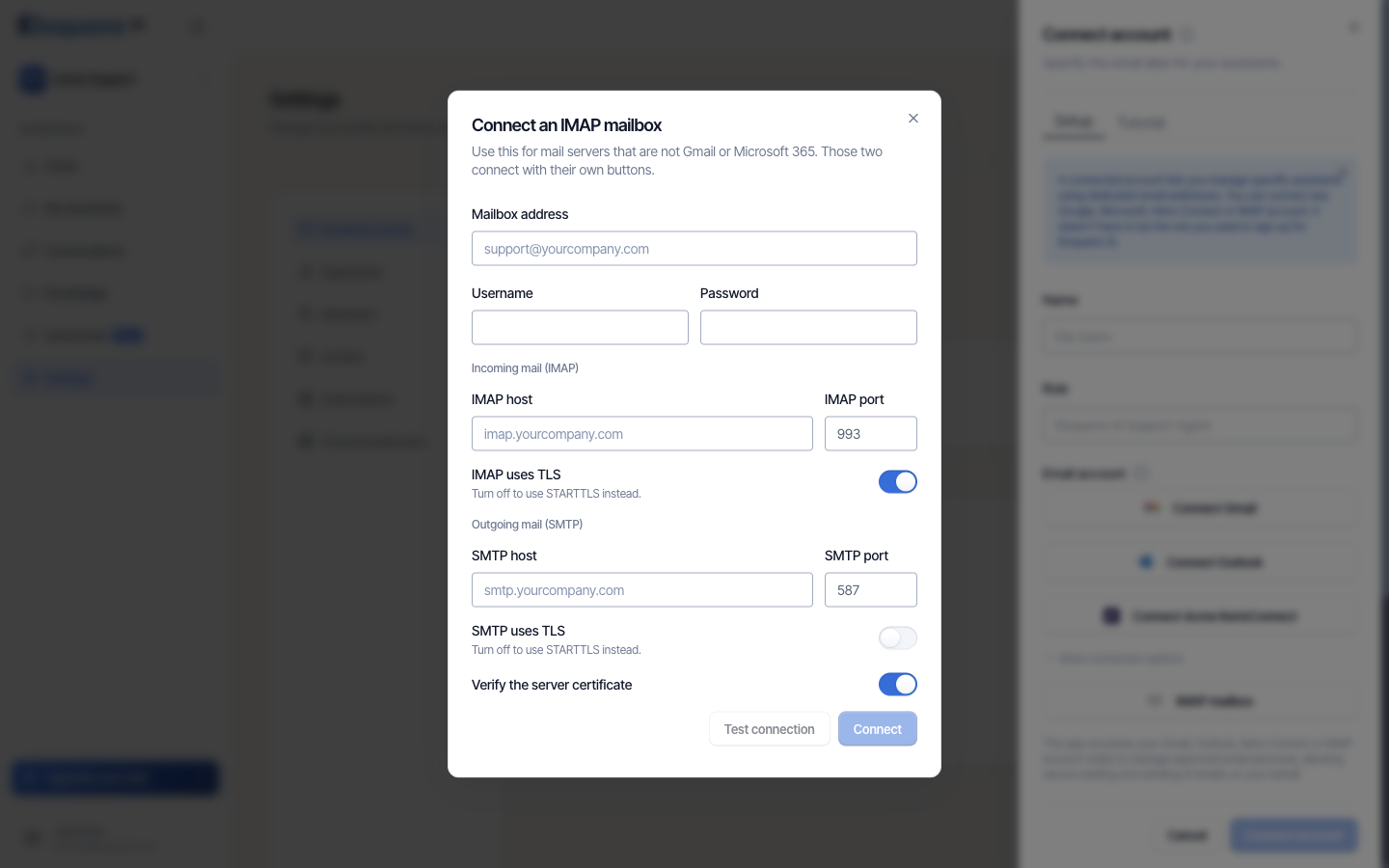
Connect any other mailbox over IMAP
- Click Connect account, expand More connection options and click IMAP mailbox. The Connect an IMAP mailbox dialog opens.
- Enter the Mailbox address, the Username your server expects (often the full address), and the Password.
- Under Incoming mail (IMAP), enter the IMAP host and IMAP port (993 is filled in for you). Leave IMAP uses TLS on unless your server uses STARTTLS.
- Under Outgoing mail (SMTP), enter the SMTP host and SMTP port (587 is filled in). Turn SMTP uses TLS on if your server expects TLS on port 465.
- Leave Verify the server certificate on unless your administrator has told you the server uses a self-signed certificate.
- Click Test connection. Eloquens signs in to both servers and tells you which setting to change if something fails.
- When the test passes, click Connect.
With an IMAP mailbox the assistant reads new messages and saves its replies to the mailbox's Drafts folder for you to send.
Reconnect a mailbox that has stopped reading mail
A mailbox stops being readable when its sign-in is revoked, its password changes, or your provider withdraws the permission. Eloquens pauses the assistant straight away and emails you. In the app you will see:
- a red banner at the top of Home reading "Assistant name stopped reading email", with a Reconnect Assistant name link;
- the account listed under Needs attention in Settings → Email accounts, with a Reconnect button on its row.
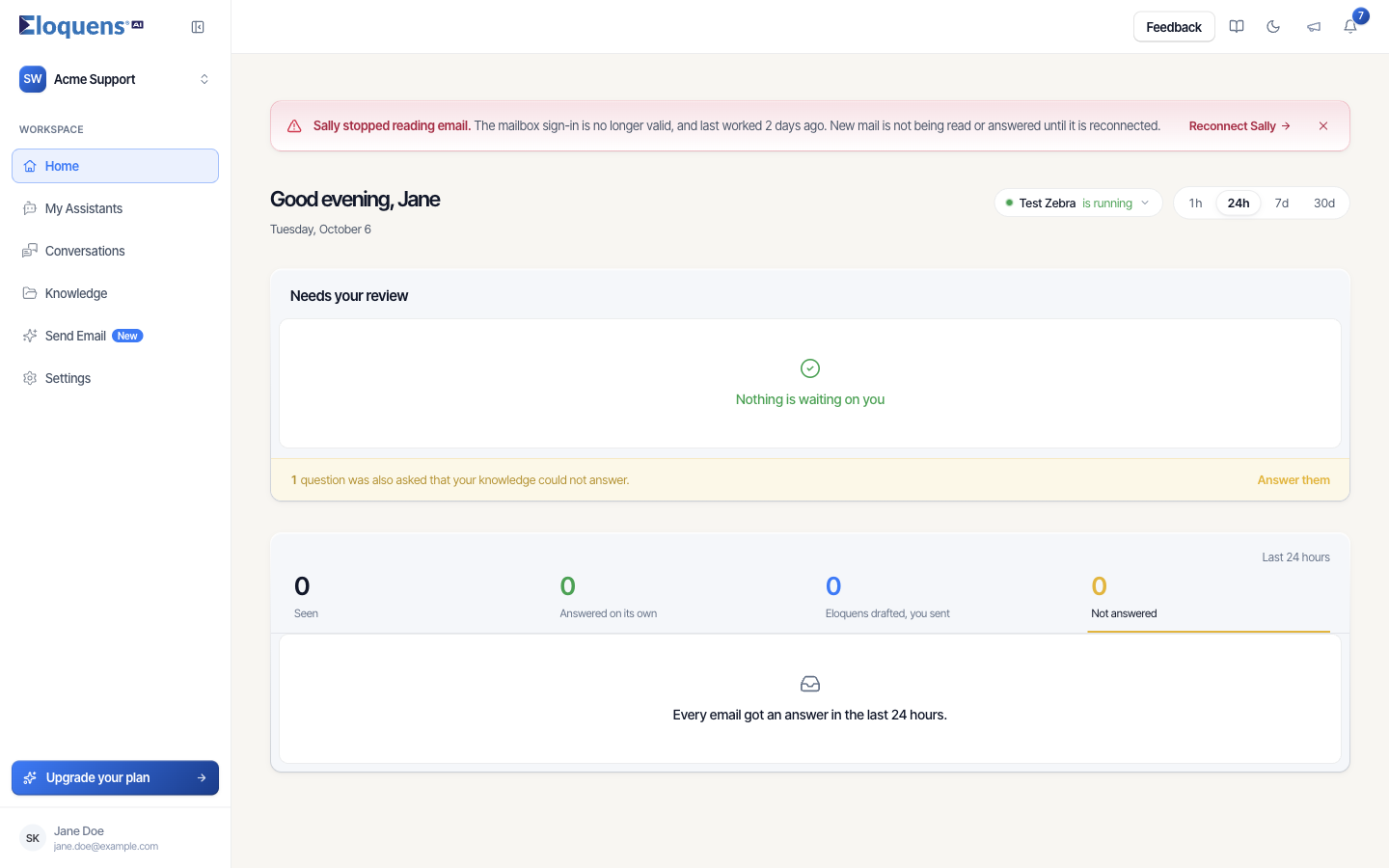
To reconnect:
- Click Reconnect on the banner or on the account row.
- Sign in to the same mailbox at your provider. If you pick a different account, Eloquens tells you the accounts do not match and leaves the original untouched.
- Approve the permissions. The row returns to its normal group and the paused assistant resumes.
Remove an email account
- In Settings → Email accounts, open the ⋮ menu on the row and choose Remove account.
- Confirm Remove account in the dialog.
Any assistant reading that mailbox is switched off until you give it another mailbox.
Good to know
- Each row shows the sender name the mailbox sends as and, in a workspace with more than one member, whether it is Shared or Private.
- The ⋮ menu on a row also offers Edit account and Test connection. See Managing a connected mailbox.
Related articles
- Set up your first assistant
- Managing a connected mailbox
- Sign in and create your account
- Workspaces and members
Soma Konate
Comments