Two small but useful parts of Knowledge: Notes, a free-text block each assistant reads on every reply, and the FAQ list, the full read-back of every question and answer an assistant keeps.
Notes
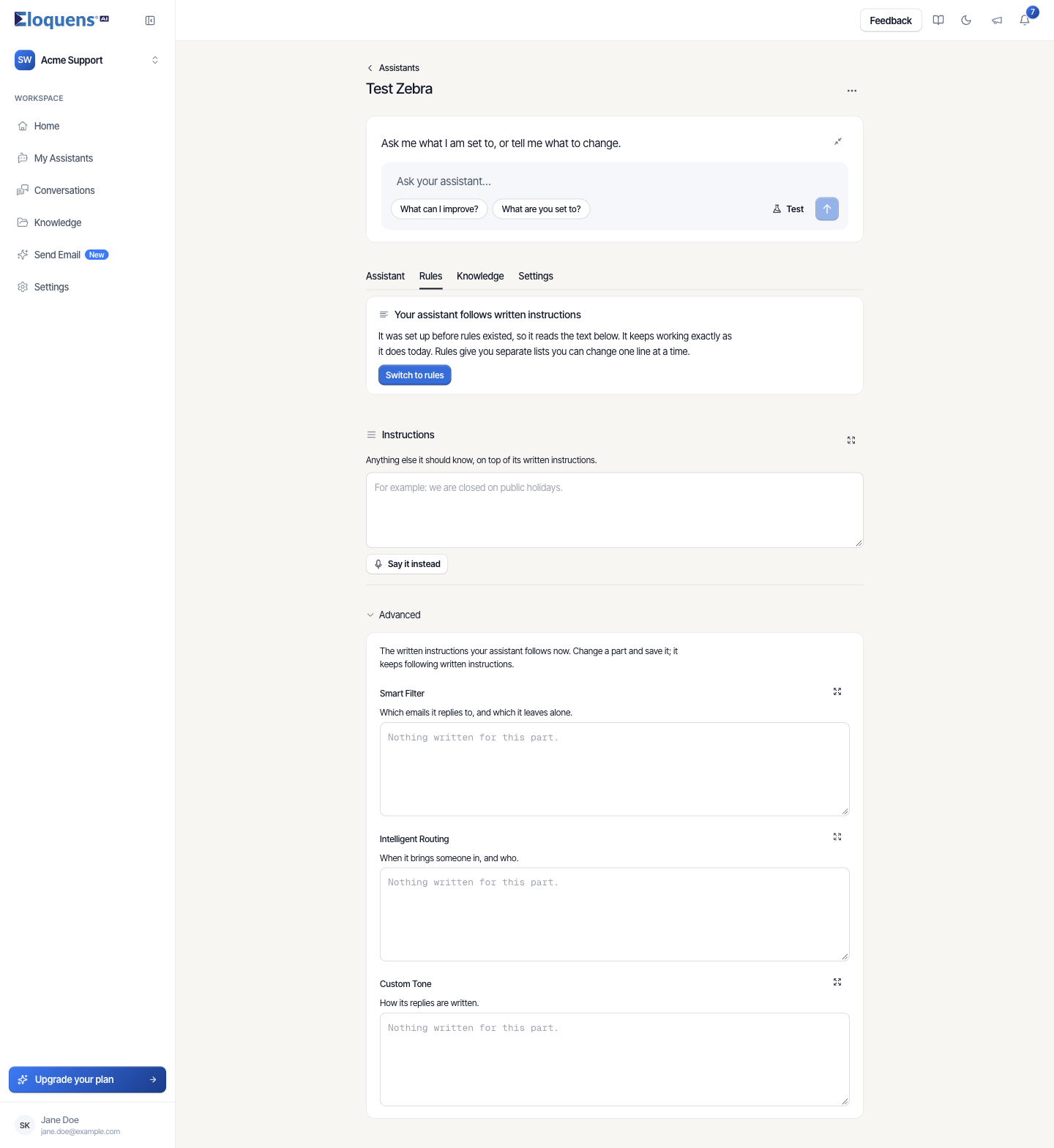
A note is plain text that belongs to one assistant and is included whenever it writes a reply. Use it for facts that are too short for a document and too general for a Q&A pair: opening hours, a returns window, who to escalate to, phrases to avoid. On the assistant's page it is the Instructions field.
Write or change a note
- In the left rail, click My Assistants and open the assistant.
- Click the Rules tab.
- Under Instructions (Anything else it should know, on top of its written instructions.), type or edit the text. The placeholder gives the idea: For example: we are closed on public holidays.
- To dictate the text, click Say it instead.
See every note in the workspace
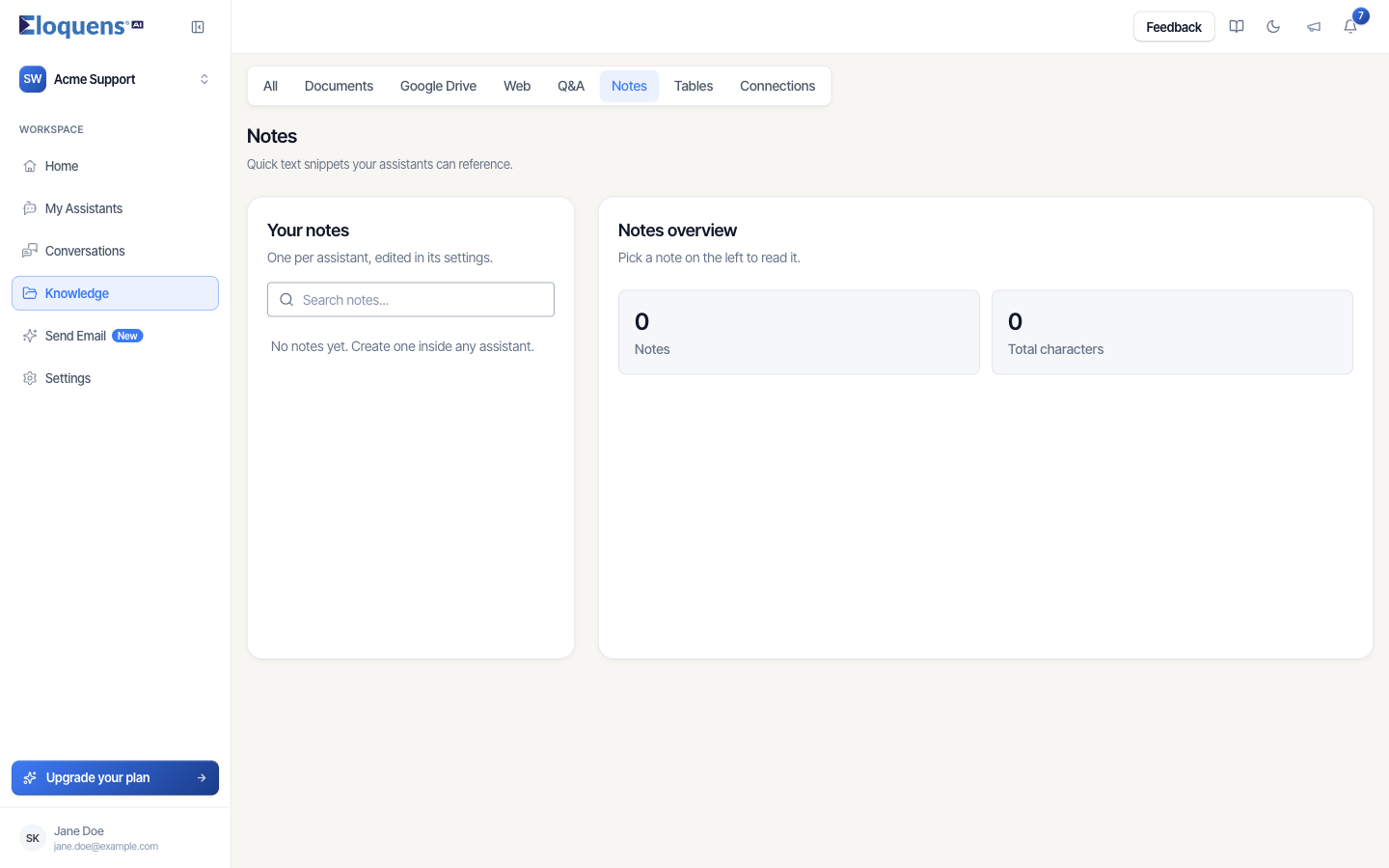
- In the left rail, click Knowledge, then the Notes tab.
- The Notes page lists each assistant's note under Your notes (One per assistant, edited in its settings.), with Search notes... to find text. Notes overview shows the count and Total characters. Pick a note on the left to read it.
- Until an assistant has one, the page reads No notes yet. Create one inside any assistant.
Notes appear on the Knowledge page under What it reads as Note. A note cannot be detached with Stop reading because it belongs to one assistant; edit or clear it rather than detaching it.
The FAQ list
Every question-and-answer pair an assistant keeps, whichever way it arrived (typed by you, learned from email, or written to fill a gap), is listed on the FAQ page, titled FAQ with the line Every question this knowledge already answers, with the answer it produces today.
Open it
- In the left rail, click Knowledge.
- Make sure the heading names the assistant you want, then click the approved answers line under Needs you. Back to Knowledge returns you.
Find a pair
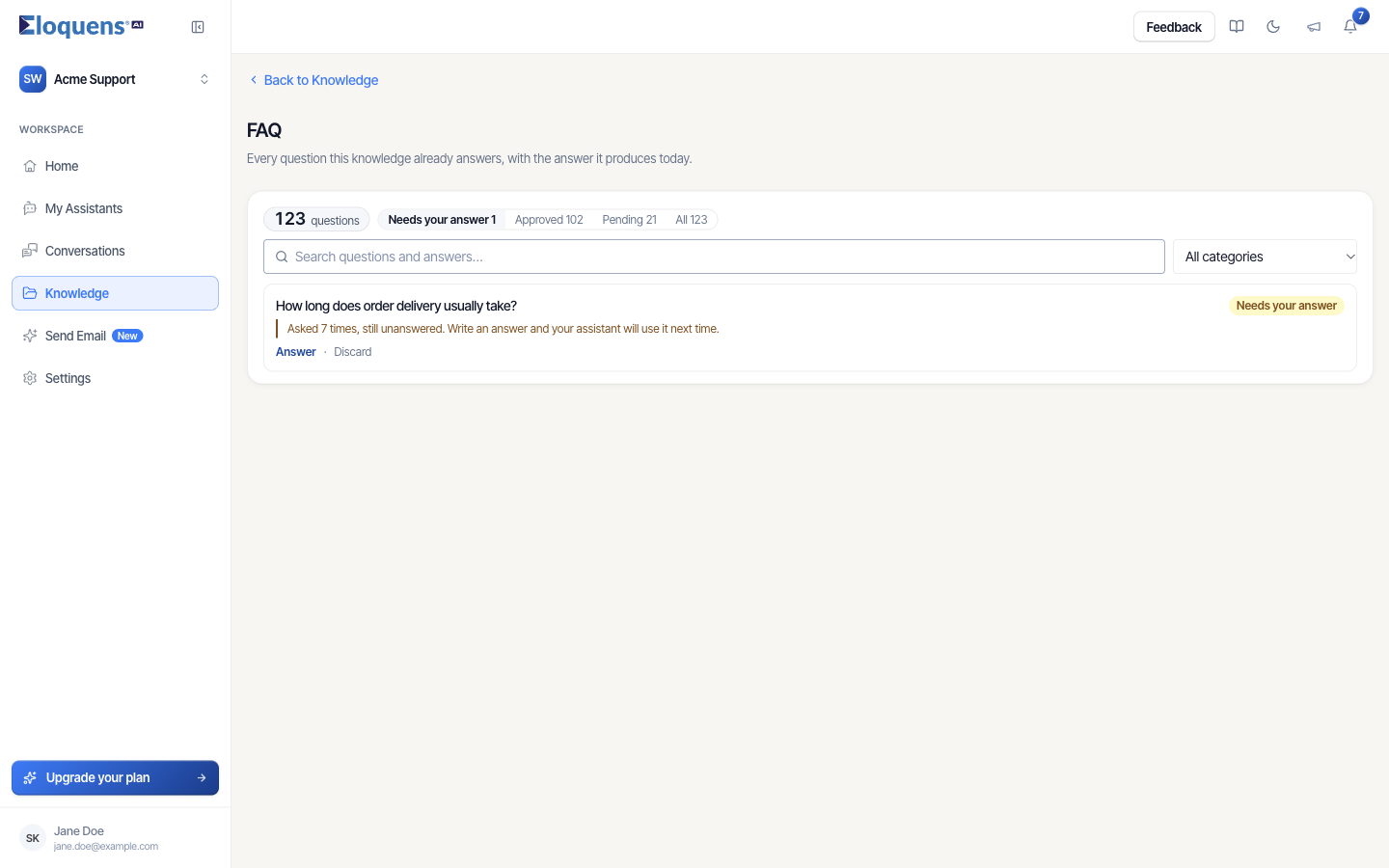
- Filter with Needs your answer, Approved, Pending or All. Each shows its count, and the total reads N questions. Needs your answer moves to the front whenever there is something in it.
- Type in Search questions and answers… to search both halves of every pair.
- Pick a category from All categories to narrow by topic.
- Click View N more at the bottom to load the next batch.
What a row shows
Each row shows the question, the answer, a status chip (Approved, Pending, Rejected, or Needs your answer), and, where it applies, a note about where it came from. Statuses mean:
- Approved: the assistant answers from this pair.
- Pending: a pair exists and is waiting for your review. The assistant does not use it yet.
- Rejected: you decided not to use it. It is kept for reference and never used.
- Needs your answer: the assistant was asked this and had nothing to answer from. The row says so: Asked N times, still unanswered. Write an answer and your assistant will use it next time.
Act on a row
- Approve appears on a pending pair. Click it and the assistant starts answering from it.
- Edit opens the pair so you can correct the wording. Save, and the corrected answer replaces the old one.
- Discard removes a pair after a confirmation.
- Try again appears on a pair that could not be indexed. Click it to index it again.
- Answer appears on a Needs your answer row; see Questions and answers for how gaps are filled.
Good to know
- Approved pairs are indexed so the assistant can find them like any other knowledge. A pair whose indexing failed shows Try again rather than silently sitting there.
- The list is ordered with approved pairs first, so the top of the list is what your assistant actually uses.
- The Q&A tab under Knowledge opens the Q&A page, where you can also add pairs by hand, share them to other assistants, and import or export them. See Questions and answers.
Related articles
- Questions and answers
- Knowledge: what your assistant answers from
- Ask your knowledge a question
Soma Konate
Comments