Q&A pairs are the fastest way to teach an assistant something specific: one question, one answer. Pairs arrive in four ways: a customer asks something nothing in your knowledge covers (a gap), the assistant writes one from an email it handled, you edit one of its drafts before sending, or you type one yourself. Nothing the assistant learns is used until you approve it.
Gaps: questions your knowledge could not answer
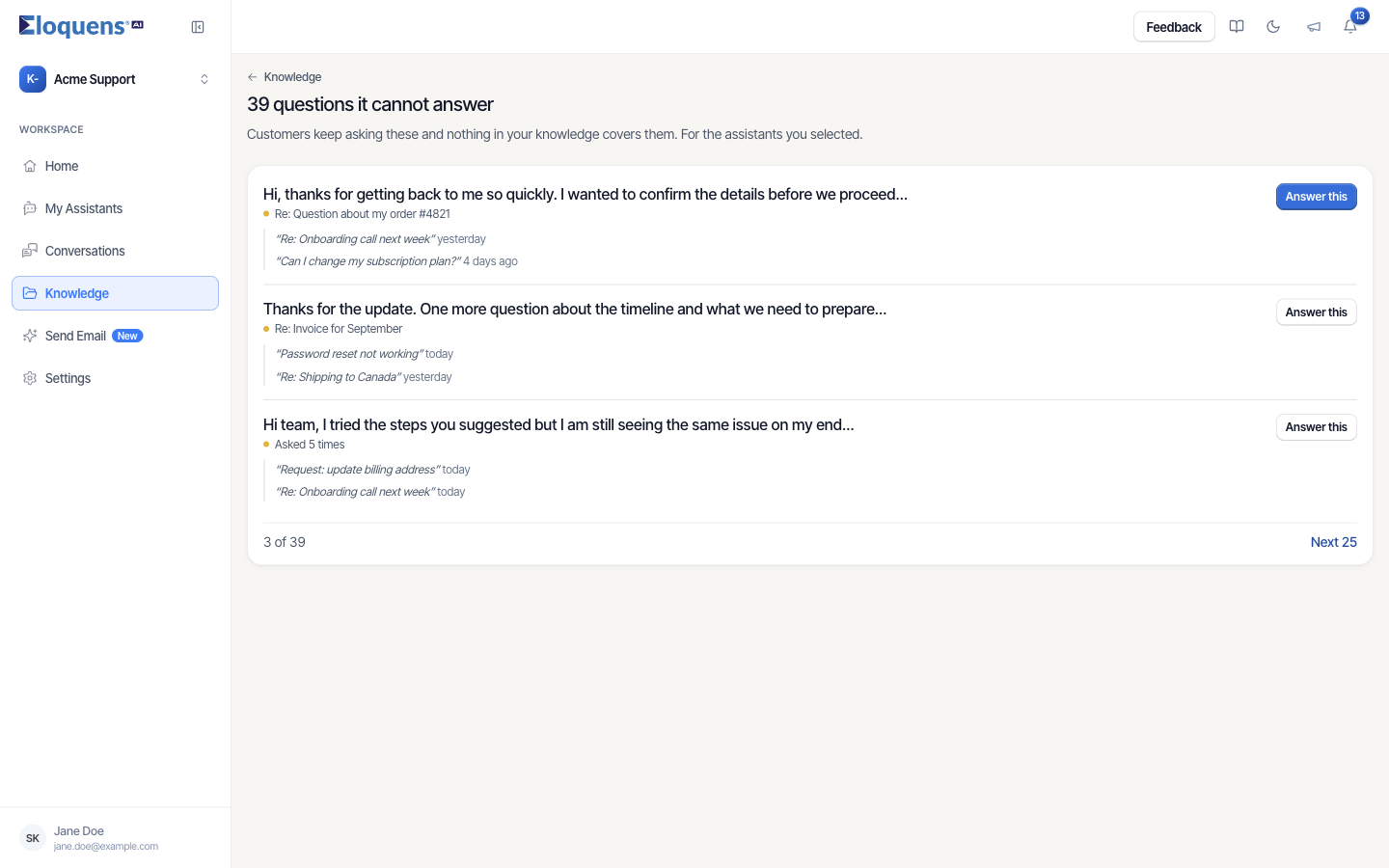
When a message arrives and the assistant finds nothing it can answer from, it keeps the question. On the Knowledge page the header says, in amber, N things customers asked that nothing here answers, and the Needs you card shows N questions customers keep asking that it cannot answer.
Answer a gap
- In the left rail, click Knowledge, and make sure the heading names the right assistant.
- Under Needs you, click the questions row. The view is titled N questions it cannot answer and reads Customers keep asking these and nothing in your knowledge covers them.
- Each row shows the question, how often it was asked (Asked 5 times) or the subject it came in under, and the sentences customers actually wrote, in quotes, with when they wrote them. Click a quote to open its conversation.
- Click Answer this.
- Either drop a document that answers it (Drop it here, or choose a file), or tick I'd like to answer it myself and write the answer under How would you answer?. You can do both.
- Click Save answer. The row condenses to a receipt and tells you how many gaps are left. Undo reverses it.
If the assistant should not answer the question at all, click I don't want Eloquens to answer this. The question is closed and nothing is learned.
Once answered, the pair is approved and the assistant uses it the next time the question comes up.
Answers learned from email
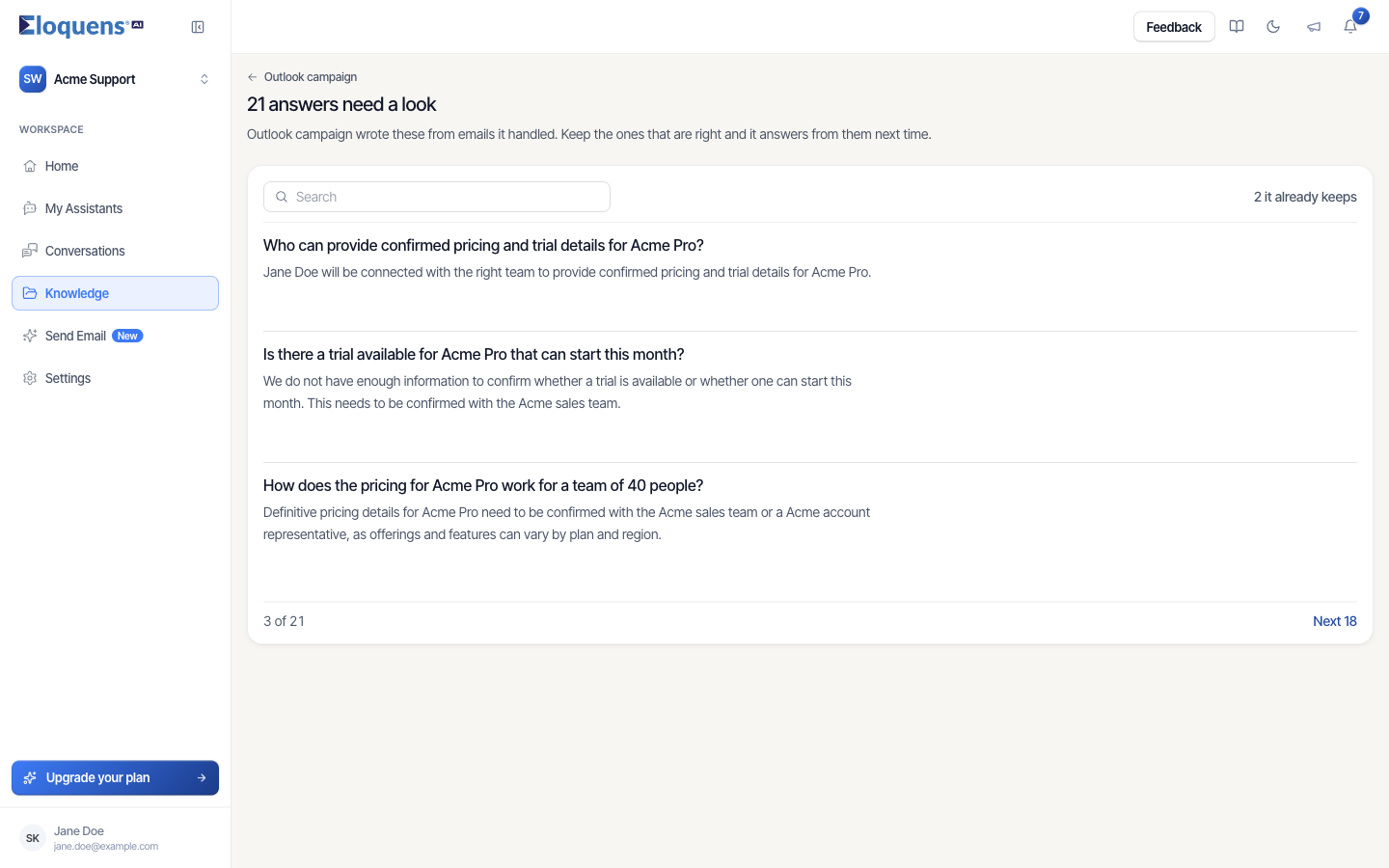
The assistant also writes pairs from emails it handles, and from replies by the people listed under Learn from when Learn when a person steps in is switched on (on the assistant's Knowledge tab). These wait for you: the Needs you card shows N answers it learned from email need a look before it uses them.
- Click that row. The view is titled N answers need a look and explains: {assistant} wrote these from emails it handled. Keep the ones that are right and it answers from them next time.
- Read each pair. Click Keep it to approve it, Edit first to correct it before keeping it, or the bin icon to discard it.
- Use Search to find a particular question. N it already keeps shows how many are approved, and Next N loads the rest.
How your draft edits feed back
When the assistant leaves a reply as a draft in a Gmail mailbox and you change the wording before you send it, Eloquens notices the difference between its draft and what you sent and turns the correction into a Pending pair. It shows up in the same queue, with the source Draft Edit, and is used only after you keep it. Formatting-only and signature changes do not count.
Correct a kept answer
- Open the FAQ list or the Q&A tab under Knowledge.
- Find the pair with search or the Approved filter.
- Click Edit, change the answer, and save. The corrected answer replaces the old one and is re-indexed.
- If the pair is simply wrong, click Discard instead.
Add a pair by hand
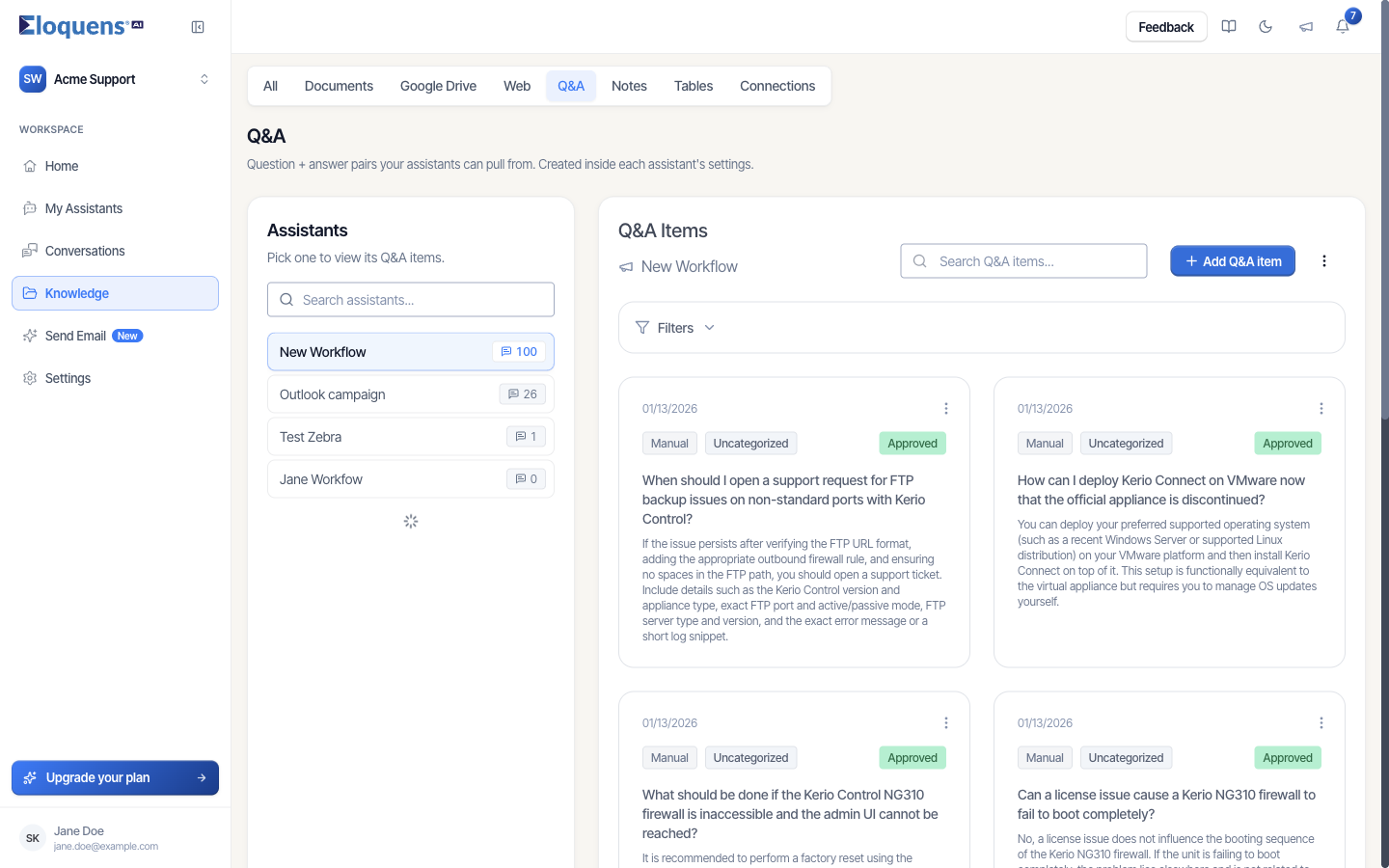
- In the left rail, click Knowledge, then the Q&A tab.
- Under Assistants, pick the assistant.
- Click Add Q&A item.
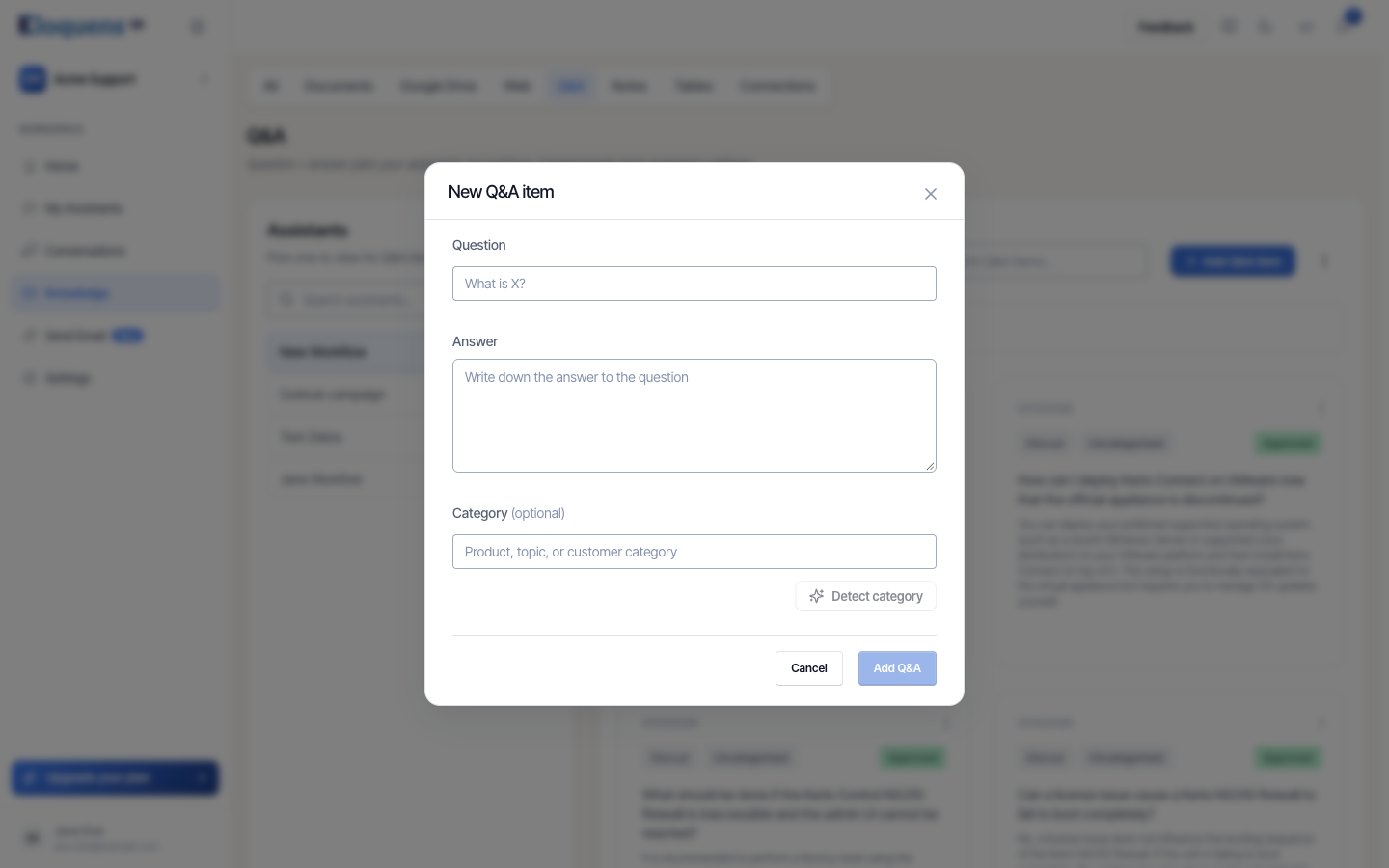
- In New Q&A item, fill in Question and Answer. Optionally set a Category, or click Detect category to let Eloquens suggest one.
- Click Add Q&A. Pairs you type are approved straight away.
On this page you can also:
- open Filters to narrow by Status, Source (Manual, Conversation, Draft Edit), Category and date, and sort newest or oldest first;
- Share to... to copy a pair to other assistants (the dialog is titled Share Q&A to mailboxes), and Remove shared to take it back;
- Download the list as a text file or Export as JSON, and Import Q&A from a JSON export;
- Re-categorize uncategorized to let Eloquens assign missing categories.
Good to know
- The gaps list follows the assistant in the heading. A link from elsewhere in the app can also open a list for several assistants at once, and the view says For the assistants you selected.
- Approving is the only step that lets the assistant use a learned pair. Pending pairs are invisible to it.
Related articles
- Notes and the FAQ list
- Ask your knowledge a question
- Knowledge: what your assistant answers from
Soma Konate
Comments