Knowledge is everything an assistant may read when it writes a reply: uploaded documents, Google Docs it keeps current, websites, notes, saved question-and-answer pairs, tables, and live business systems such as HubSpot and Salesforce. When an email arrives, the assistant searches the knowledge attached to it and writes the reply from what it found. If nothing covers the question, it appears on the Knowledge page as a gap for you to fill.
How knowledge is organised
- The workspace holds the knowledge. Every file, site, table and connection you add belongs to the workspace, so it can be shared between assistants.
- Each assistant reads only what is attached to it. Attaching is the step that lets an assistant use a source. A source attached to no assistant stays in the workspace, and the page marks it not attached, so nothing can read it.
- Stop reading detaches a source from one assistant. The source stays in the workspace and every other assistant that reads it keeps reading it. Delete from workspace removes the source itself, for every assistant, and cannot be undone.
Open the Knowledge page
- In the left rail, click Knowledge.
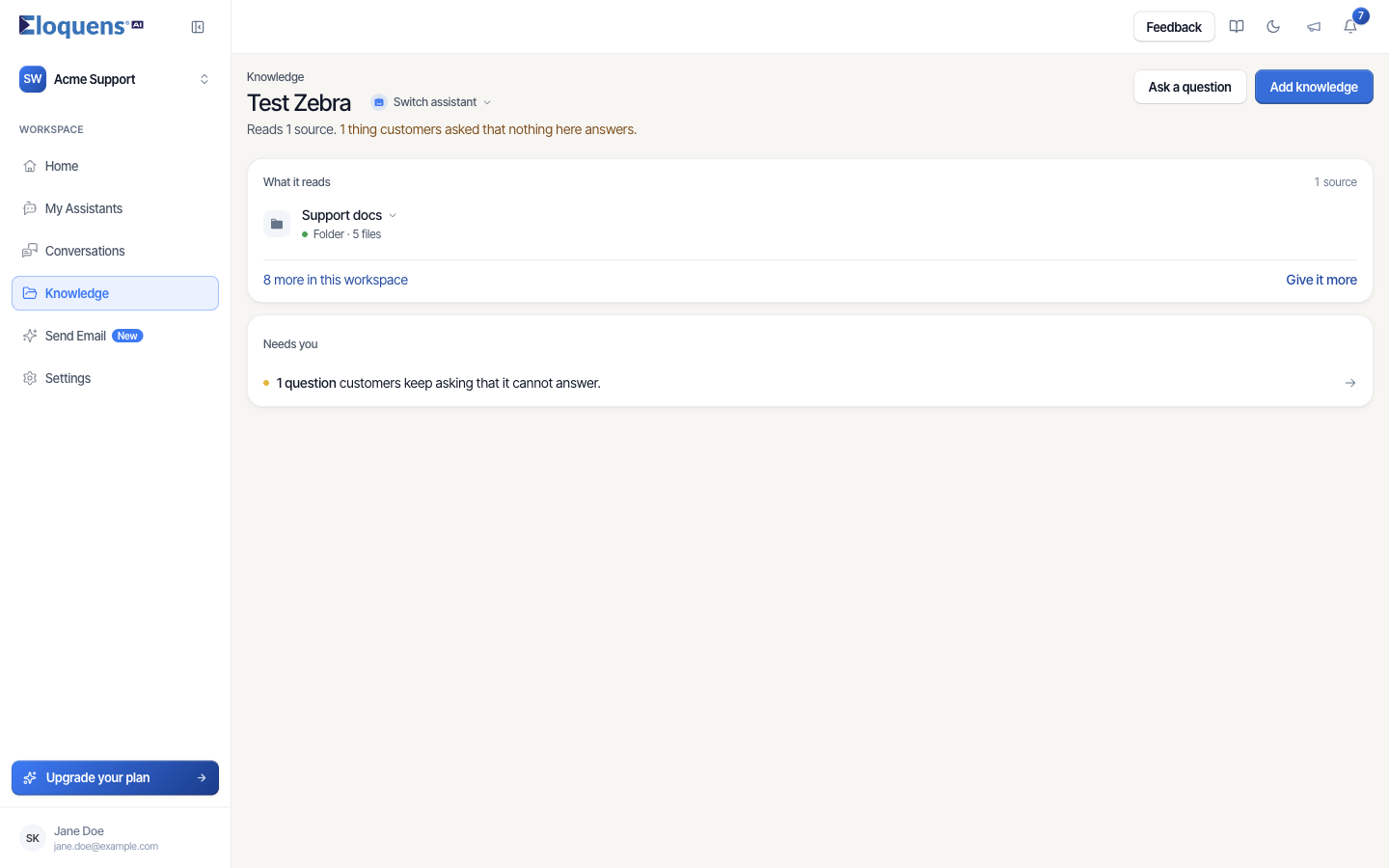
- The heading names the assistant the page is about. Click Switch assistant to look at another one.
- Under the heading, one sentence sums the page up: Reads N sources. and, in amber, how many things customers asked that nothing here answers. An assistant with no knowledge reads Reads nothing yet.
What is on the page
Header. Two buttons: Ask a question opens a dialog where you test how the assistant would answer, and Add knowledge opens the one dialog for adding anything.
What it reads. One row per source the selected assistant reads. Each row shows a coloured dot (green: readable, grey: still being read, amber: needs you), the name, and one short clause, for example Folder · 5 files, Site · 35 pages, all readable, Google Docs, Table · 120 rows, or Live system · read at answer time. Rows with files or pages under them expand to list those, and pointing at a row shows a card with its details. The ··· menu on a row offers Stop reading and Delete from workspace.
Under the rows, N more in this workspace tells you how many sources other assistants read that this one does not. Give it more opens the Add knowledge dialog.
Needs you. Everything waiting on a person, one row each, shown only when there is something to do:
- N questions customers keep asking that it cannot answer.
- N files may disagree with knowledge it already has.
- N answers it learned from email need a look before it uses them.
- N files it hasn't used in a reply for 90 days.
Click a row to open it. When nothing is waiting and the assistant has approved answers, a line shows how many approved answers it keeps.
The Add knowledge dialog
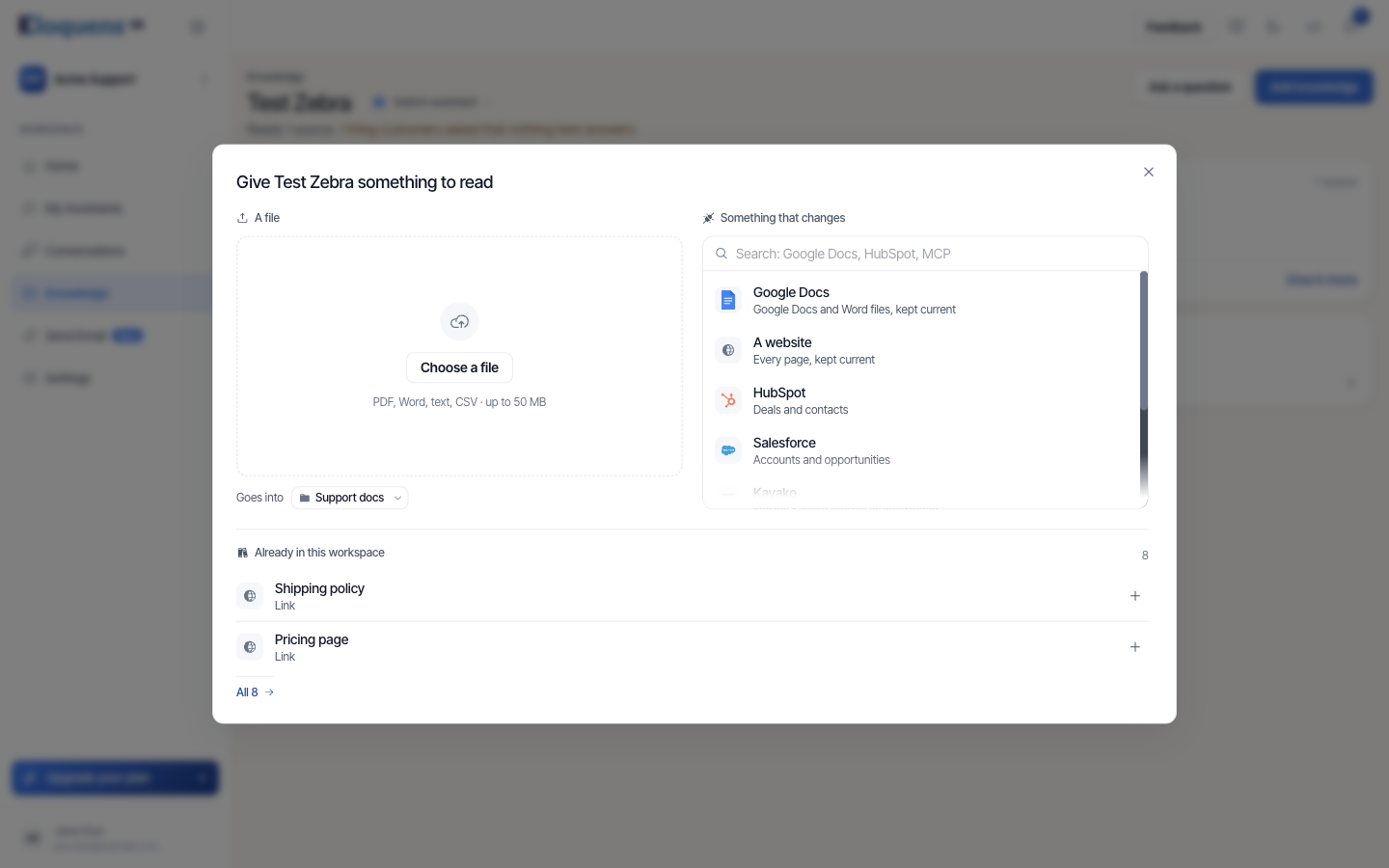
Add knowledge opens a dialog titled Give {assistant} something to read, with two halves and a band underneath.
- A file. Drop files or click Choose a file. The line under it states what is accepted: PDF, Word, text, CSV · up to 50 MB. Goes into picks the folder the file lands in, or New folder… makes one.
- Something that changes. A searchable list of sources that stay current on their own: Google Docs, A website, HubSpot, Salesforce, Kayako, Zendesk, A table, and Anything with an MCP server or API.
- Already in this workspace. Sources other assistants read that this one does not yet. Click + on a row to give this assistant the same source, or click All N to see the full list.
The section pages
Each kind of source also has its own management page, with tabs across the top: All, Documents, Google Drive, Web, Q&A, Notes, Tables, Connections.
Knowledge on the assistant's own page
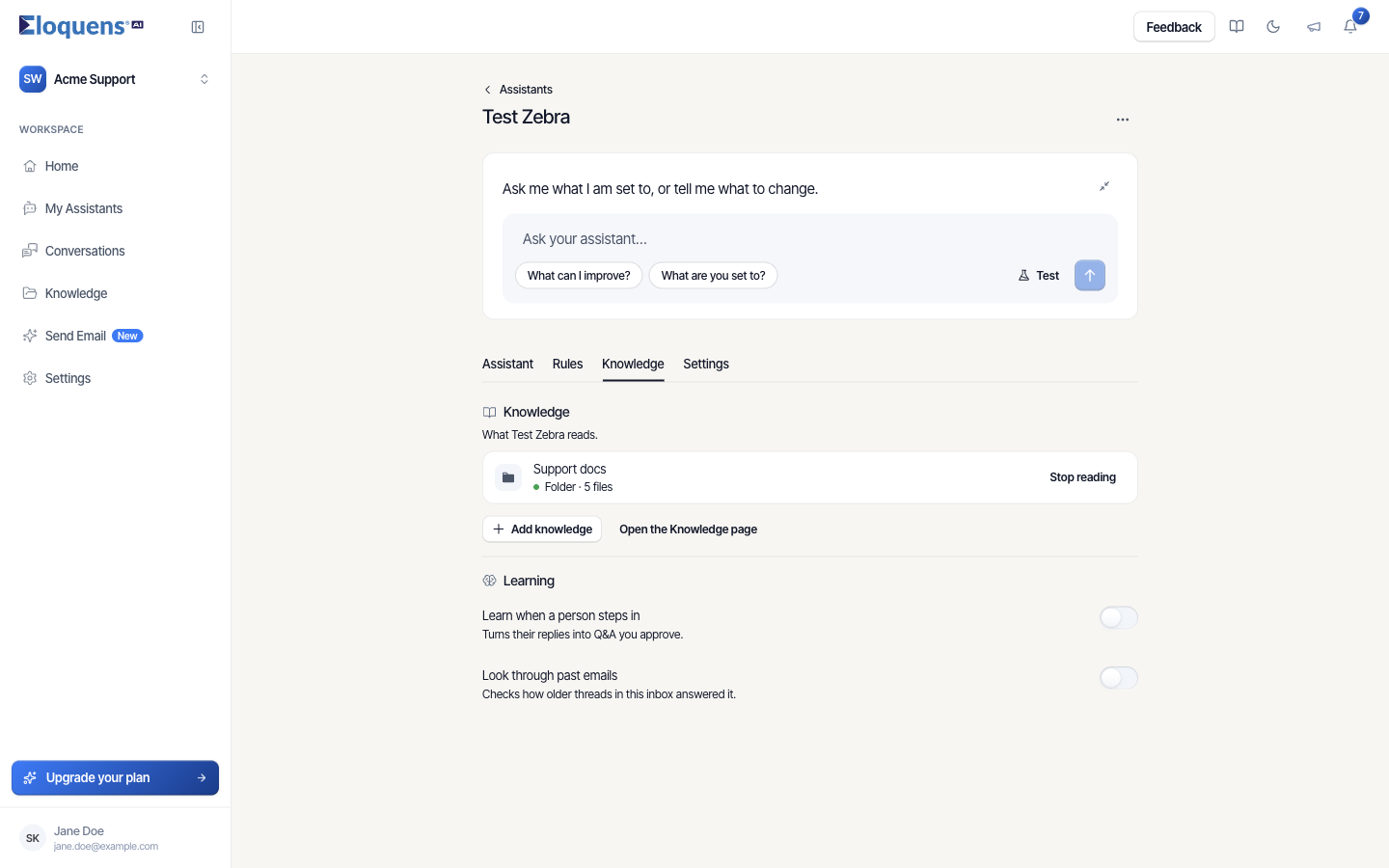
Open My Assistants, open an assistant, and click its Knowledge tab. The Knowledge section reads What {assistant} reads. and lists the same rows as the Knowledge page, each with Stop reading (a toast offers Undo). Add knowledge opens the same dialog, already set to this assistant, and Open the Knowledge page leads to the full page.
The Learning section below it holds two switches: Learn when a person steps in (Turns their replies into Q&A you approve.) and Look through past emails (Checks how older threads in this inbox answered it.).
Good to know
- Counts on the page describe what the selected assistant reads, not everything the workspace stores.
- An amber dot means only a person can fix it, and the row names the fix.
Related articles
- Add documents to your knowledge
- Google Drive and tracked documents
- Add web pages as knowledge
- Questions and answers
- Ask your knowledge a question
Soma Konate
Comments