Documents are the simplest kind of knowledge: upload a file, and once it has been read the assistant can answer from it. Files live in folders, and an assistant reads whole folders, so a new file dropped into a folder an assistant already reads is available to it as soon as reading finishes.
Accepted files
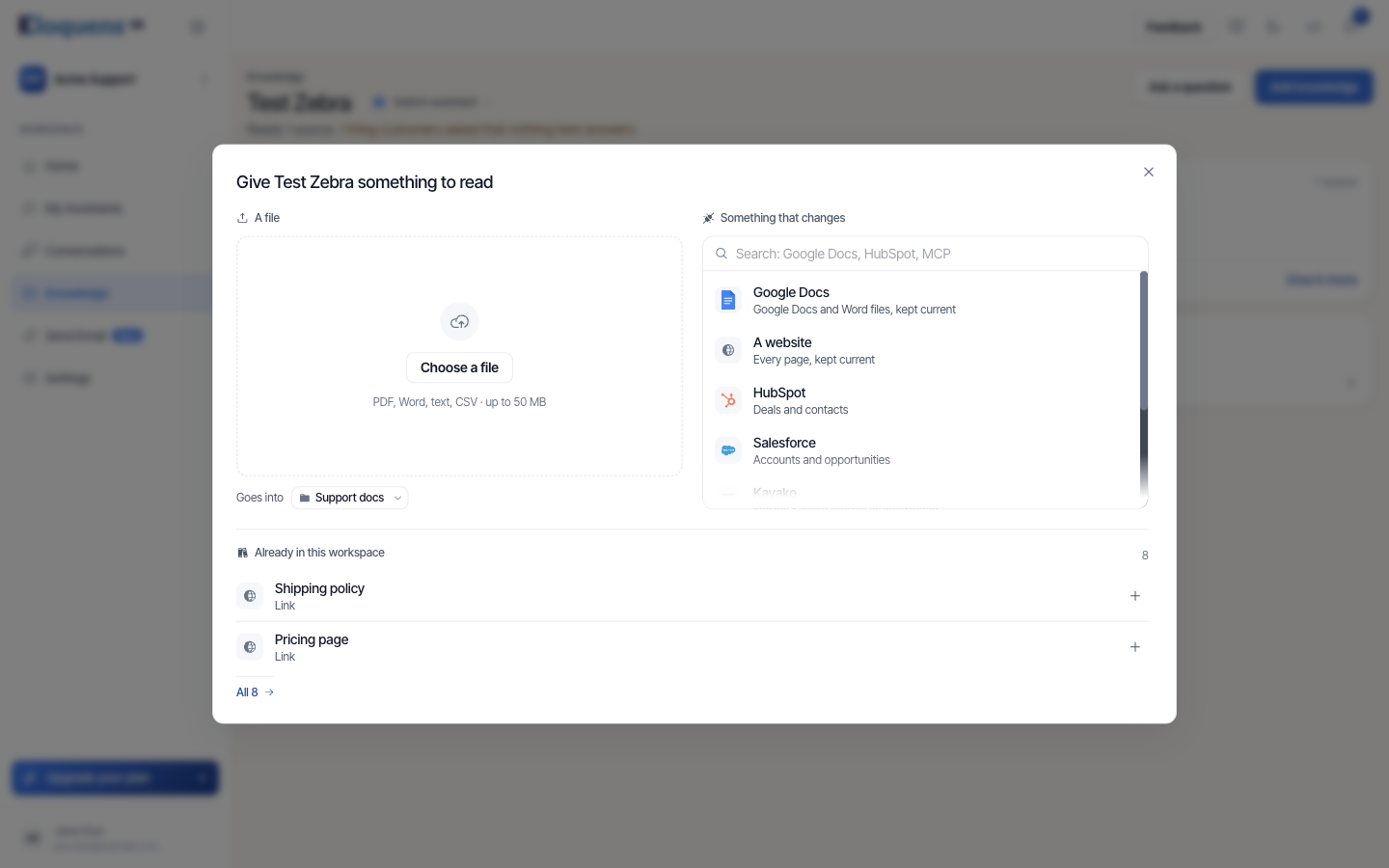
- Types: PDF, Word (.doc, .docx), text (.txt), Markdown (.md), HTML, CSV, Excel (.xls, .xlsx) and PowerPoint (.ppt, .pptx). The dialog sums this up as PDF, Word, text, CSV · up to 50 MB.
- Size: up to 50 MB per file.
- You can drop several files at once. A file of the wrong type or over the limit is refused with a message, and the rest still upload.
Upload a file from the Knowledge page
- In the left rail, click Knowledge.
- Make sure the heading names the assistant that should read the file. Click Switch assistant if needed.
- Click Add knowledge.
- Under A file, drop the file onto the zone or click Choose a file and pick it. The upload starts immediately; there is no second step.
- Check Goes into. It shows the folder the file will land in. Pick another folder, or choose New folder…, type a name and click Make.
- Watch the row that appears for the file. It reads Uploading…, then Processing — {assistant} will be able to use it shortly, then shows a green dot when the assistant can use it.
You can close the dialog while a file is still processing. The reading finishes in the background.
What indexing means
When a file arrives, Eloquens scans it for viruses, then reads it, splits it into passages and indexes those passages so the assistant can find the relevant ones when a question comes in. Reading usually takes a few minutes; a large PDF takes longer than a one-page text file.
Once a file has been read, Eloquens also compares it with the knowledge the workspace already holds and tells you if the new file disagrees with, or replaces, something already there. See Knowledge conflicts and unused knowledge.
See what the assistant reads
On the Knowledge page, the What it reads card lists each folder with a clause such as Folder · 5 files or Folder · 3 files, one still reading. Click the row to expand it and see the files inside. Point at a file to see a small card with its type and size, for example PDF · 1.4 MB, the date it was last modified, and Open to view it.
Manage folders on the Documents page
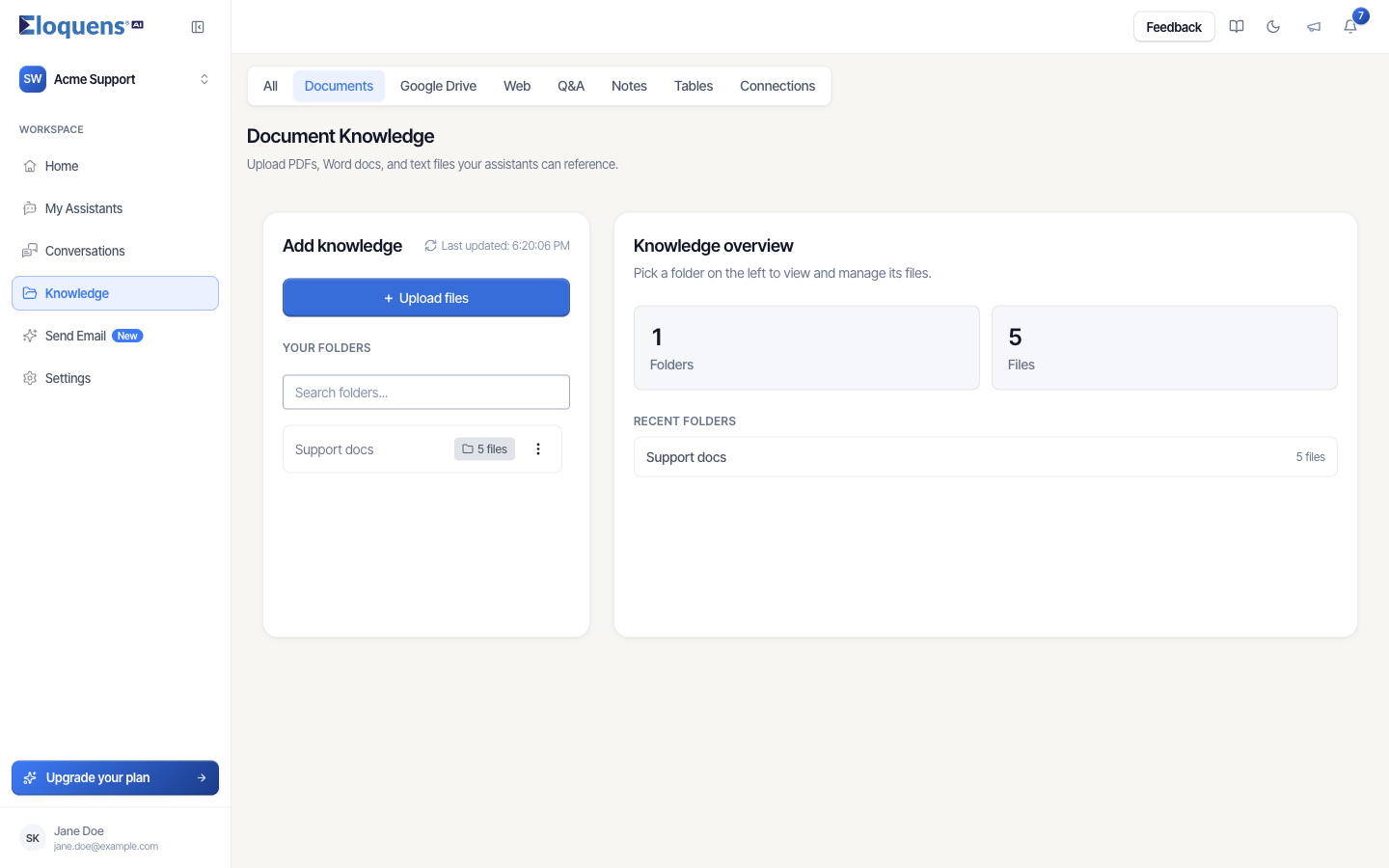
Open Knowledge, then the Documents tab. The page is titled Document Knowledge and is for folder work:
- Your folders on the left lists every folder with its file count, and a search box.
- Upload files opens the New folder dialog: give it a Folder name and, optionally, add files under Upload file straight away.
- The ··· menu on a folder offers Rename and Delete. Deleting a folder deletes every file in it and cannot be undone.
- Pick a folder to see its files, with Uploaded at and a status for each: Successfully ingested, Ingestion in progress, Ingestion failed or Status not available yet.
- Each file's menu offers Download, View and Delete.
Remove a document
There are two different actions, and they do different things.
Stop reading takes a folder away from one assistant only. The folder and its files stay in the workspace, and any other assistant that reads it keeps reading it.
- On the Knowledge page, make sure the heading names the right assistant.
- Point at the folder row under What it reads, click ···, then Stop reading.
Delete from workspace removes the folder for everyone and purges its content from the index. It cannot be undone.
- Point at the row, click ···, then Delete from workspace.
- The confirmation names the folder and says how many assistants use it, for example This folder is used by 2 assistants. Deleting it removes it from all of them.
- Click Delete (or Delete for all when several assistants use it).
To delete one file rather than a folder, open the Documents page, pick the folder, and use Delete on the file.
Good to know
- A file that fails the virus scan is removed and never indexed.
- If a file's row still shows no status after a few minutes, the dialog says so and points you to the Documents page to check it.
- Scanned PDFs that are only images have no text to read. Export them with text (OCR) before uploading.
- The same folder can be read by several assistants. Attach it from Already in this workspace in the Add knowledge dialog.
Related articles
- Knowledge: what your assistant answers from
- Knowledge conflicts and unused knowledge
- Google Drive and tracked documents
Soma Konate
Comments