A tracked document is a Google Doc or Word document that stays in Google Drive. You pick it once, and Eloquens re-reads it before answering, so the assistant always answers from the current version. This suits anything your team edits often: a returns policy, release notes, an FAQ you maintain in Docs.
What can be tracked
- Google Docs and Word (.docx) documents stored in Google Drive, including ones shared with you.
- Google Sheets, Slides and other Drive formats are not tracked. Export them and upload the file instead (see Add documents to your knowledge).
How the Google connection works
- It is your own connection. You sign in with your Google account, and the documents you pick are read through your access. A colleague who wants to add documents signs in with theirs.
- Eloquens only reaches the files you pick. The permission you grant covers the specific files you choose in the Google picker, not your whole Drive.
- Shared documents work. You can pick any document your Google account can open. If your access to a document is removed in Google, the row on the Knowledge page tells you.
Track a document
- In the left rail, click Knowledge, and make sure the heading names the assistant that should read the document.
- Click Add knowledge.
- Under Something that changes, click Google Docs. The panel explains: {assistant} re-reads each one before it answers, so nothing it says is older than the document.
- Click Choose documents. If asked, sign in to Google in the pop-up and allow access. Allow pop-ups for app.eloquens.ai if your browser blocks it.
- Google's file picker opens. Pick one or more Google Docs or Word documents and click Select.
- Each document gets a row that reads Reading it now · Ns, then Read in Ns when the first read is done.
- Click Add another to pick more, or close the dialog.
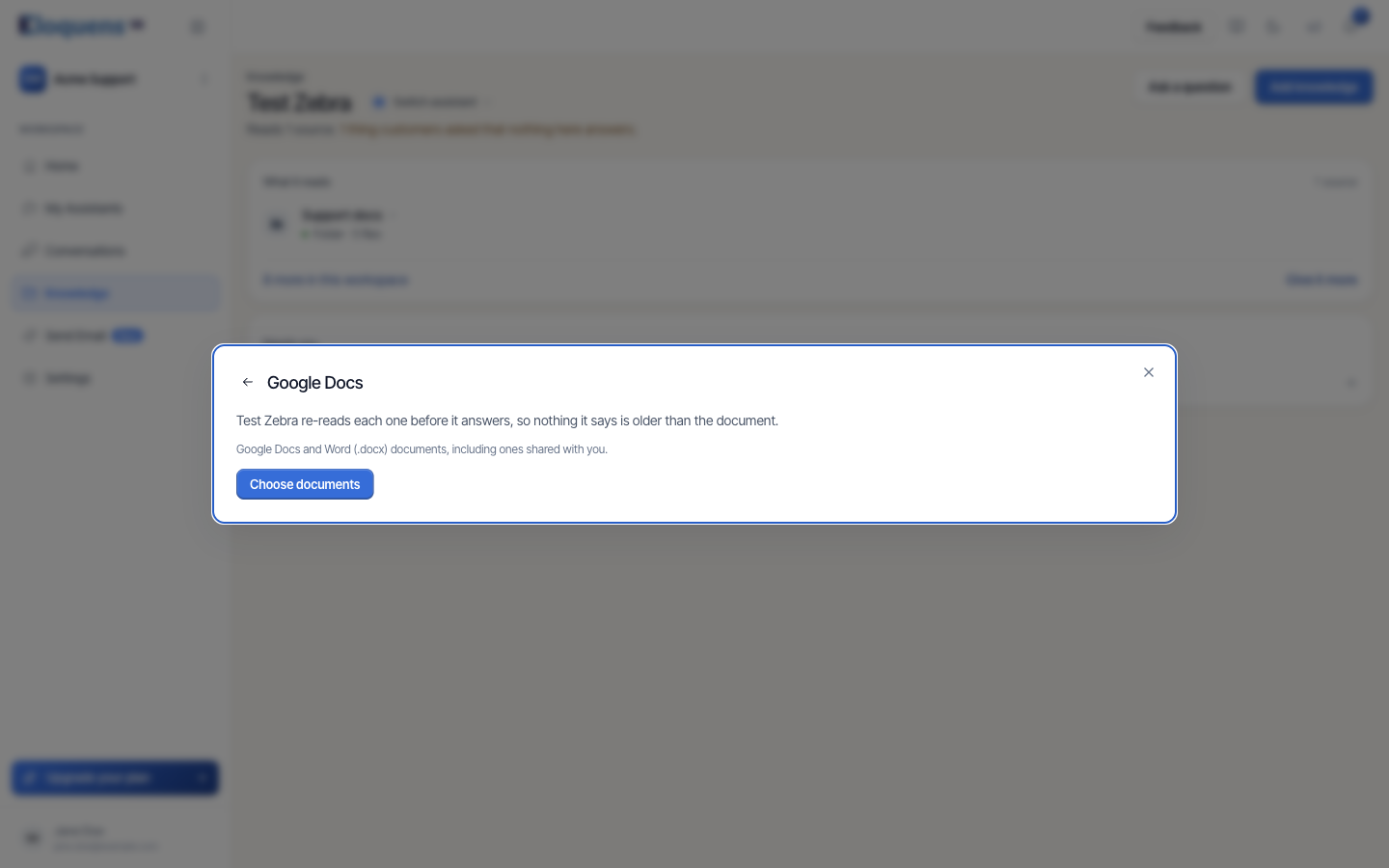
The panel shows Adding from {your Google email}. Use a different account lets you sign in with another Google account.
How re-reading works
- Before an assistant answers an email, every tracked document attached to it is checked for changes. If the document has changed, it is re-read before the reply is written.
- A background check also runs about once an hour, so documents attached to an assistant that receives little mail stay current too.
- Checking an unchanged document is cheap; the content is only re-read when the document has actually changed.
Read the status on the Knowledge page
Under What it reads, a tracked document row shows:
- Google Docs with a green dot: tracked and current.
- Google Docs · tracked, re-reading a change with a grey dot: a change was found and is being read.
- Google Docs · access expired, answering from the copy read 3 days ago with an amber dot and a Reconnect button: your Google sign-in has lapsed. The assistant keeps answering from the last copy it read until you reconnect.
- Google Docs · Google could not return the document for this account; pick it again or check it still exists with Pick again: the document was moved or deleted, or sharing with you was removed.
- Google Docs · could not check for changes, answering from the copy read … with Try now: the last check failed; the assistant answers from the copy it holds until a check succeeds.
Point at a row to see Read today or Read N days ago, and Open in Google Docs.
The Google Drive page
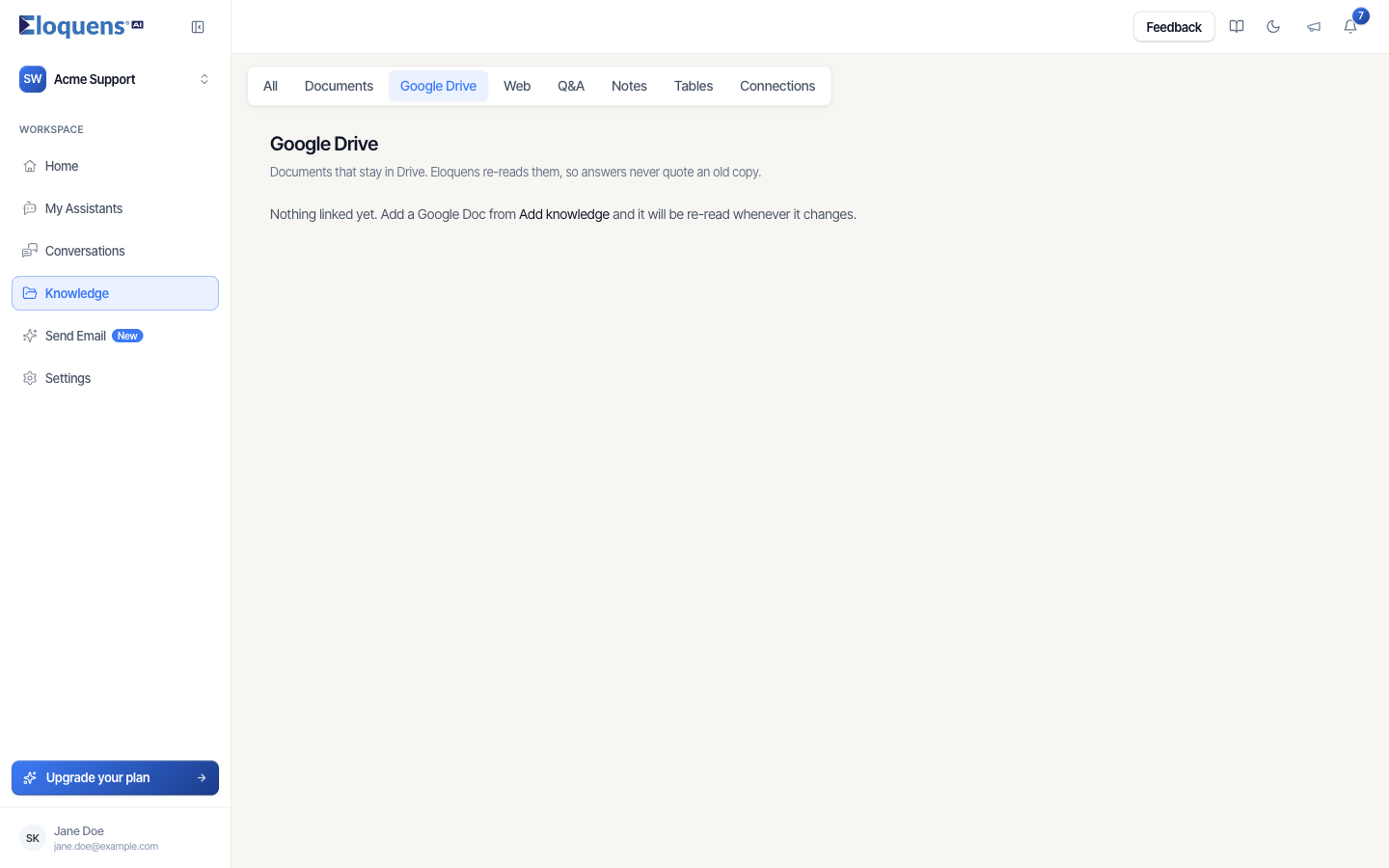
Open Knowledge, then the Google Drive tab. The page is titled Google Drive (Documents that stay in Drive. Eloquens re-reads them, so answers never quote an old copy.) and lists every tracked document in the workspace with Name, Source, Status and Actions. It is the place to review all tracked documents at once. Until you track one, it reads Nothing linked yet. Add a Google Doc from Add knowledge and it will be re-read whenever it changes.
Stop tracking or delete a document
- Stop reading (on the row's ··· menu) detaches the document from the selected assistant. It stays tracked for any other assistant that reads it.
- Delete from workspace removes the tracked copy for every assistant. The document itself is untouched in Google Drive.
Good to know
- A tracked document is listed once, no matter how many assistants read it. Attach it to another assistant from Already in this workspace in the Add knowledge dialog.
- Reconnecting after access expired only takes a sign-in; nothing has to be picked again.
- The first read happens as soon as you pick the document, so it is usually usable within a minute.
Related articles
- Knowledge: what your assistant answers from
- Add documents to your knowledge
- Knowledge conflicts and unused knowledge
Soma Konate
Comments