Settings in Eloquens are split by whose thing they are. Anything that belongs to the workspace, such as the mailboxes it reads from, its signatures, its members and its subscription, lives under Settings in the left rail. Anything that belongs to you, such as your name, password, authenticator app and privacy choices, lives on your Profile page, reached from your account chip at the bottom of the rail.
The Settings page
Open Settings from the left rail. The page shows a sub-navigation on the left and the selected tab on the right. Every tab is about the workspace you are currently in; switch workspaces with the workspace switcher at the top of the rail and every tab follows.
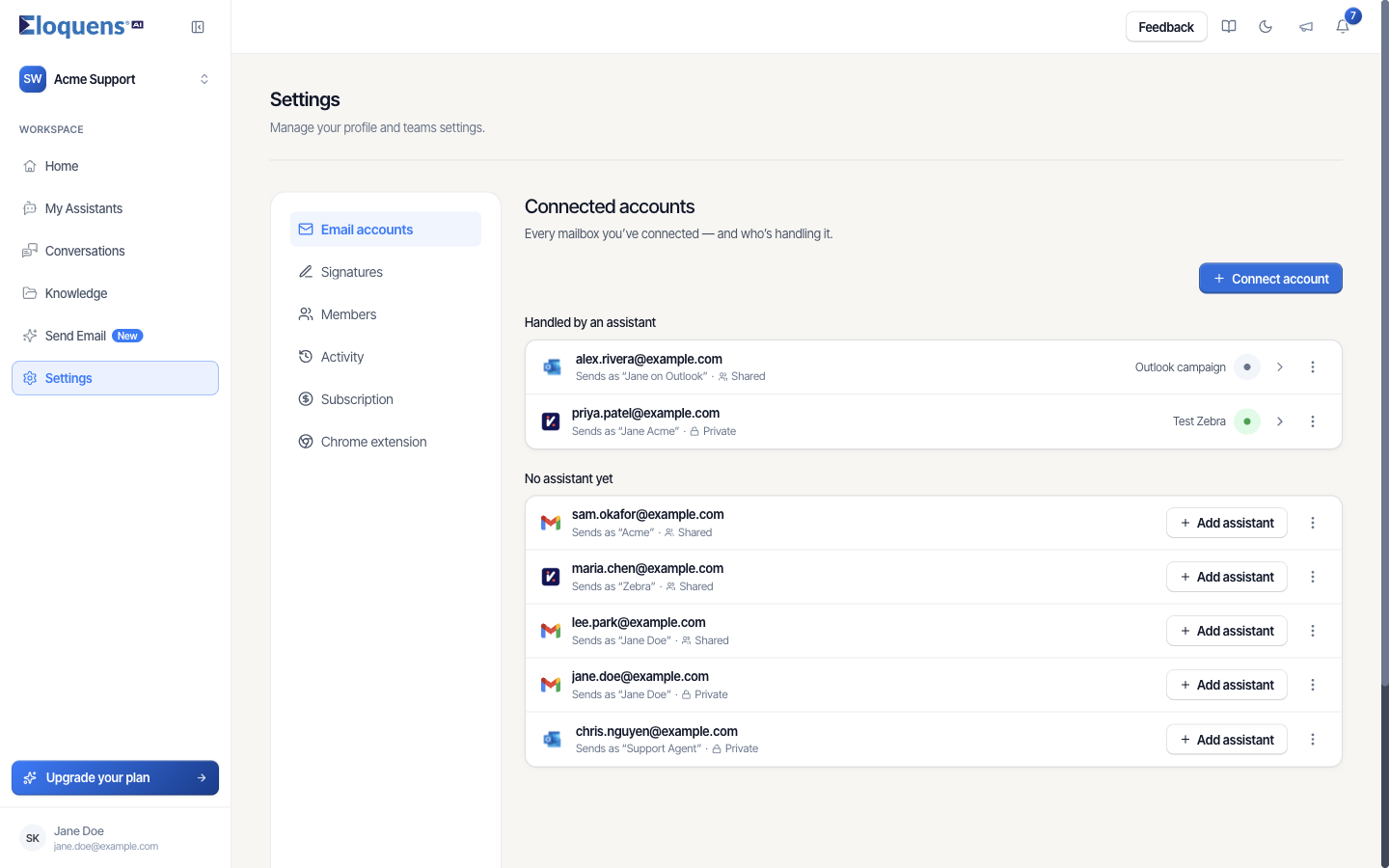
| Tab | What it is for |
|---|---|
| Email accounts | Every mailbox connected to the workspace, which assistant handles each one, and whether any needs reconnecting. Connect, edit, test, reconnect and remove mailboxes here. |
| Signatures | Email signatures for the workspace. Create them under Manage Signatures with Add Signature, then pick one for a mailbox under Email accounts. |
| Members | The workspace name and picture, the Support access approval switch, who is in the workspace, their roles, and pending invites. |
| Activity | Workspace activity: who was added, removed, or had their access changed, and who did it, with filters and Export CSV. |
| Subscription | Your plan, Usage details, and a Billing Summary with the buttons that open the billing portal (or your distributor's contact). |
| Chrome extension | Connect the Eloquens Chrome extension to this browser and check whether it is installed. |
You can link straight to a tab with /settings?tab=email-accounts, ?tab=signatures, ?tab=members, ?tab=activity, ?tab=subscription or ?tab=chrome-extension.
The Profile page
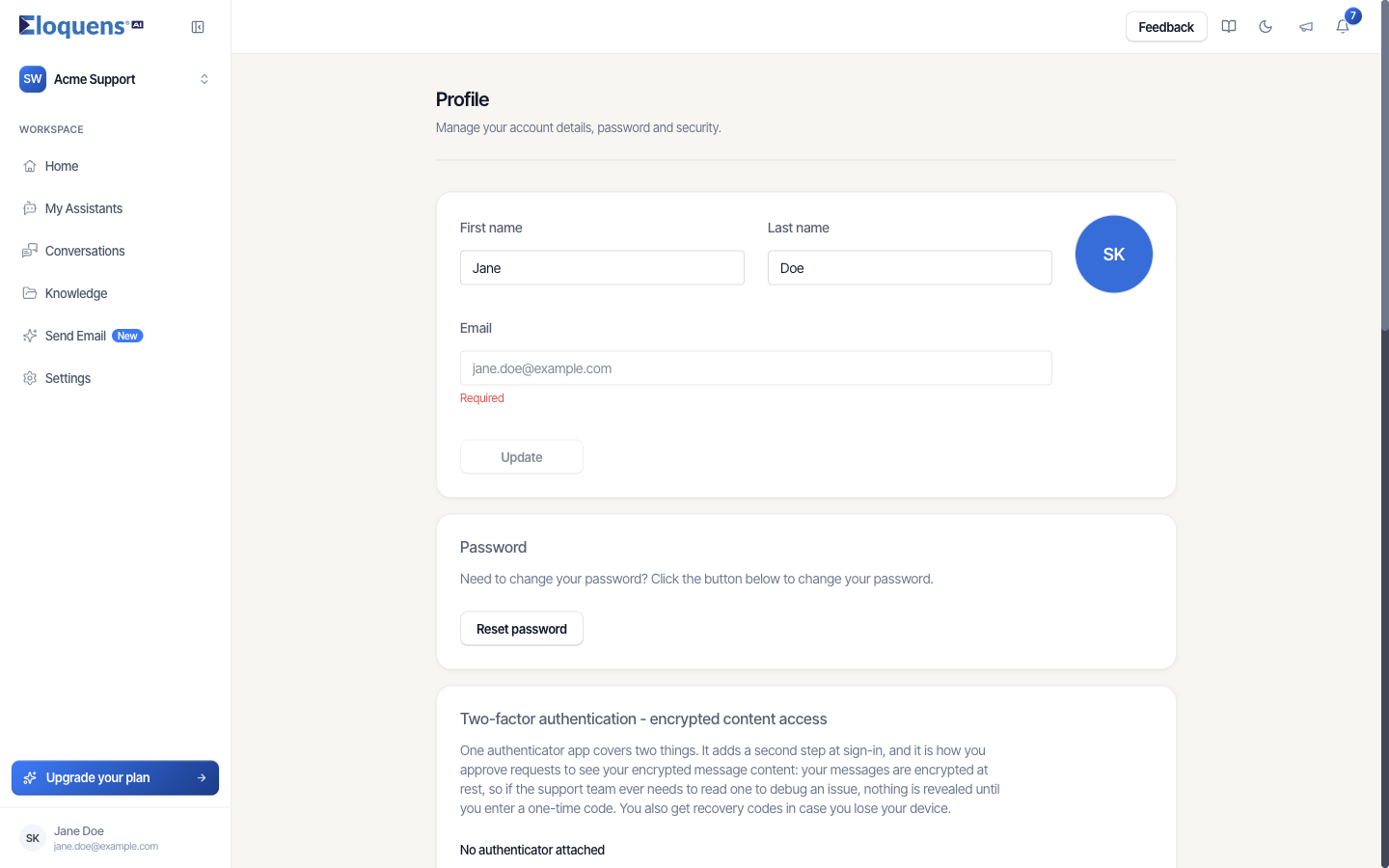
Click your name or initials at the bottom of the left rail and choose Profile. This page holds:
- Profile: first name, last name and email, saved with Update.
- Password: Reset password for accounts that sign in with email and password.
- Two-factor authentication - encrypted content access: attach an authenticator app with Set up authenticator, manage recovery codes, and approve or decline support requests to view your encrypted email content. The card also lists Recent access requests with a View full history link. See Profile and two-factor authentication and Support access requests.
- Privacy: your consent to product news and to product analytics.
- Support access approval: whether support can open your email without your approval.
- Retention policy: automatic removal of messages after a number of days, for workspaces you own.
- Unused knowledge: how long a knowledge item can go unused before Eloquens points it out.
- Delete account: leave every workspace and schedule your account for deletion.
The Help page
The same account chip has a Help entry. It collects guides, feedback and support for your account. See Getting help.
Who can change what
- Any member can see Email accounts and Signatures. Connecting, editing and removing mailboxes applies to the current workspace.
- Inviting members, changing roles and removing members needs the Owner or Admin role. An Admin cannot change an Owner.
- The Activity tab and the Support access approval switch are for the Owner.
- Subscription actions apply to the account that owns the workspace.
Related articles
- Managing a connected mailbox
- Profile and two-factor authentication
- Support access requests
- Billing, invoices and payment methods
- Workspaces and members
Soma Konate
Comments