Your email content is encrypted and processed in a sealed environment, so the Eloquens support team cannot open a message on their own. When an engineer needs to look at one to investigate a problem you reported, they file an access request. Nothing is revealed until you approve it with a code from your authenticator app, the access expires on its own, and you can end it early at any time.
How you find out
- You receive an email telling you a request was filed, who filed it, which assistant or workspace it concerns, the reason, and the deadline for answering. The email never contains the content of any message.
- If you are signed in, the same request appears under the notification bell. Both link to your Profile page, where the request is highlighted.
Requests go to the assistant's owner and to the workspace's owners and admins. Any one of them can answer, and the answer settles the request for everyone.
What a request contains
Each pending request shows:
- Scope: the smallest unit that covers the problem: a single Message, a Conversation, one assistant (optionally limited to a date range), or the whole Workspace.
- Reason: the engineer's explanation, in their words.
- Requested and Expires: a request that is not answered by its deadline lapses and nothing is revealed.
- Who may use the approval: the requester only, or any operator on the support team (for a hand-over between shifts).
Approve a request
- Open Profile from the account chip at the bottom of the left rail, or follow the link in the email or notification.
- In the Two-factor authentication - encrypted content access card, find the request under Pending access requests.
- Type the current six-digit code from your authenticator app into Authenticator code.
- Click Approve.
Approval needs an authenticator because it proves the request reached you and nobody else. If you have not attached one yet, the card asks you to set it up first and brings you straight back to the request. Five wrong codes in a row lock approval for a short while.
Decline a request
- Click Deny on the request.
- In Decline this request, pick a reason (This asks for too much, Not right now, That mail is sensitive, or Already sorted) and add a note if you like.
- Click Decline.
No code is needed to decline. The engineer is told the request was declined and can file a narrower request.
How long access lasts
The clock starts when you approve. A request for a single message opens a 15-minute window by default; broader scopes may ask for up to an hour. The exact end time is shown on the card as Expires. When the window closes, the approval is dead even if nothing was read.
While the window is open the request sits under Active access grants, with a Usage count of how many times the content was fetched.
Revoke access
Click Revoke access on any active grant. Access ends immediately and any fetch in progress fails. No code is needed.
Access history
Under Recent access requests on the same card you see the latest finished requests with their status, requester, scope, assistant and date. Click View full history for the complete log, the Encrypted content access history page.
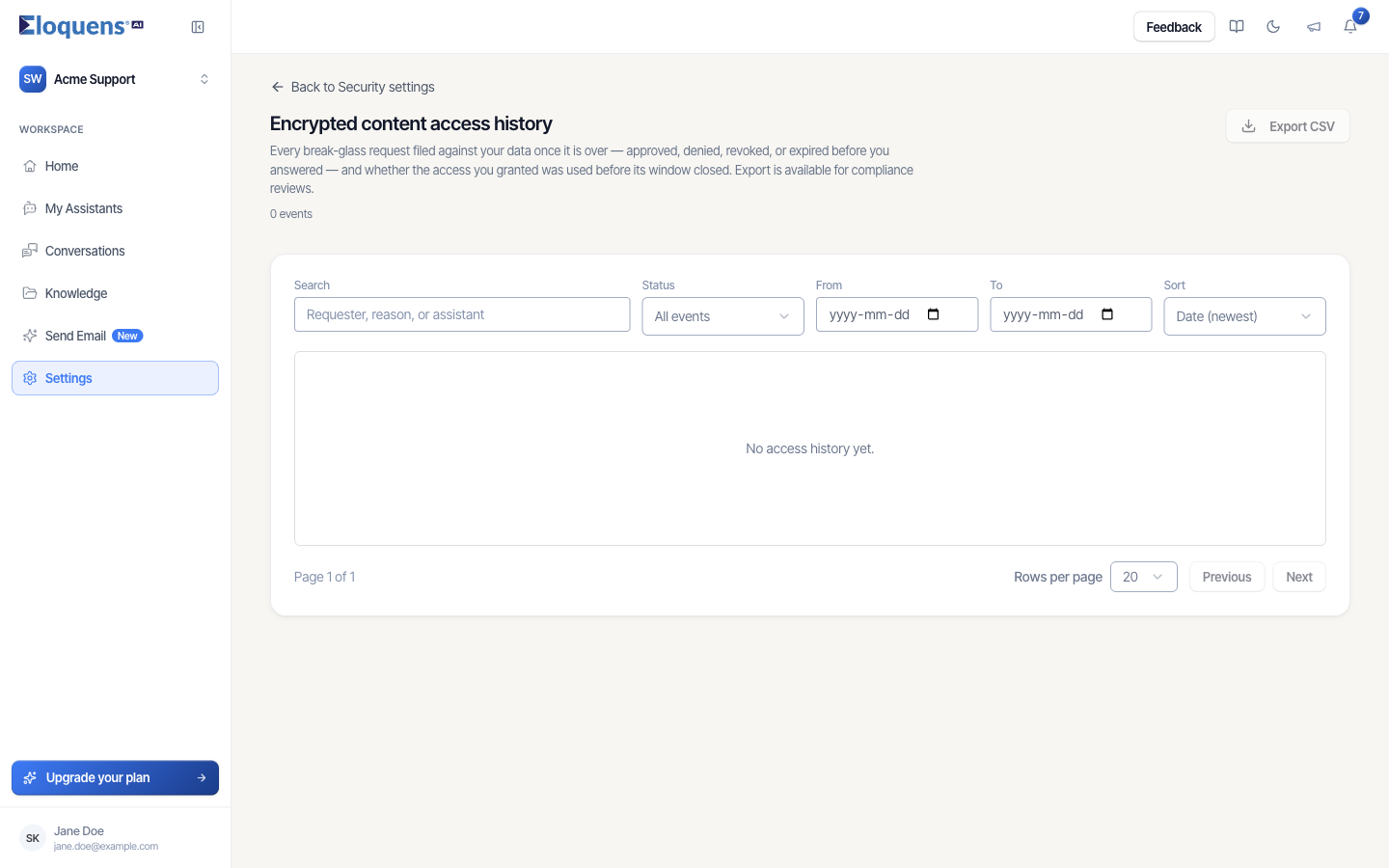
The history page lets you:
- Search by requester, reason or assistant.
- Filter by Status: Used, Denied, Revoked, Used, then expired, Expired unused, or Expired, no answer.
- Narrow by date with From and To, and Sort by date, status or requester.
- Export CSV for compliance reviews.
Each row shows not only what you decided but whether the access you granted was actually used before its window closed.
Workspace-wide approval
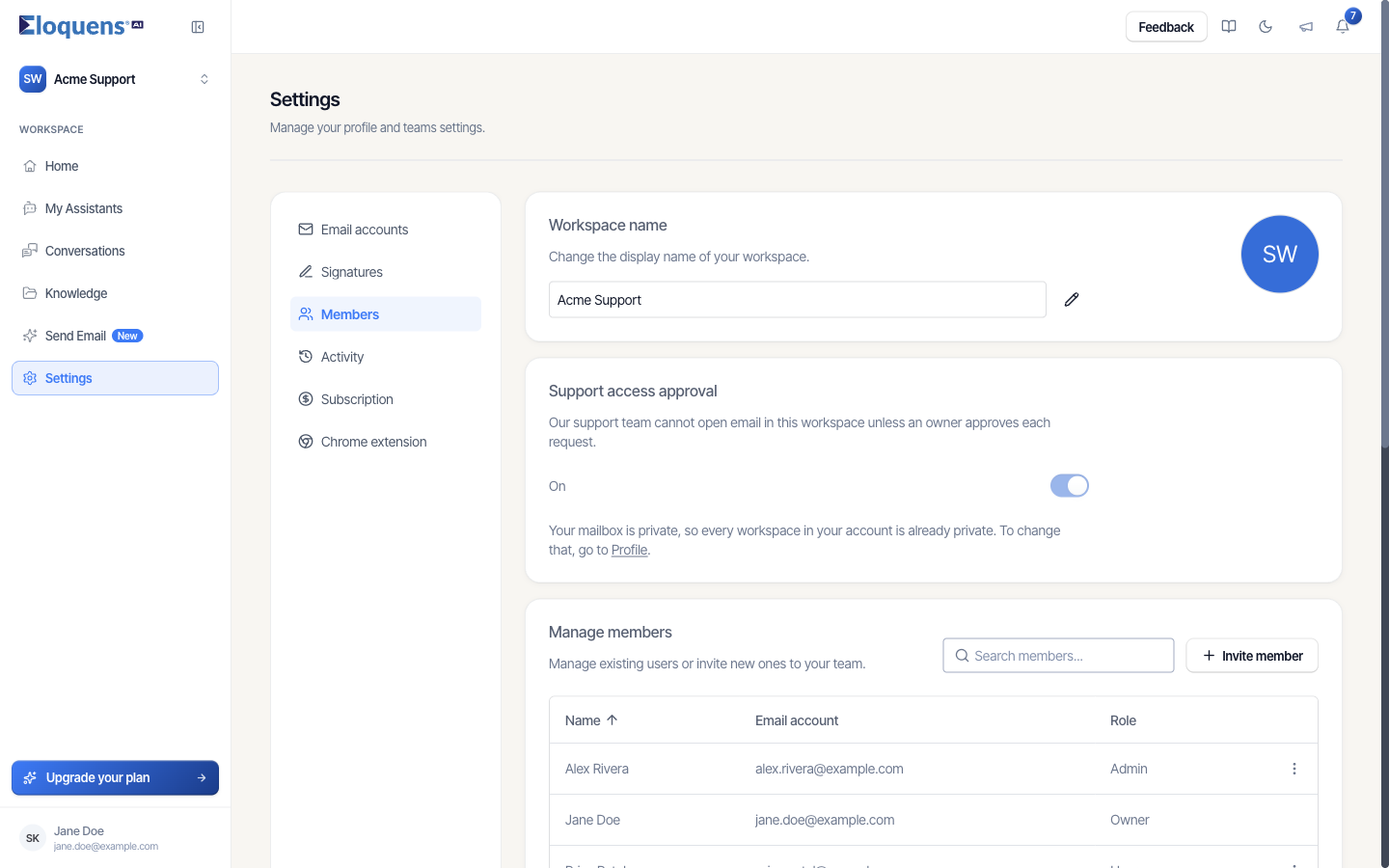
A workspace Owner sees a Support access approval card on Settings → Members. When it is On, support cannot open email in that workspace unless an owner approves each request. Changing the switch is confirmed with an authenticator code. If your own mailbox is already private, the card tells you that every workspace in your account is already private and points you to Profile to change that.
Related articles
- Profile and two-factor authentication
- Your data and privacy
- Settings overview: what lives where
Soma Konate
Comments