Your Profile page is where you look after your own account. It is reached from the account chip at the bottom of the left rail, not from Settings. The most important control on it is the authenticator app: one app adds a second step at sign-in and is also how you approve any support request to view your encrypted email content.
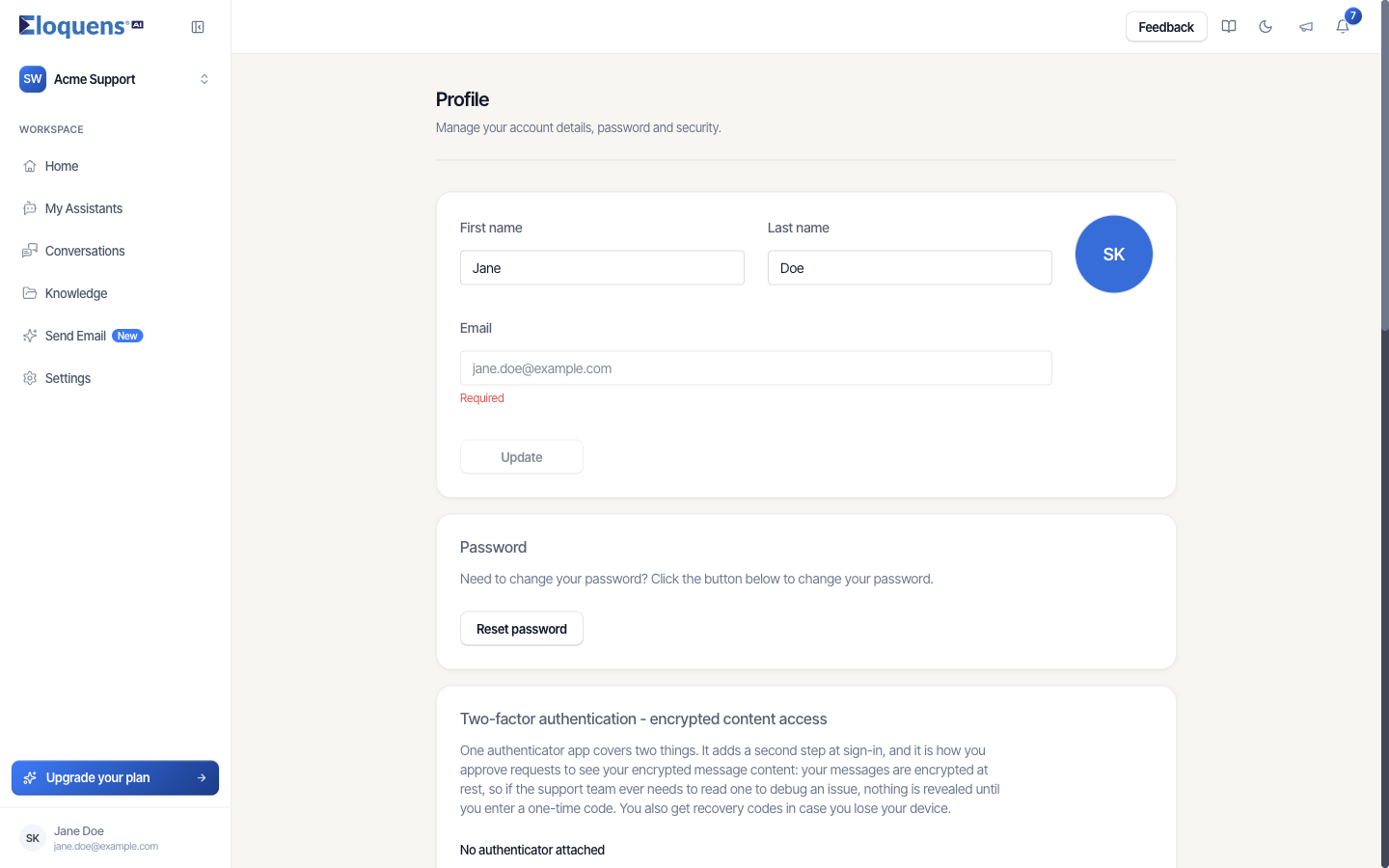
Update your details
- Click your name or initials at the bottom of the left rail and choose Profile.
- Edit First name, Last name or Email at the top of the page and click Update.
- To change your password, click Reset password in the Password card, enter your Current password and the new password twice, and confirm. Passwords are 12 to 24 characters with an uppercase letter, a lowercase letter, a number and a special character.
Set up an authenticator app
You need a time-based one-time password app on your phone. Google Authenticator, Microsoft Authenticator, Authy, 1Password and similar all work.
- On Profile, find the Two-factor authentication - encrypted content access card. It reads No authenticator attached until you add one.
- Click Set up authenticator, then Click to Scan QR.
- Scan the QR code with your authenticator app. If you cannot scan, use the key shown under Can't scan? Enter this key and add it manually.
- Type the six-digit code the app shows and click Verify & enable.
- Save your recovery codes. They appear once. Use Copy codes or Download, store them somewhere safe, then click I've saved them.
Once attached, the card shows an Attached authenticator group with the authenticator marked active and when it was attached, and a Last used line that records the last time a code was accepted and what for.
Signing in with two-factor
After you enter your email and password (or finish signing in with Google or Microsoft), a prompt asks for the current six-digit code. Codes refresh every 30 seconds; pasting or autofill fills all six boxes.
- Tick Remember this device for 30 days to skip the prompt on that browser.
- If the code is rejected, your app may have moved on; enter the one it shows now.
- Too many wrong attempts lock the prompt briefly; wait a moment and try again.
Recovery codes
Each recovery code works once and stands in for an authenticator code anywhere one is asked for: at sign-in (Use a recovery code), when detaching the authenticator, and when regenerating codes. The card shows how many you have left under Unused recovery codes.
To get a fresh set, click Regenerate and confirm with a current code. The old codes stop working immediately.
If you lose your device
- Sign in with one of your recovery codes.
- On Profile, click Detach in the authenticator card and confirm with another recovery code (choose Use a recovery code on the confirmation).
- Set up the authenticator again on your new device.
If you have no recovery codes left and no device, contact support at support@eloquens.ai from your account email.
Detach the authenticator
Click Detach, confirm with a current code, and two-factor sign-in is off until you attach one again. This also removes your ability to approve support access requests to your encrypted content until you set one up again.
Other cards on Profile
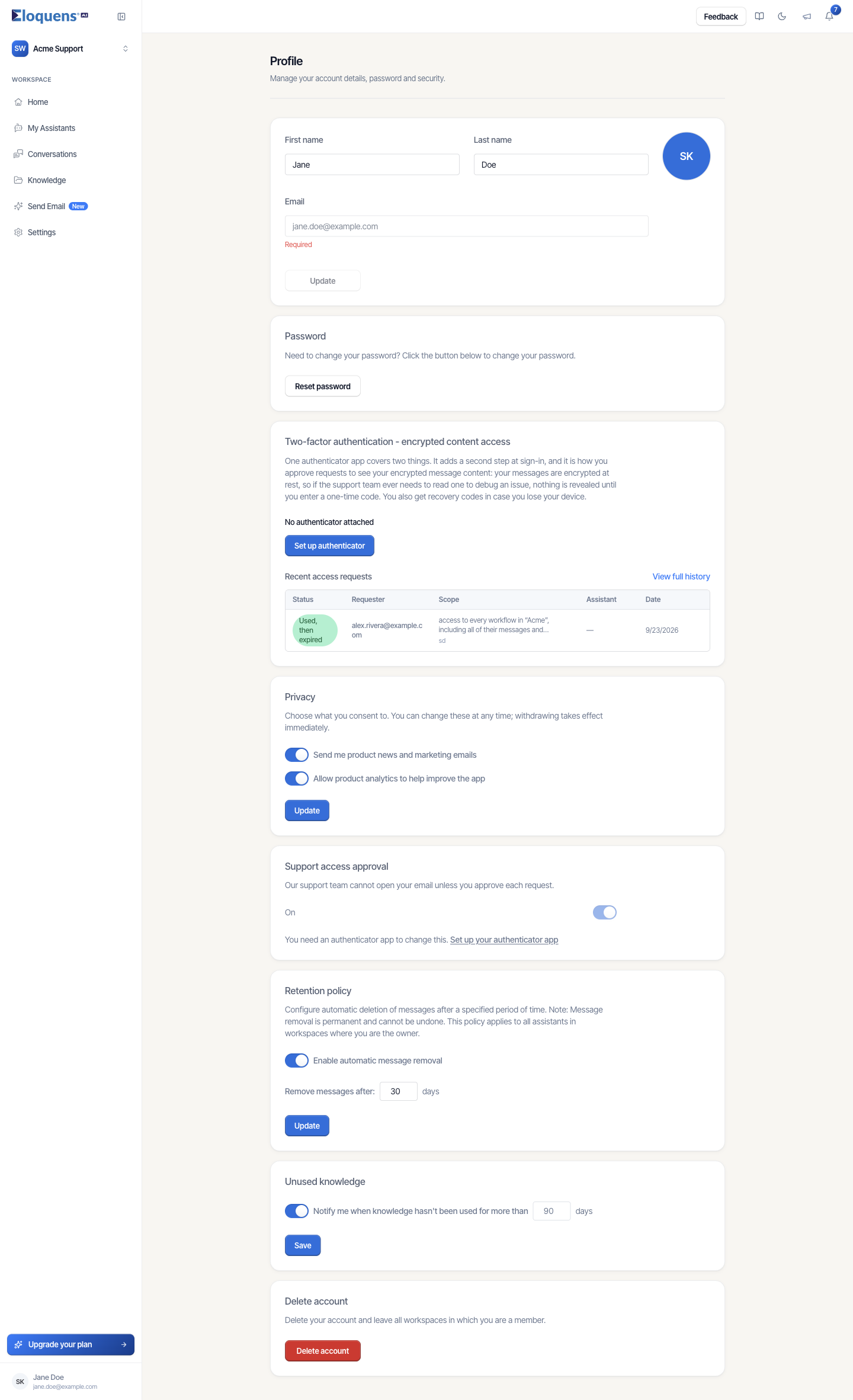
- Privacy: two switches, Send me product news and marketing emails and Allow product analytics to help improve the app. Click Update to save; withdrawing takes effect immediately.
- Support access approval: whether support can open your email without your approval. You need an authenticator app to change it.
- Retention policy: turn on Enable automatic message removal and set Remove messages after a number of days. It applies to every assistant in workspaces you own, and removal is permanent.
- Unused knowledge: Notify me when knowledge hasn't been used for more than a number of days, saved with Save.
- Delete account: schedules your account for deletion and signs you out. Data is permanently removed after 30 days; sign back in during that time and click Reactivate to cancel.
Related articles
- Support access requests
- Your data and privacy
- Settings overview: what lives where
Soma Konate
Comments