Some knowledge changes too often to copy: a deal's stage, an account's renewal date, a contact's details, the articles in your help centre. A connection lets the assistant read these systems at the moment it answers, so the reply reflects what is there now. On the Knowledge page a connection shows under What it reads as Live system · read at answer time.
Connections are for looking information up while the assistant writes a reply. The Salesforce connection only reads your data; it never changes anything in Salesforce.
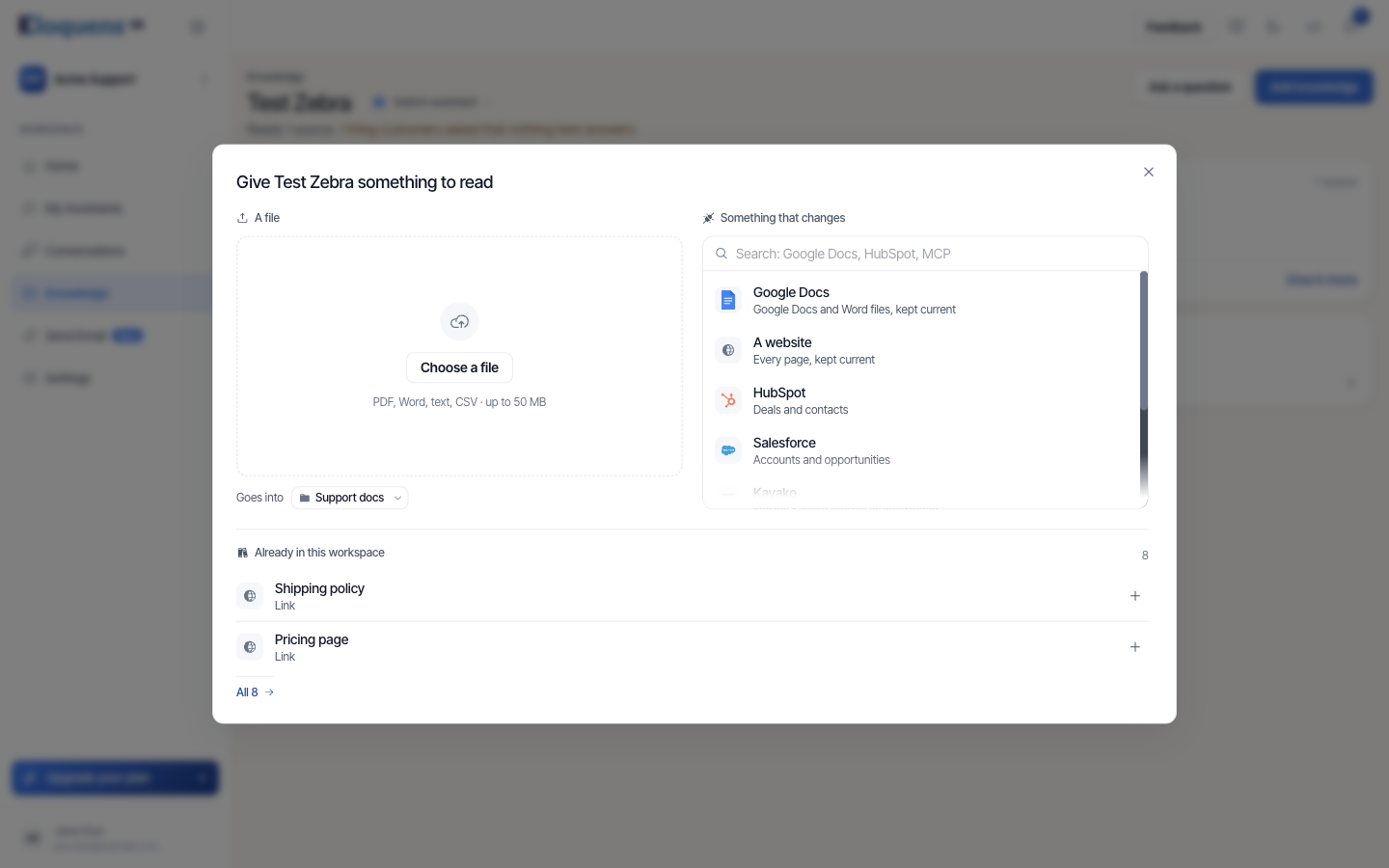
HubSpot
The assistant can draw on Deals and contacts.
- In the left rail, click Knowledge, and make sure the heading names the assistant.
- Click Add knowledge, then HubSpot under Something that changes.
- A HubSpot sign-in opens. Sign in and allow access.
- The connection is created and attached to the assistant. Nothing else to type.
Salesforce
The assistant can draw on Accounts and opportunities. The panel opens with: A Salesforce administrator sets this up once for your organization. After that, everyone in this workspace just signs in. It walks through the Salesforce side with Show me where, with screenshots and Read the full setup guide.
- Click Add knowledge, then Salesforce.
- In Salesforce, open Setup, then App Manager, and create a new External Client App (not a Connected App).
- Copy the callback address shown under In Salesforce in the Eloquens panel and paste it into the app's Callback URL field.
- Give the app the OAuth scopes mcp_api and refresh_token, offline_access.
- Tick Issue JSON Web Token (JWT)-based access tokens for named users. Without it, sign-in succeeds but every request afterwards fails.
- Save the app, then copy its Consumer Key and Consumer Secret into the matching fields in Eloquens.
- In Salesforce, open Setup, then My Domain, and copy the Current My Domain URL into My Domain. It ends in
my.salesforce.com; the address in your browser bar (ending inlightning.force.com) is the app, not the sign-in domain. - Click Create and connect and sign in to Salesforce when prompted.
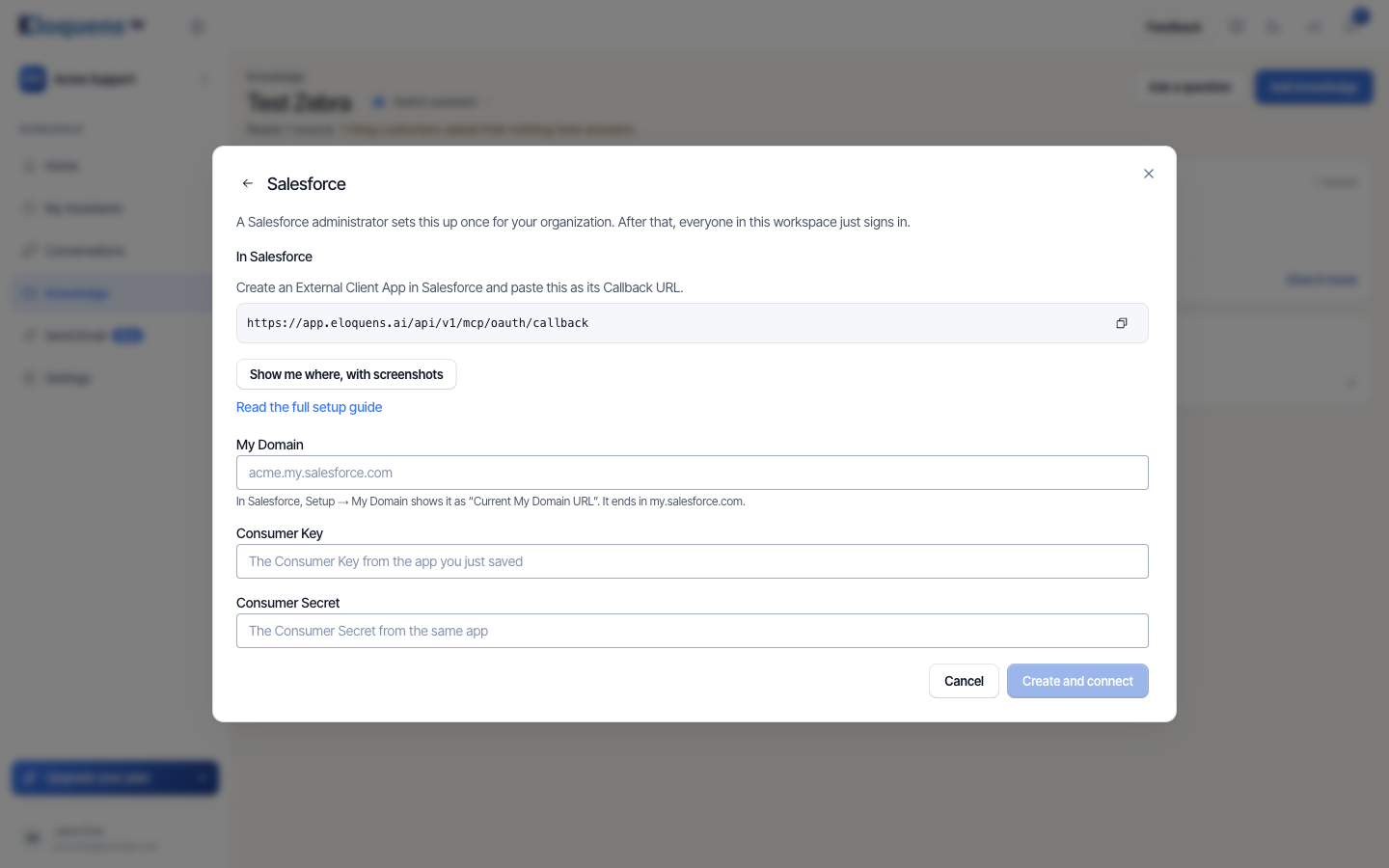
Things the panel also tells you:
- A brand-new External Client App can take up to 30 minutes to become usable. An Invalid client ID right after saving usually means it has not propagated yet; wait and sign in again.
- Creating the app needs System Administrator permissions on Enterprise Edition or above. Developer Edition works too.
- Salesforce sees the connection as the person who signs in, so sharing rules and field-level security still apply to everything it reads.
Kayako and Zendesk help centres
The assistant can read your help centre articles when it answers.
- Click Add knowledge, then Kayako or Zendesk.
- Give the connection a Name (what you will call it in your source list).
- Enter the credentials: for Kayako, Email, API Token and Hostname (
yourcompany.kayako.com); for Zendesk, Agent Email, API Token and Zendesk Hostname (yourcompany.zendesk.com). - Optionally add Additional Instructions: guidance for the assistant on when and how to use these articles.
- Connect. The connection is attached to the assistant.
Your own server
Anything with an MCP server or API connects a system you run yourself. Give the connection a name, enter the server address, choose how it authenticates (With an API key or By signing in to the service), and say when the assistant should use it. Eloquens checks that the server answers and reads the tools it offers before saving.
Manage connections
Open Knowledge, then the Connections tab. The page is titled Connections.
- Connectors lists HubSpot, Salesforce and custom servers. Add connector opens the picker. On a card you can Connect (sign in again), validate and discover its tools, enable or disable it, or delete it.
- API connections lists Kayako and Zendesk. Add API connection adds one; a card's menu lets you view, edit or delete it.
- Connector tools shows what a connector offers and lets you decide which tools count as knowledge.
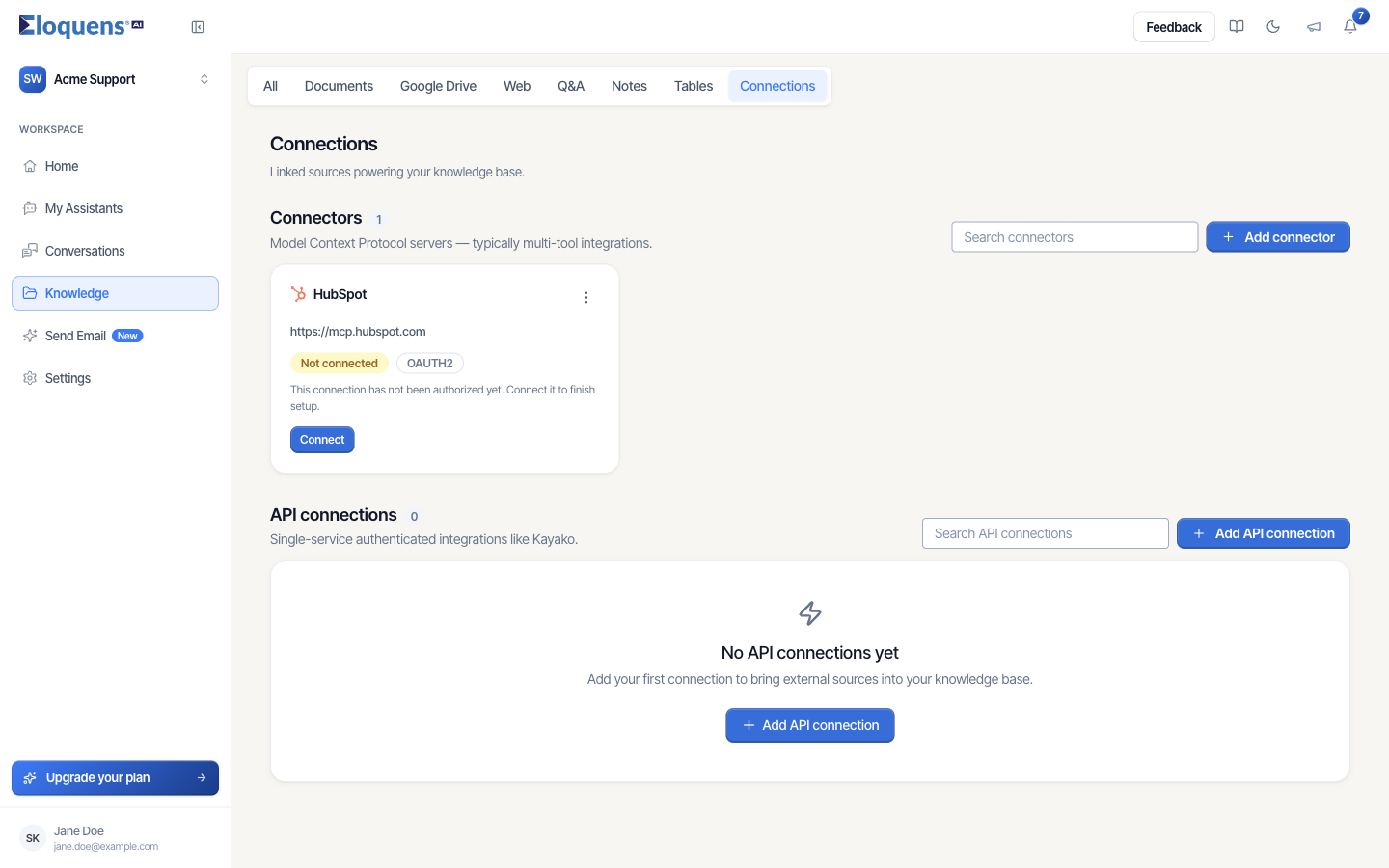
To stop one assistant using a connection, use Stop reading on its row on the Knowledge page. Deleting a connection disconnects it from every assistant that used it.
Good to know
- A connection that cannot be reached shows Live system · not connected with an amber dot. Sign in again from the Connections page.
- When you ask a test question, the trace shows Checking your live connections and names any connection it could not reach.
- Connections belong to the workspace. Each assistant that should use one is attached to it separately.
Related articles
- Knowledge: what your assistant answers from
- Tables: structured data your assistant can look up
- Ask your knowledge a question
Soma Konate
Comments