How an assistant writes is set in two places. The Rules tab holds the tone and the writing rules; the Assistant tab holds the signature, because a signature belongs to the mailbox rather than to one assistant.
Pick a tone
For an assistant that uses rules:
- Open the assistant and click the Rules tab.
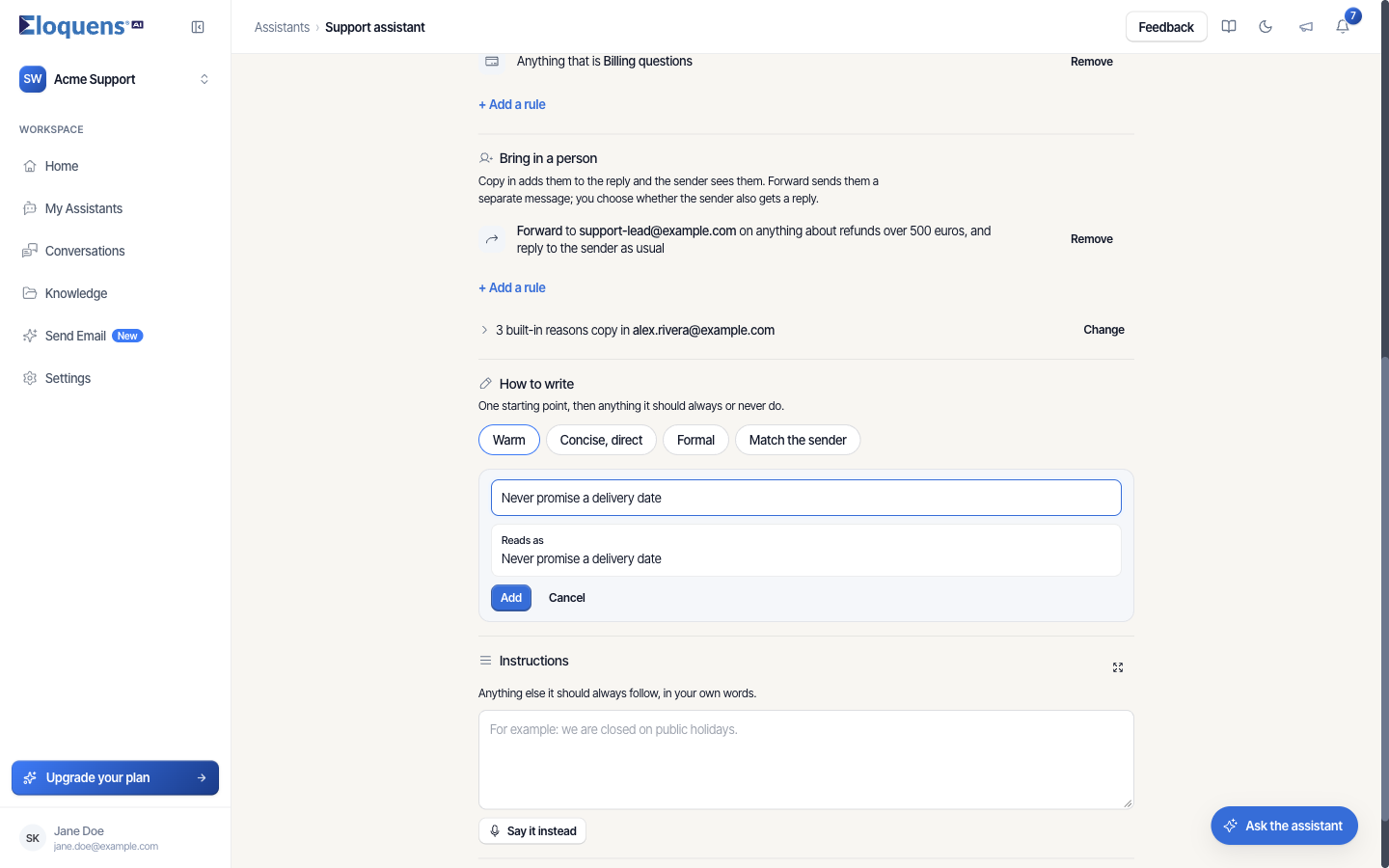
- Find How to write. The tone chips are the starting point: Warm, Concise, direct, Formal or Match the sender.
- Click one. It saves immediately.
What each tone tells the assistant:
- Warm: short paragraphs, plain words, no exclamation marks.
- Concise, direct: lead with the answer, no preamble.
- Formal: full sentences, no contractions, no first names unless the sender used one.
- Match the sender: match the sender's tone and length.
Add writing rules
Under the tone chips, add anything the assistant should always or never do.
- Click + Add a rule in How to write.
- Type a sentence starting with Always… or Never…, for example "Always include the order number in the first line" or "Never promise a delivery date". Reads as shows it back to you.
- Click Add.
Whatever tone you pick, the assistant only states facts that are in Knowledge. If a fact is missing, it says so and holds rather than inventing an answer.
Instructions in your own words
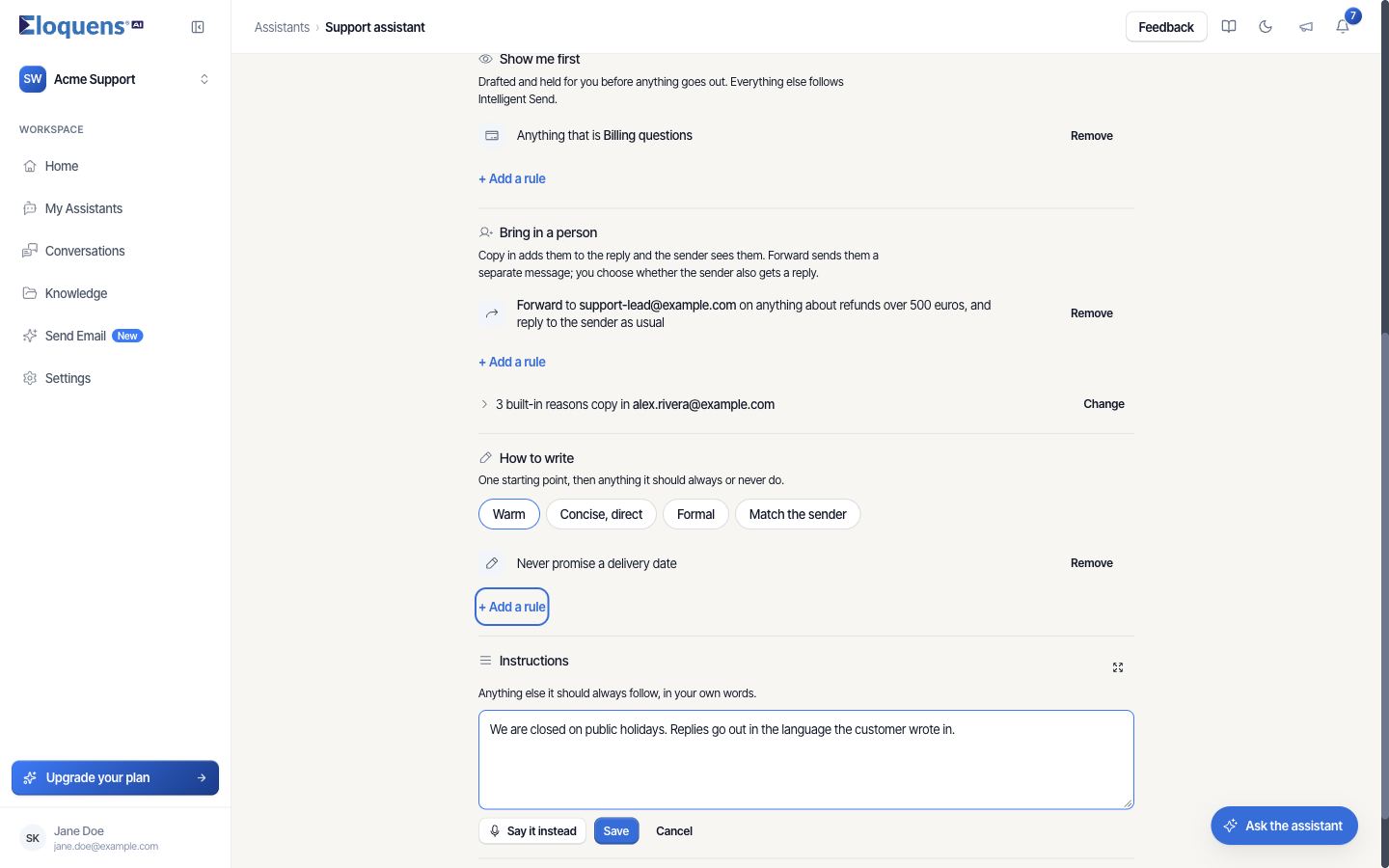
The Instructions box on the Rules tab is for background that no rule covers: opening hours, a policy, a product name to use. Type it or click Say it instead to dictate, then click Save. The placeholder gives the idea: "For example: we are closed on public holidays."
Instructions are for how the assistant should behave. Facts customers ask about belong in Knowledge, where they are indexed and cited.
If your assistant follows written instructions
An assistant set up before rules existed has no tone chips. Its tone lives in the Custom Tone text under Advanced on the Rules tab (How its replies are written.). You can edit and save that text directly, or click Switch to rules to move to the tone chips and writing rules described above. See Rules: block senders and domains.
Set the signature
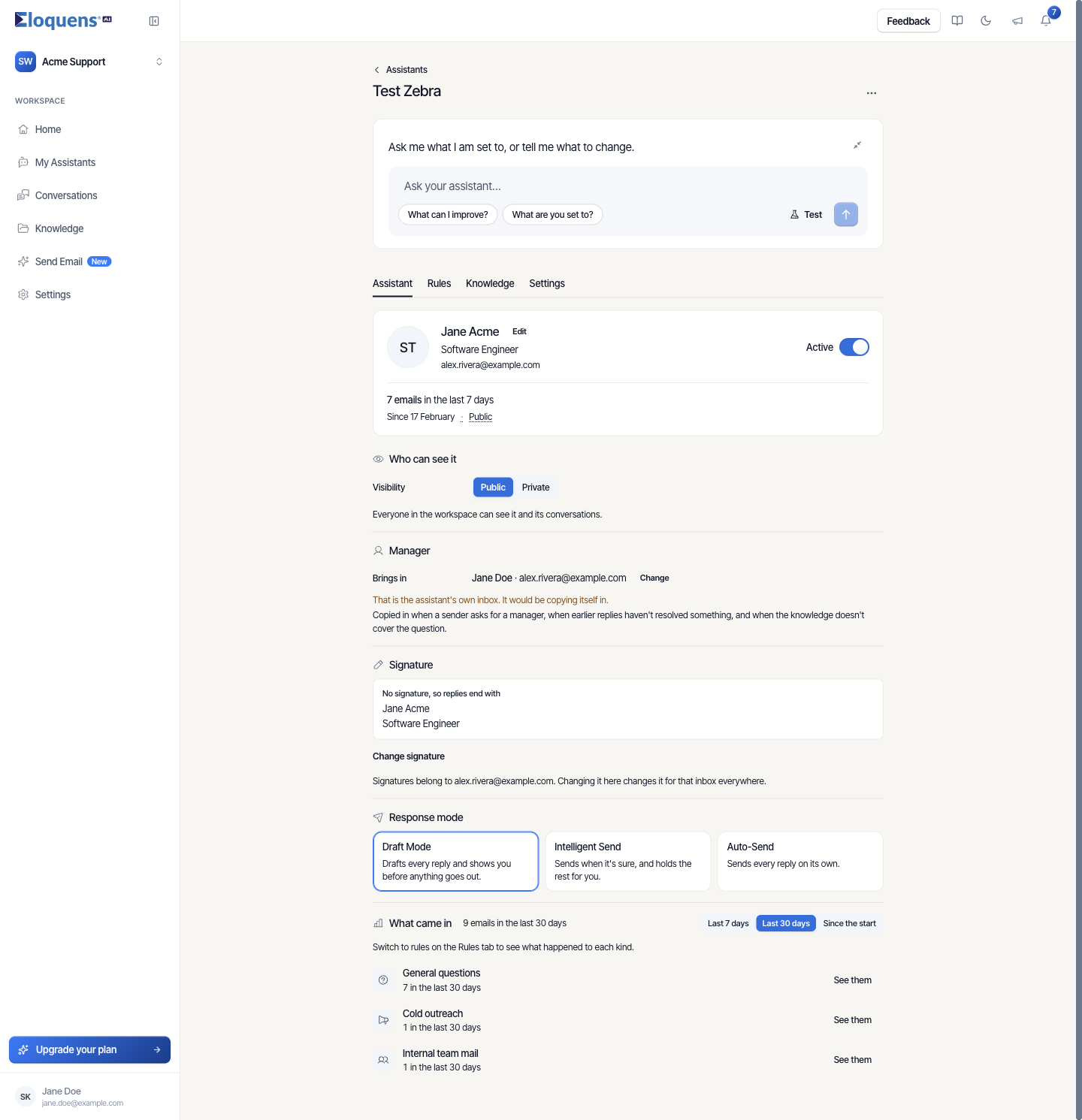
- Open the Assistant tab and find Signature.
- The card shows the current signature. With none set, it says No signature, so replies end with the name and role from the mailbox card.
- Click Change signature, then pick a signature from the list, or No signature.
- Click + New signature to create one; give it a name and content, and it appears in the list.
- Click Done.
The note under the picker says it plainly: Signatures belong to <address>. Changing it here changes it for that inbox everywhere. Every assistant on that mailbox uses the same signature.
Good to know
- Match the sender is the right choice for a mixed inbox where some writers are casual and others formal.
- Rules and tone compile straight into what the assistant reads; Advanced on the Rules tab shows the result.
- You can ask for tone changes in plain English: "Be more formal" in Ask your assistant switches the tone for you.
Related articles
- Rules: block senders and domains
- Edit an assistant: the four tabs
- Ask your assistant to change its own settings
Soma Konate
Comments