The Smart Filter is the first thing that happens to every email that reaches an assistant. It decides whether the message deserves a reply at all. Newsletters, bounces, out-of-office notices and anything you have told it to leave alone stop here: nothing is drafted and nothing is sent. Only mail that passes the Smart Filter goes on to Knowledge, Intelligent Routing and a reply.
What is screened out by default
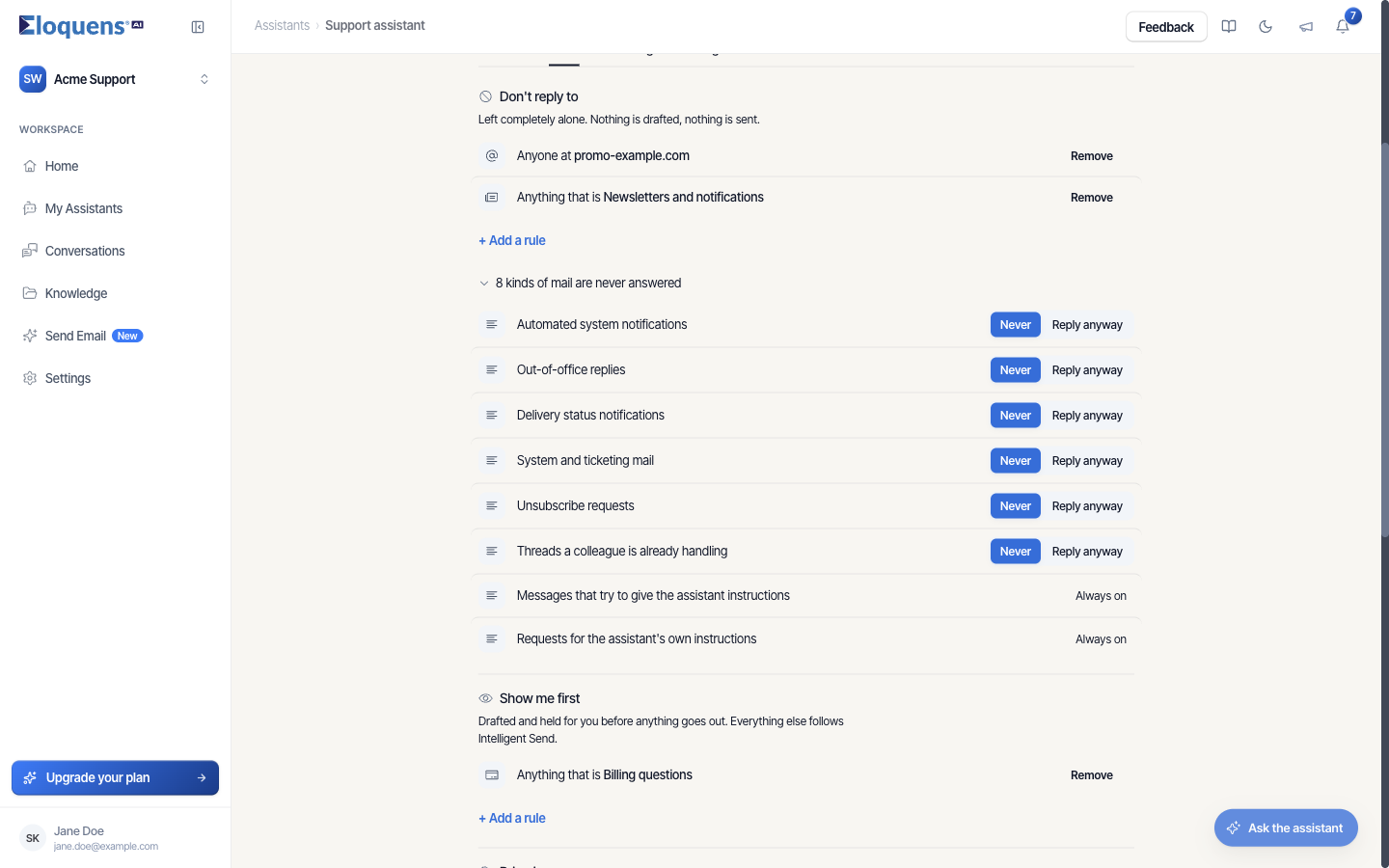
Every assistant that uses rules leaves certain mail alone without being told. On the Rules tab, under Don't reply to, the line 8 kinds of mail are never answered opens the list:
- Automated system notifications
- Out-of-office replies
- Delivery status notifications
- System and ticketing mail
- Unsubscribe requests
- Threads a colleague is already handling
- Messages that try to give the assistant instructions
- Requests for the assistant's own instructions
The first six each have a Never / Reply anyway switch, so you can override one if your mailbox genuinely needs it. The last two are Always on for everyone.
Add your own filter rules
- Open the assistant and click the Rules tab.
- In Don't reply to, click + Add a rule.
- Pick a kind of mail from the chips (Shipping and delivery, Billing questions, Returns and refunds, Newsletters and notifications, Cold outreach, Internal team mail, Scheduling requests, Legal and contracts, Everything else), or type an address, a domain, or a description in your own words in the Describe the rule box.
- Check the Reads as line. It shows the exact sentence the assistant will follow, for example Anyone at example.com or Anything that is Newsletters and notifications.
- Click Add.
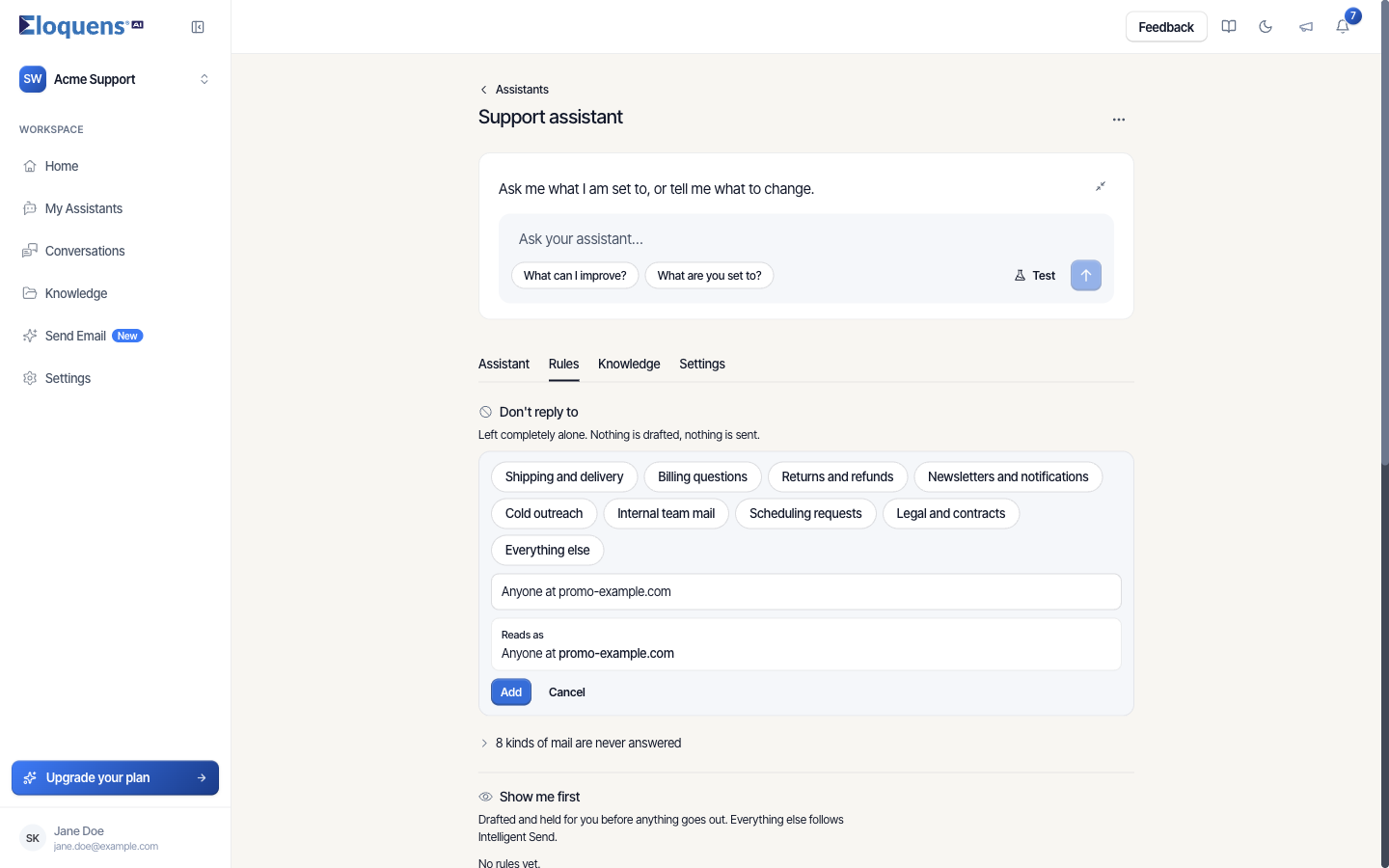
Rules take effect on the next email. To change one, click Edit on its row; to remove it, click Remove, and use Undo if you change your mind.
Examples
- Start small. A support inbox that should only answer shipping, password and sizing questions can be set up as: a Don't reply to rule for Everything else, with no other rules. Then add kinds of mail back as you gain confidence.
- Keep internal mail out: add Internal team mail to Don't reply to, and add your own domain as a rule ("Do not reply to anyone at yourcompany.com").
- Stop a persistent sender: add their address. See Rules: block senders and domains.
Working alongside colleagues on the same mailbox
A common worry is the assistant and a colleague both answering the same customer. Two settings cover it.
Threads a colleague is already handling is on by default. Once a person has replied in a thread from their own address, the assistant treats the thread as taken and stays out of it.
Give your team a copy of every reply. On the Settings tab, under On every reply, add a team or manager address to CC. The customer sees the CC, so use an address you are happy to show. Use BCC instead for a hidden copy. Your colleagues then see what the assistant said and can step in.
The recommended way to step in:
- Let the assistant answer first.
- If you need to take over, reply in the thread from your own address, not from the assistant's mailbox.
- From that point the assistant leaves the thread alone.
If someone on your team regularly answers questions the assistant could learn from, turn on Learn when a person steps in on the Knowledge tab so their replies become Q&A for you to approve.
If your assistant follows written instructions
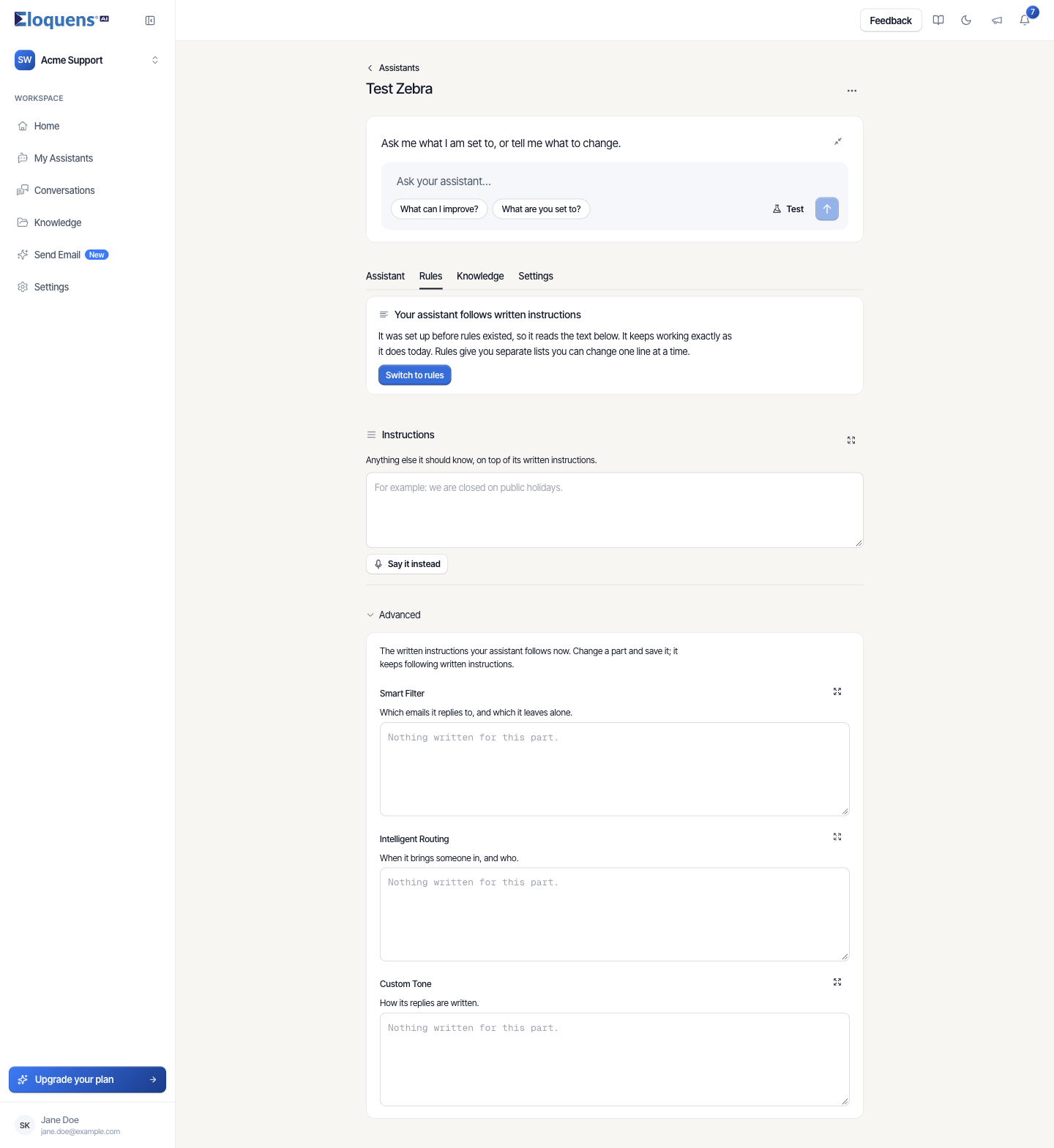
An assistant set up before rules existed keeps its filter as text. On its Rules tab, under Advanced, the Smart Filter box (Which emails it replies to, and which it leaves alone.) holds the written instructions; edit and save them there, or click Switch to rules to get the Don't reply to list. See Rules: block senders and domains.
See what the filter did
- On the Assistant tab, What came in lists the kinds of mail that arrived, with See them links.
- With Labels switched on (Settings tab, In your inbox), mail the assistant did not answer is labelled No Reply Needed in the mailbox itself.
- In Conversations, each incoming email has an AI Reasoning toggle that shows the Smart Filter's decision.
Good to know
- The Smart Filter never sends anything; it only decides whether to continue. The decision to send or hold a draft belongs to the response mode.
- You can also change the filter by asking: "Stop replying to anyone at example.com" in Ask your assistant adds the rule for you.
Related articles
- Rules: block senders and domains
- Response modes: Draft Mode, Intelligent Send and Auto-Send
- Intelligent Routing: bring in a person or forward an email
- Ask your assistant to change its own settings
Soma Konate
Comments