Intelligent Routing is the stage that decides who, besides the sender, should see an email. It copies your manager in when a conversation needs a person, follows the Bring in a person rules you set, and, in Intelligent Send, decides whether a reply goes out or waits for you. This article covers the people side; see Response modes for the send-or-hold side.
The manager
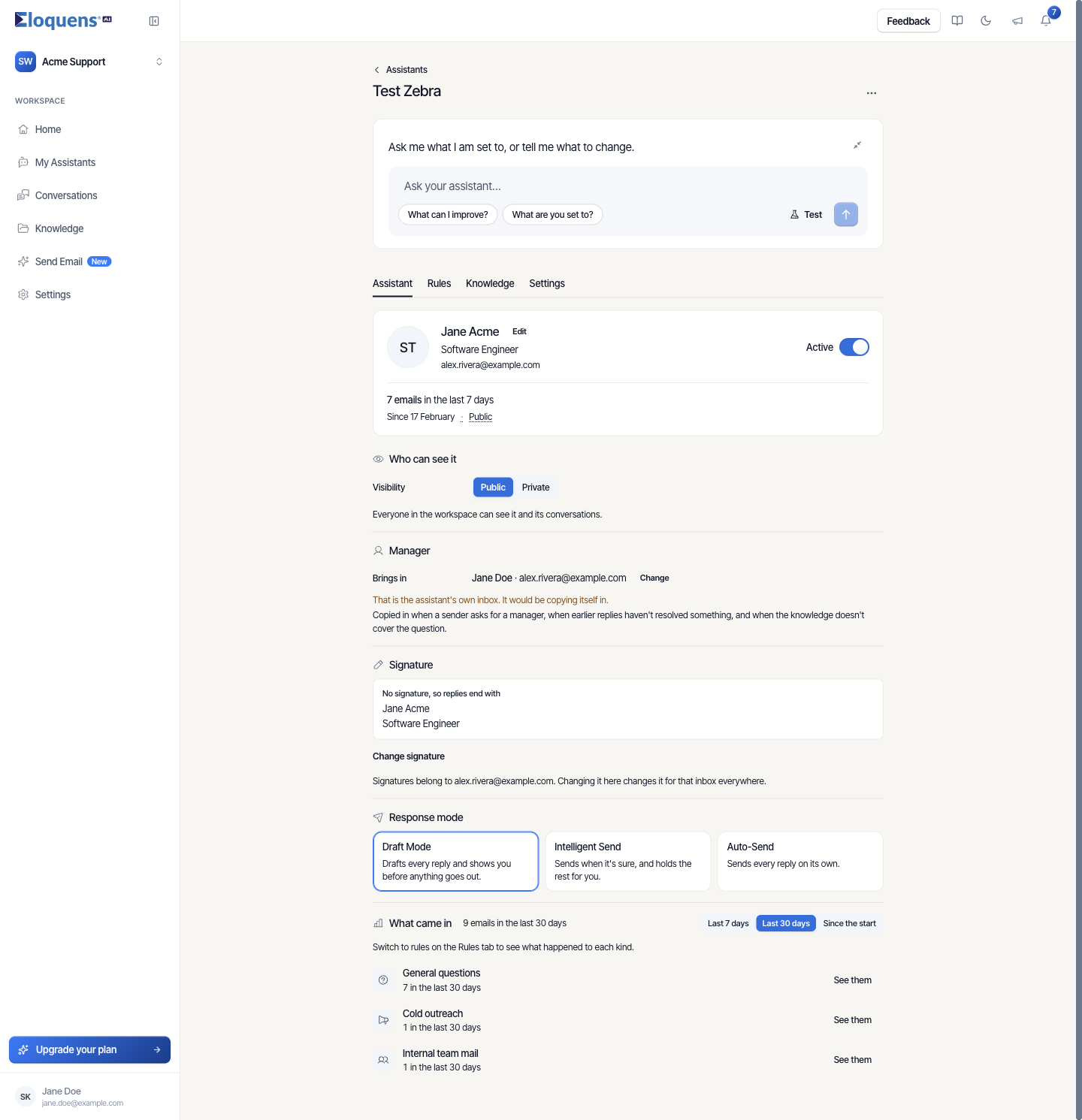
Each assistant has one manager: the person it falls back to.
- Open the assistant on the Assistant tab and find Manager.
- Brings in shows the current manager's name and address. Click Change.
- Enter the name, the email and, optionally, a calendar link (a full https:// link, used when the assistant offers a meeting).
- Save.
The note under the manager says when they are copied in: when a sender asks for a manager, when earlier replies haven't resolved something, and when the knowledge doesn't cover the question. For an assistant that uses rules, each of those three has its own Copy in / Don't switch under Bring in a person on the Rules tab, so you can turn one off. In Draft Mode the draft is shown to you anyway; copying in only adds the manager to it.
If the manager address is the assistant's own inbox, the page warns you: That is the assistant's own inbox. It would be copying itself in.
The manager is also the default recipient when you turn on draft notifications or weekly reports.
Copy in versus Forward
Rules under Bring in a person do one of two things:
- Copy in replies to the sender as usual and adds the person to CC. The sender sees them.
- Forward sends the person a separate message with a note. For each forward rule you choose whether the sender also gets a reply (Yes) or whether the assistant only forwards and stays silent to the sender (No, only forward).
Forwards and copies are routing, not a CRM feed. For a standing copy of every reply to a CRM, use CRM on the Settings tab instead.
Add a routing rule
For an assistant that uses rules:
- Open the Rules tab and find Bring in a person.
- Click + Add a rule.
- Choose Copy in or Forward.
- For a forward, answer And reply to the sender? with Yes or No, only forward.
- Under Who (or To for a forward), type one or more email addresses and press Enter after each.
- Say when the rule applies in the Describe the rule box ("on anything about refunds over 500 euros", "when the sender mentions a purchase order").
- Check Reads as, for example Forward to support-lead@example.com on anything about refunds over 500 euros, and reply to the sender as usual, then click Add.
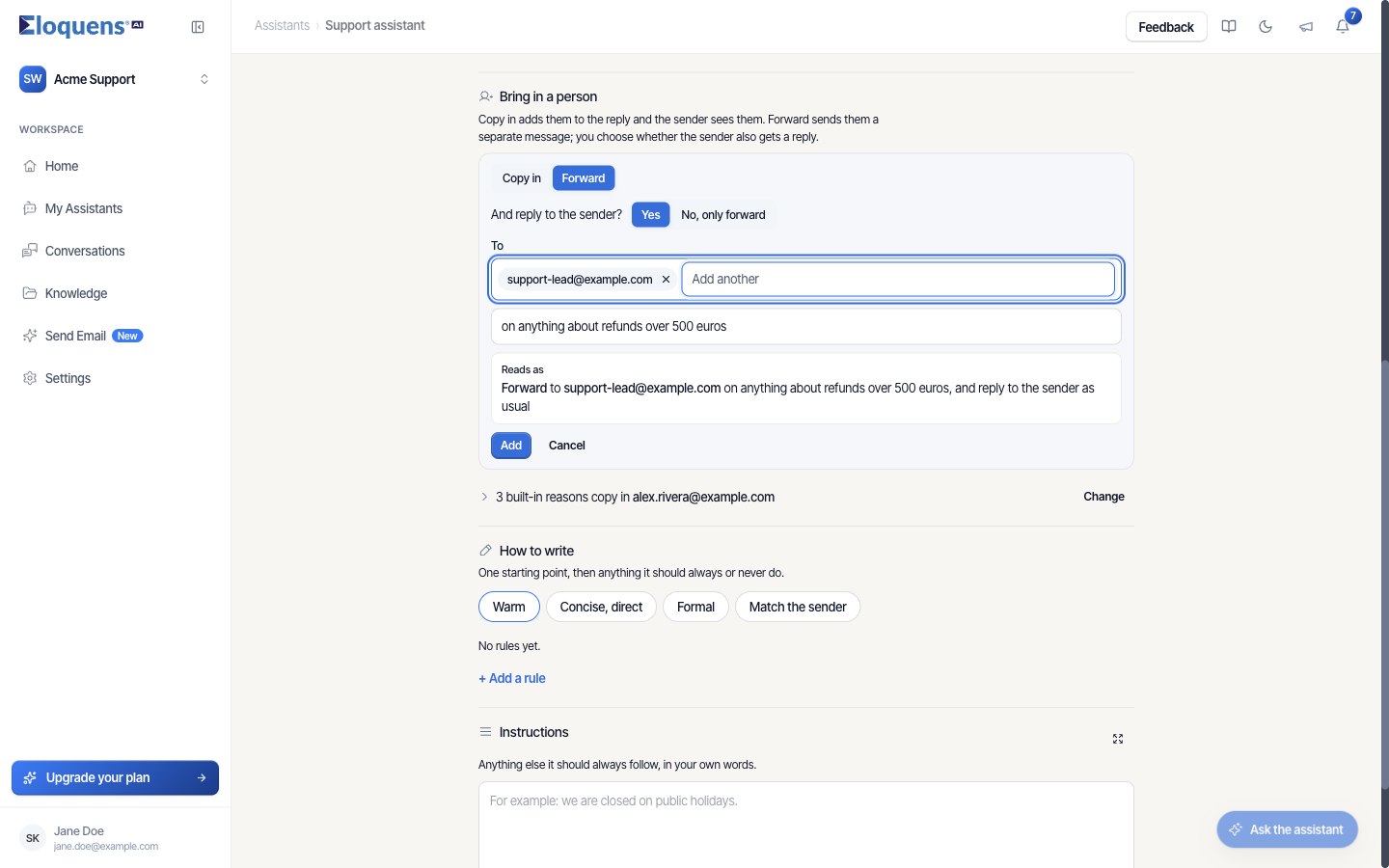
Under the list, 3 built-in reasons copy in <manager address> expands to the three manager cases, each with its own Copy in / Don't switch; Change sets a different person.
Addresses outside your workspace's own domains are allowed. When you add one through Ask your assistant, it asks you to Approve on screen first.
If your assistant follows written instructions
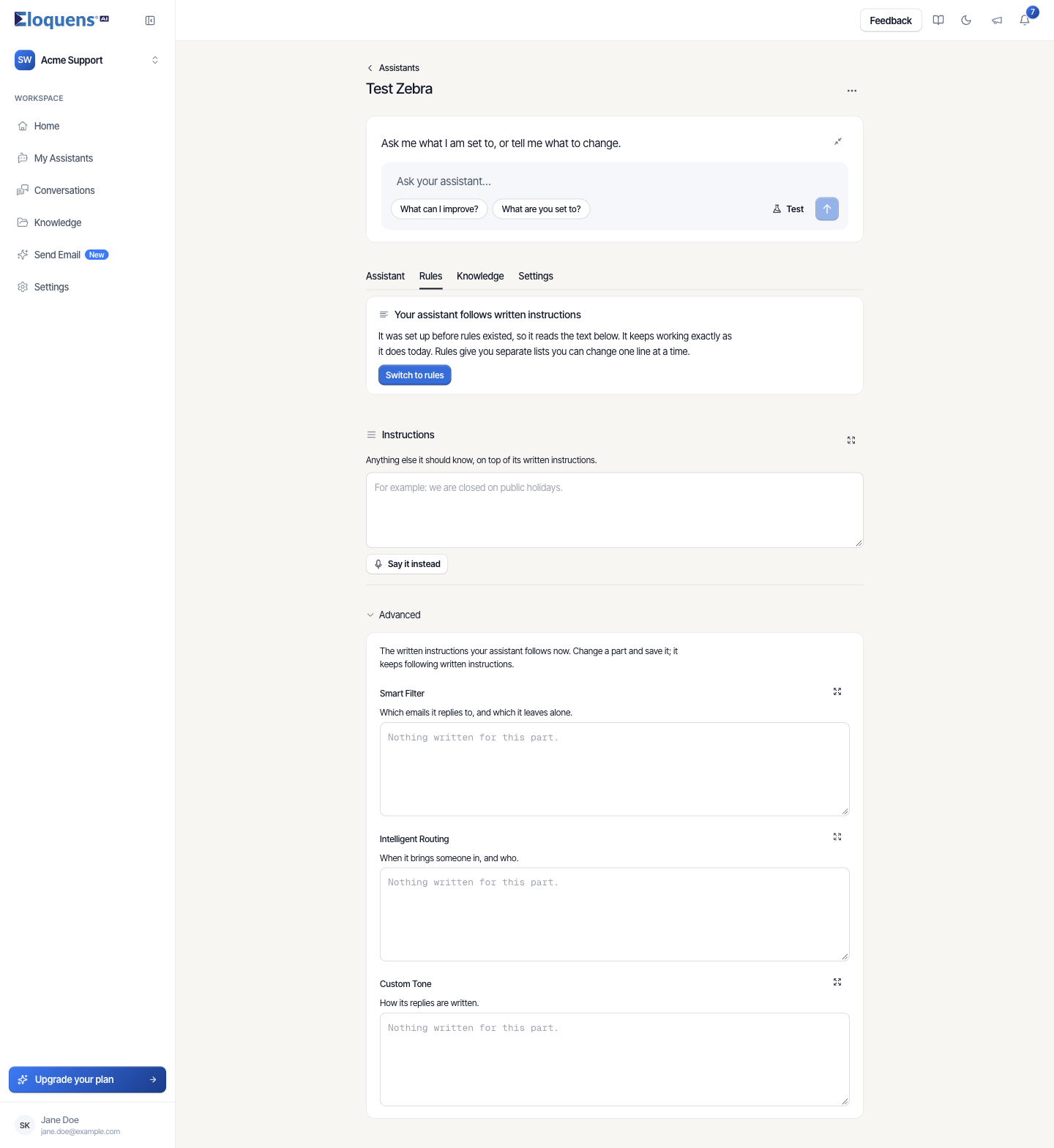
An assistant set up before rules existed keeps its routing as text under Advanced on the Rules tab, in the Intelligent Routing box (When it brings someone in, and who.). Edit and save it there, or click Switch to rules to get the Bring in a person list.
What the recipient gets
- A Copy in shows up as a normal CC on the assistant's reply.
- A Forward arrives as its own email from the assistant's mailbox, with a short note about why it was forwarded. With labels switched on, forwarded mail is labelled Routing in the mailbox.
- In Draft Mode, forwards are drafted for you like replies, so nothing leaves the mailbox until you approve it.
Good to know
- Bring in a person works in every response mode. Only Show me first depends on Intelligent Send.
- The Response Draft and Routing Draft lines in the test dialog show you both halves of a decision for a sample email. See Test an assistant before you switch it on.
Related articles
- Smart Filter: decide what your assistant replies to
- Response modes: Draft Mode, Intelligent Send and Auto-Send
- Rules: block senders and domains
- Notifications and weekly reports
Soma Konate
Comments