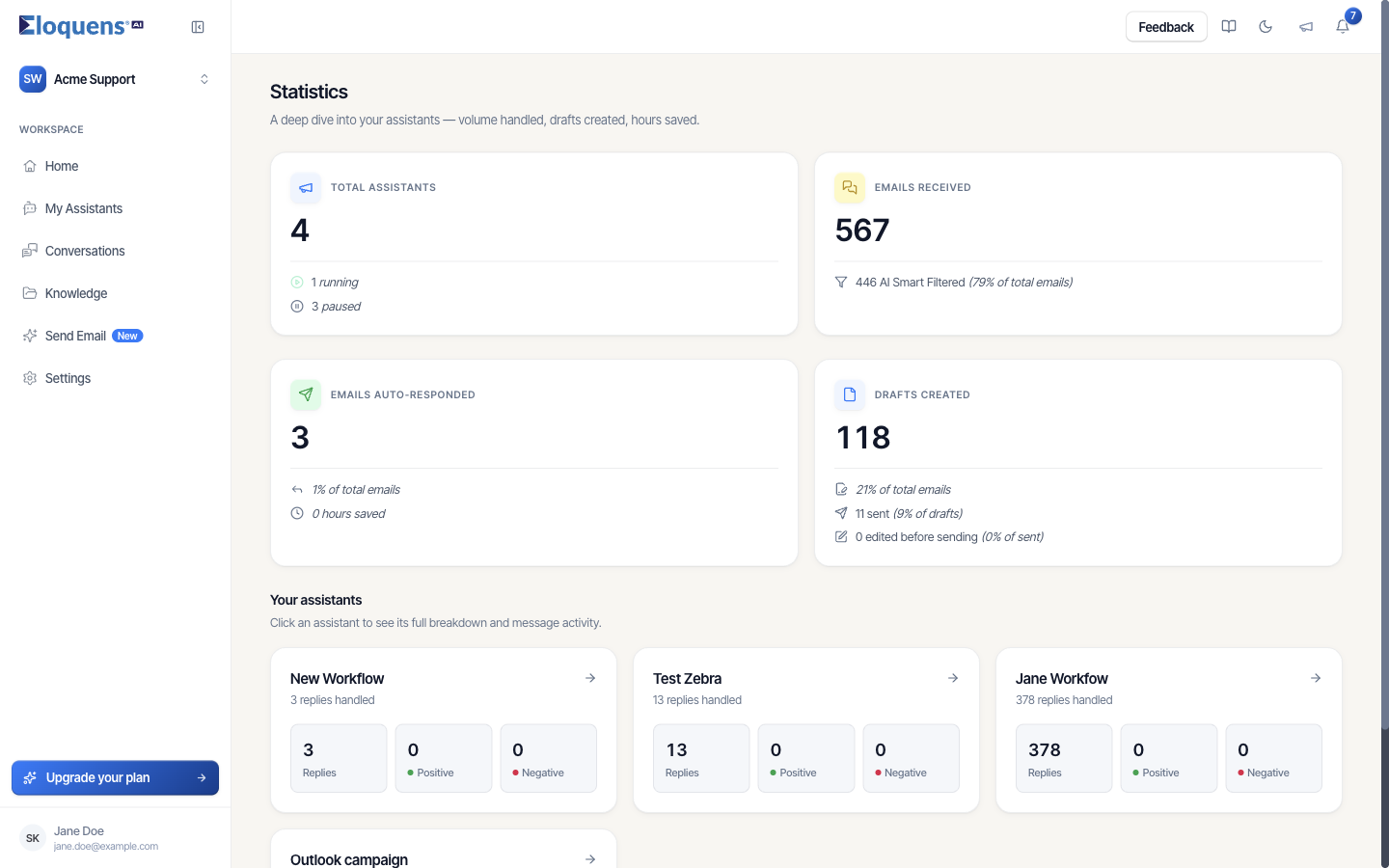
Statistics is a figures-only view of your workspace: how much mail your assistants received, how much they answered on their own, how many drafts they wrote and how many you sent. It is not in the left rail; the daily figures live on Home. The page is there for anyone who wants the longer-run totals and the per-assistant breakdown.
Opening Statistics
- In your browser, go to
https://app.eloquens.ai/metrics. - The page opens for your current workspace, titled Statistics (A deep dive into your assistants — volume handled, drafts created, hours saved.). Switch workspace from the workspace menu at the top left if you need another one.
- To open an assistant's own statistics page, go to
https://app.eloquens.ai/metrics/<assistant id>, where the id is the long identifier in that assistant's address (/agents/<assistant id>).
The four cards
| Card | What it shows |
|---|---|
| Total assistants | How many assistants exist in the workspace, split into running and paused. |
| Emails Received | Every incoming email your assistants read, with how many were set aside by the Smart Filter (N AI Smart Filtered) and that share as a percentage of total emails. |
| Emails Auto-Responded | Replies the assistants sent without a person, as a count and as a percentage of all emails received. The hours saved line below assumes five minutes of your time per reply sent automatically. |
| Drafts Created | Replies written for a person to review, as a count and a percentage of all emails received, followed by how many of those drafts were sent and how many were edited before sending. |
These totals cover the whole life of the workspace, not a selectable window. For a time-boxed view, use the time window on Home.
Your assistants
Under Your assistants (Click an assistant to see its full breakdown and message activity.), each card is one assistant, with its name, how many replies it handled, and three small figures:
- Replies: replies the assistant produced, sent or drafted.
- Positive: replies where the sender's follow-up read as positive.
- Negative: replies where the follow-up read as negative.
Clicking a card opens the assistant's page.
An assistant's statistics page
The page opens with Back to Statistics, the assistant's name and Performance breakdown for this assistant. Under that:
- Eloquens noticed: a one-paragraph summary written from the figures, for example Test Zebra handled 13 messages this period — 7 sent automatically (54%). Sentiment was neutral (no feedback yet). Top category: inquiry (7 messages).
- Three large tiles: Replies, Positive Feedback, Negative Feedback.
- Other metrics: smaller tiles, one per category, for example Inquiry, Support, Auto-Response, Hand Off, Internal Action, Calendar Appointment, Opportunity, Scheduling, Spam, Billing, Churn, Follow Up, Legal, Unsubscribe.
- Recent activity (Messages this assistant handled). Each message shows the sender, the subject and its categories. Use All metrics to filter by one category and Search by sender, email, or subject… to find a message. Messages are grouped under Today, Yesterday, Earlier this week and Older.
If the assistant has been deleted or is not shared with you, the page says Assistant not found.
Good to know
- The figures count what the assistant did; they are not affected by the assistant selection remembered on Home.
- The hours saved line is an estimate based on a fixed five minutes per automatically sent reply.
- The outcomes of individual emails — answered, drafted, not answered and why — are on Home and in Conversations, not here.
Related articles
- Your Home page
- What the assistants saw and did
- Conversations: browse, search and read a thread
Soma Konate
Comments