Eloquens can mark every email an assistant handles directly in your mailbox, so you can tell at a glance what happened without opening the app. The marking is per assistant and is optional. In Gmail it is a label, in Outlook a category, and in Kerio Connect a folder with a coloured category on the message.
The three labels
| Label in your mailbox | Shown in settings as | It means |
|---|---|---|
| Replies (EQ) | Replies | A reply was drafted or sent for you. |
| No Reply Needed (EQ) | No Reply Needed | Newsletters, auto-replies, notifications and other mail that needed no answer. |
| Routing (EQ) | Routing | The email was routed (or selected for routing) to a colleague under your routing rules. |
Some assistants carry the names Responded (EQ), Not Responded (EQ) and Routed (EQ) instead. They mean the same three things, and existing labels and folders are left as they are.
A label is only applied when the outcome really happened. If an assistant decided to reply but no draft or sent email exists, the email is left untouched in your inbox rather than being filed as answered.
Turning labels on or off
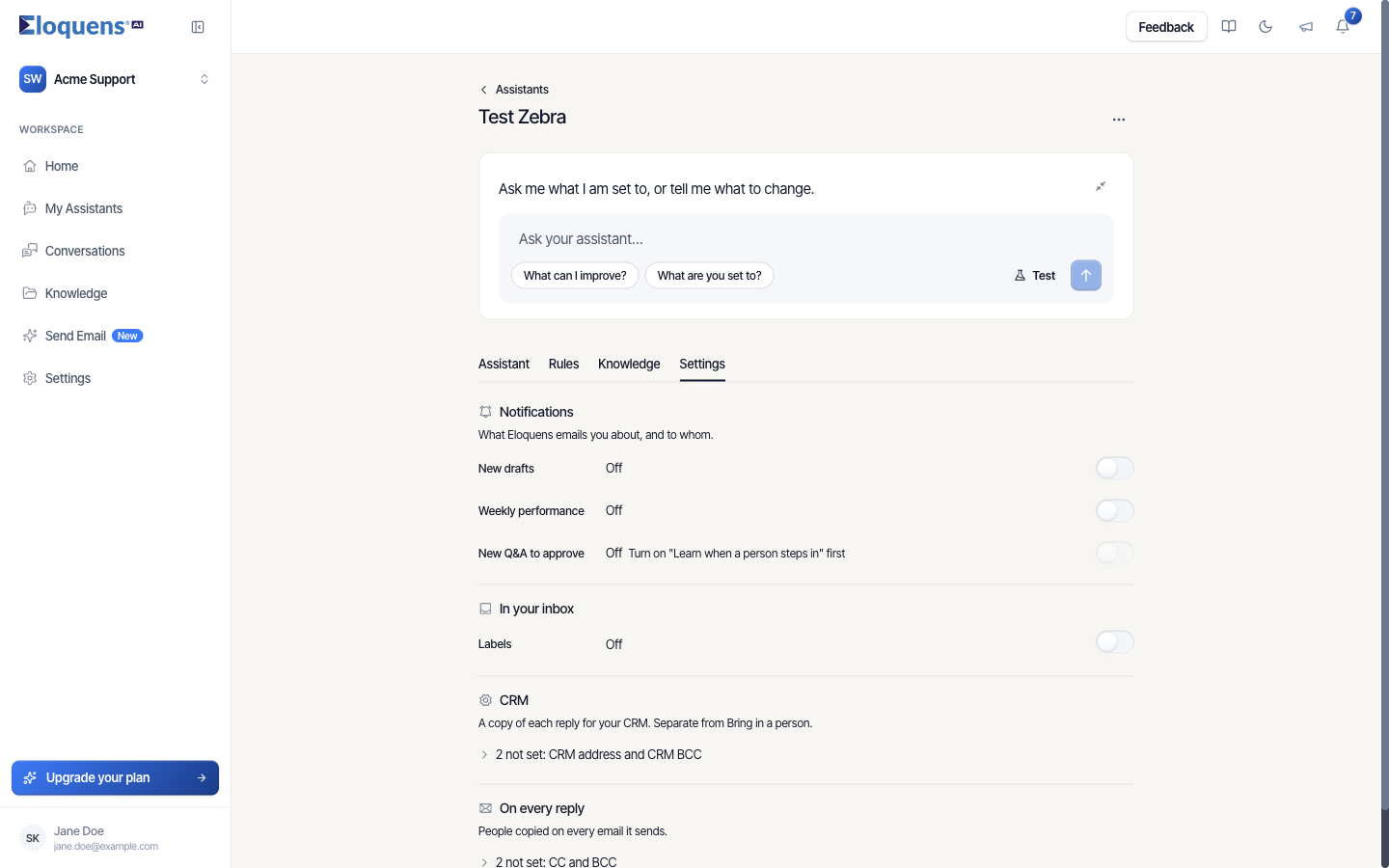
- Open My Assistants and click the assistant.
- Open the Settings tab and find the In your inbox section.
- Switch Labels on. All three labels are selected the first time you turn it on.
- Under Mark emails that were, untick any label you do not want.
- Under What each label means, read the one-line description for each.
The switch's description line shows Off or the labels currently chosen, for example Replies, Routing.
What you see in each mailbox
Gmail
Eloquens creates a label with the name above the first time it is needed, and adds it to the handled message. The message stays where it was, in your inbox or in whatever other label it already had, so you can search or filter by the label at any time.
Outlook
Eloquens creates a category with the same name and assigns it to the message. Categories appear as a coloured chip on the message in Outlook on the web, in the desktop app and on your phone. The message is not moved.
Kerio Connect
Eloquens creates a folder with the label name and moves the handled message into it, so your inbox only keeps the emails that are still open. On top of the folder, each message also gets a category chip that says what the assistant did:
| Category | Colour | Meaning |
|---|---|---|
| Reply Drafted by AI | red | A draft is waiting for you. |
| Reply Sent by AI | green | The assistant answered on its own. |
| No Reply Needed | grey | Nothing to do. |
| Selected for Routing by AI | yellow | Routing has been prepared as a draft for you. |
| Routed by AI | green | The email was forwarded under your routing rules. |
Drafts and sent replies
The labels describe the incoming email. The reply itself behaves like any other message in the mailbox:
- When an assistant is set to draft, the draft is saved in the mailbox's Drafts folder as well as shown in Eloquens.
- When you send a draft from Eloquens, that draft is sent through the mailbox, so it disappears from Drafts and appears in Sent.
- When an assistant answers on its own, the reply appears in Sent.
Good to know
- Labels are created the first time an assistant needs them, so you will not see them until the first email is handled.
- Deleting or renaming the label in your mailbox does not change the assistant's setting; Eloquens recreates it the next time it is needed.
- The labels and categories are visible to anyone who shares the mailbox.
Related articles
- Your Home page
- Conversations: browse, search and read a thread
- Review and send a draft
Soma Konate
Comments