The surest way to know whether your knowledge is working is to ask it something a customer would ask. Ask a question on the Knowledge page runs the assistant exactly as it runs on incoming mail: it searches the knowledge attached to the assistant, decides how to answer, and writes the reply. Nothing is sent, and no conversation is created.
Ask a question
- In the left rail, click Knowledge.
- Make sure the heading names the assistant you want to test. Click Switch assistant if needed.
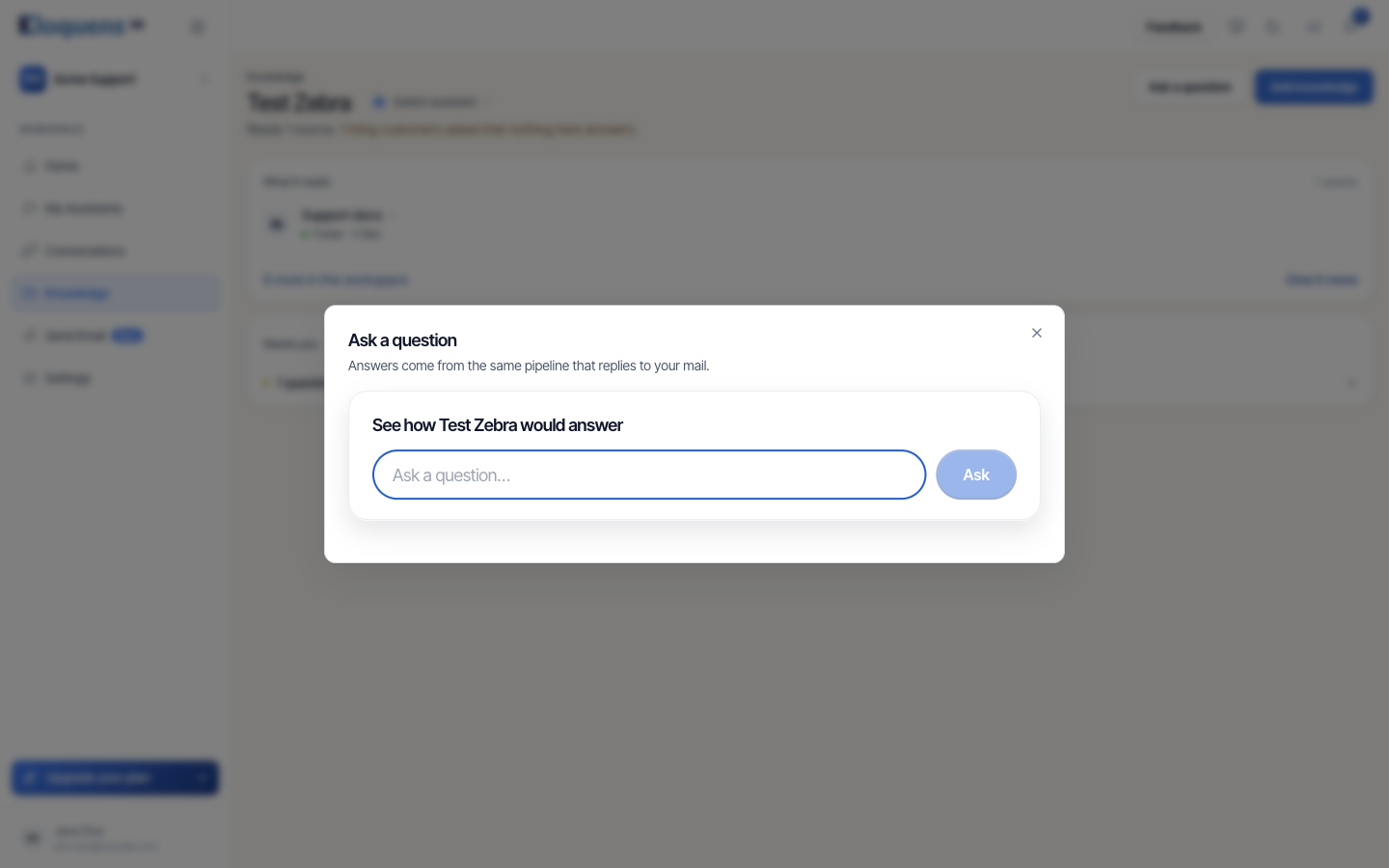
- Click Ask a question. The dialog says Answers come from the same pipeline that replies to your mail. and is headed See how {assistant} would answer.
- Type the question the way a customer would write it in Ask a question…, and click Ask.
- Watch the steps as it works: Getting your assistant ready, Searching your knowledge, Deciding how to answer, Writing the reply. The search step lists what it is checking, such as Checking your files and pages, Checking past emails, Checking your live connections and Checking your tables, with how many sources it found.
- Read the answer when it arrives. A full run takes between one and two minutes.
Read the result
Under the reply:
- Grounded in N sources means the reply was written from your knowledge, and the list under it names the sources (Built from Renewal FAQ.docx, and so on). Grounded means the reply came from your content, not that it is correct; read it.
- Not grounded means nothing in your knowledge was close enough to answer from, so the reply was not written from your content.
- If the assistant found nothing at all, the dialog says Your assistant did not produce a reply to that — nothing in the knowledge base covers the question yet. That is a gap: add the answer and ask again.
- If one kind of source could not be reached, the trace names it, for example a table or a live connection marked unreachable — carrying on. The answer was written without it.
Use it to improve your knowledge
- Ask the questions you get most. If the answer is thin, add the document that should have answered it and ask again.
- Check wording. The reply uses the assistant's tone and rules, so this is also a quick way to see how a new instruction reads.
- Confirm a fix. After answering a gap or correcting a kept answer, ask the same question to confirm the assistant now uses it.
- Test a live connection. Ask something only HubSpot or Salesforce would know and check that Checking your live connections reports a source.
Good to know
- The dialog is about the assistant named in the heading. To test another assistant, switch first.
- If the assistant reads nothing yet, the dialog says Add something for it to read and you can ask it anything here. and offers Add a source.
- A question asked here is not kept as a gap and does not change any counts.
- The answer is a preview. The assistant may word a real reply differently, because each email brings its own context.
Related articles
- Knowledge: what your assistant answers from
- Questions and answers
- Add documents to your knowledge
Soma Konate
Comments