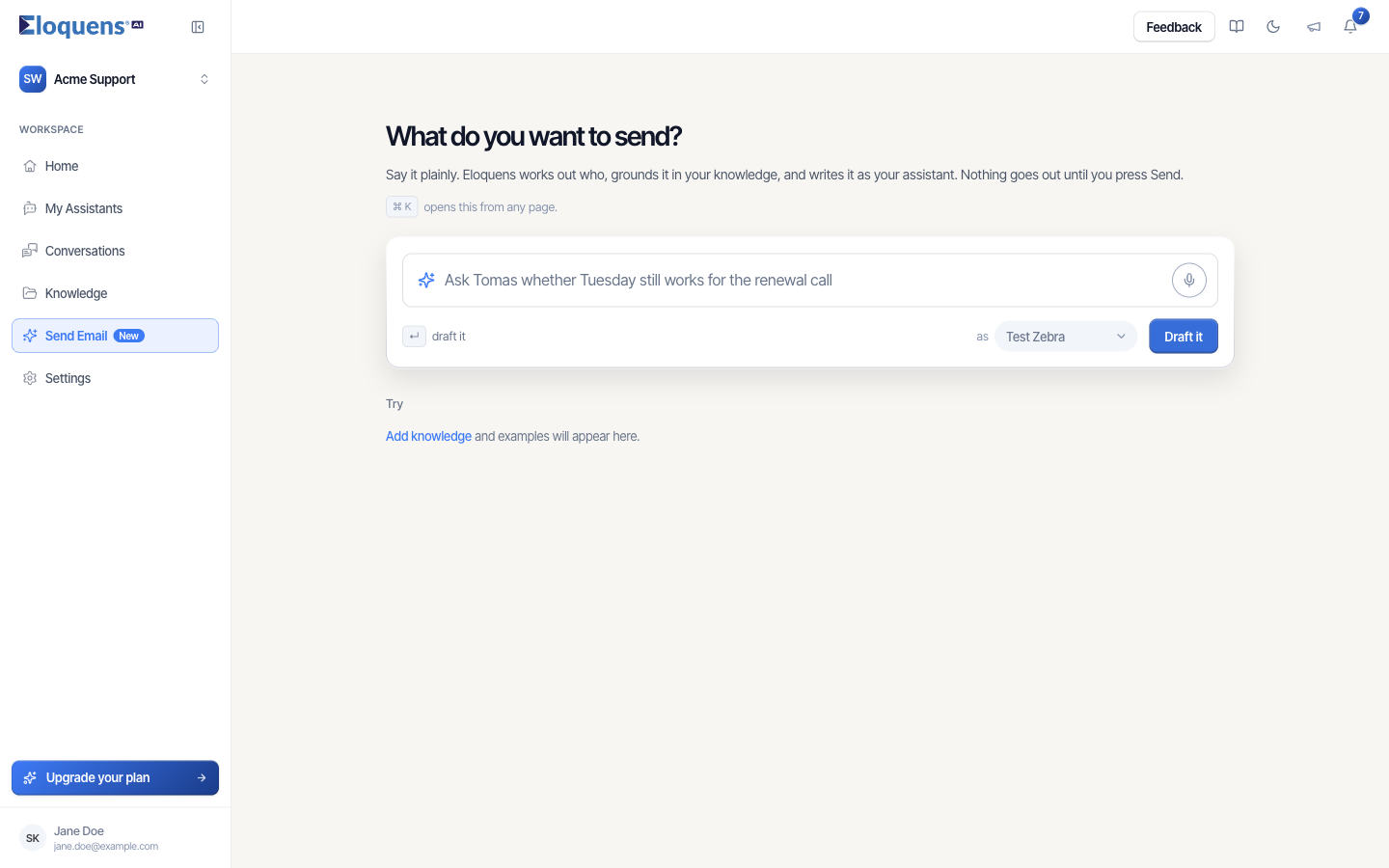
Send Email is for starting an email, not replying to one. You say what you want to send, for example "Send Priya a summary of the new onboarding steps", and Eloquens works out who Priya is, pulls what it knows from your Knowledge, and writes the email in your assistant's voice. Nothing goes out until you review the draft and press Send.
Open it
- Click Send Email in the left rail, or
- press ⌘ K (Mac) / Ctrl K (Windows) from any page to open the quick composer, type your ask, and continue on the Send Email page.
Write an ask
- In the box under What do you want to send?, describe the email: who it is for and what it is about. Press Enter or click Draft it.
- Prefer to talk? Click the microphone and speak; click it again to stop.
- Not sure what to say? Pick one of the examples under Try. They are built from your own Knowledge, so the list reads Add knowledge and examples will appear here until the assistant has something to read. You can also re-run something from Earlier asks further down.
If the workspace has more than one assistant, the as selector next to Draft it chooses which assistant (and therefore which mailbox) the email goes out from. The assistant selected on Home is picked by default.
Answer a clarification
If the ask is missing something, a short card appears before the draft:
- Who is this for: Eloquens suggests up to five people from your recent mail and workspace members. Pick one, or leave it and add the address on the draft.
- What is the email about: add a line in your own words.
Click Continue.
Review the draft
While Eloquens works, a progress line shows what it is doing: reading your Knowledge, working out who to write to, writing. First drafts can take up to a minute.
The draft card shows To, From (the assistant and its mailbox) and Subject above the body. On the right, a rail explains what the draft resolved to:
- Writing to: the recipient and how they were identified, plus anyone Also considered.
- Used in this draft: the Knowledge items the draft drew on, or a note that it did not use your Knowledge.
- Sending as: the assistant and mailbox.
You can:
- Edit: change the subject or body inline, then click Done.
- Change next to the recipient, or type an address if none was found.
- Start over: go back to the ask and rewrite it.
- Discard: drop the draft.
- Send: send it. Send is blocked, with the reason shown, if there is no address, no subject, or the body is empty.
After you send
A receipt appears with an Undo countdown of about ten seconds; click it to pull the email back before it leaves. After that, the email is sent from the assistant's mailbox and shows up in Conversations once the mailbox has picked up the sent copy. Open Conversations takes you there.
Good to know
- Send Email works only through an assistant with a connected, active mailbox. If the mailbox needs reconnecting, Draft it and Send are blocked with a message pointing you to My Assistants.
- Recipients are resolved from mail your assistants can already see and from workspace members; Eloquens has no separate address book. Give a full address when the person is new.
- Earlier asks are kept in your browser for your convenience; they are not shared with other members.
- Very long bodies cannot be sent from here; shorten the text and try again.
Related articles
- Conversations
- Knowledge
- Managing a connected mailbox
Soma Konate
Comments